EducationSoftwareStrategy.com
StrategyCommunity

Knowledge Base

Product

Community

Knowledge Base

TopicsBrowse ArticlesDeveloper Zone

Product

Download SoftwareProduct DocumentationSecurity Hub

Education

Tutorial VideosSolution GalleryEducation courses

Community

GuidelinesGrandmastersEvents
x_social-icon_white.svglinkedin_social-icon_white.svg
Strategy logoCommunity

© Strategy Inc. All Rights Reserved.

LegalTerms of UsePrivacy Policy
  1. Home
  2. Topics

KB17861: How to set privileges for users groups in MicroStrategy Developer


Stefan Zepeda

Salesforce Solutions Architect • Strategy


Steps to set the privileges for user and groups in MicroStrategy Developer.

To set privileges for individual users in Strategy Developer, execute the following steps:
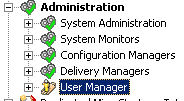
  • Open Strategy Developer and select the project source containing the user's whose privileges will be edited.
  • Expand the Administration icon and select the User Manager, as shown below:
ka02R000000kbigQAA_0EM440000002PI6.png
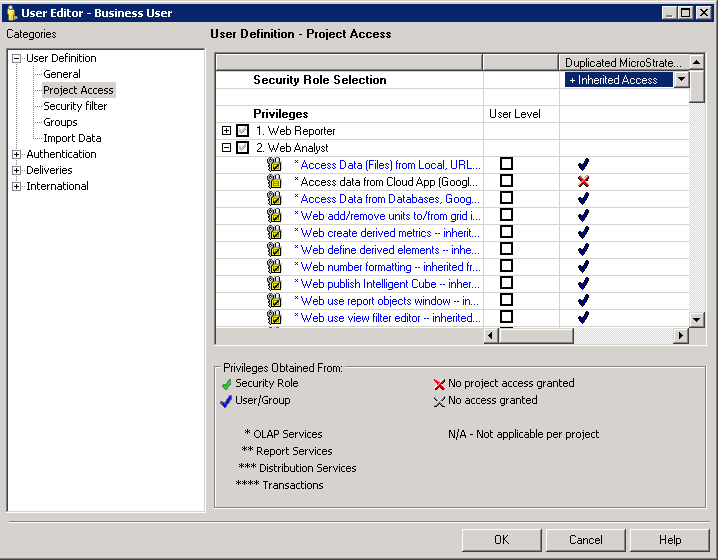
  • Navigate to the user to be edited then right-click on the user and choose 'Edit.'
  • Select Project Access within the User Editor as shown below:
ka02R000000kbigQAA_0EM440000002PIB.png
  • Grant the user the appropriate privileges by checking the box under the User Level column.
  • Once the proper privileges have been granted, click 'OK' to apply the changes.

To set privileges for groups in Strategy Developer, execute the following steps:
  • Open Strategy Developer, navigate to the User Manager under the Administration icon and select the group whose privileges will be edited.
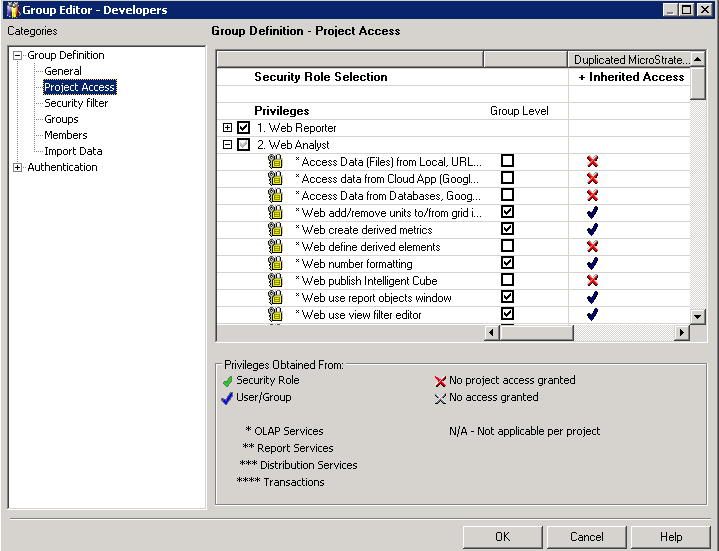
  • Right-click on the Group and choose 'Edit.'
  • Select Project Access within the Group Editor as shown below:
ka02R000000kbigQAA_0EM440000002PIG.png
  • Grant the group the appropriate privileges by checking the box under the Group Level column.
  • Once the proper privileges have been granted, click 'OK' to apply the changes.

NOTE: The privileges assigned to a group of users are inherited by all the users belonging to that group.


Comment

0 comments

Details

Knowledge Article

Published:

June 9, 2017

Last Updated:

June 9, 2017