In Strategy Web and Web Universal 9.x, and later users can choose to use different login authentication methods. The user can choose to use either Standard, LDAP, Database, Guest, Windows, Trusted and Integrated authentication methods to log into a project.
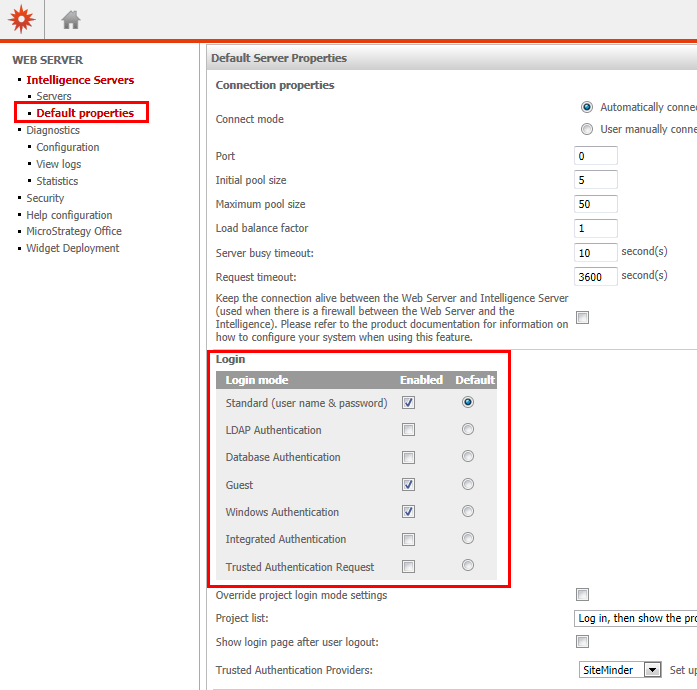
In Strategy Web and Web Universal 9.x, users are able to modify the login authentication method through the Web Preference > Project Defaults > Security or through the Strategy Intelligence Server default properties on the Web Administrator's page.
Changing settings in the Web Administrator page would apply to all projects, whereas changing settings in the Project Default preferences gives the user the option to apply this to all projects, or only to the project the user is currently logged into.
To modify the login authentication method via Web Administrator Page, users would need to perform the following steps:
To modify the login authentication method via Web Preferences, users need to perform the following steps:
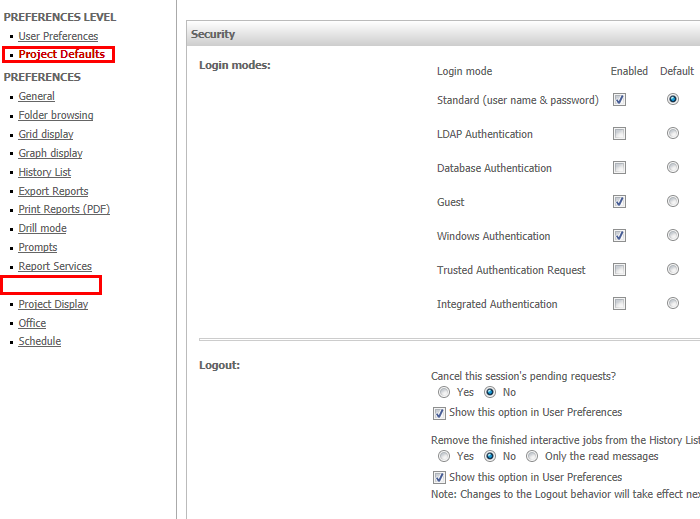
NOTE: The user can choose to add a different login authentication method by clicking on the appropriate checkbox. Multiple methods can be enabled, but only one default can be assigned.
Click "Save" for this change to take effect.
Similarly, users can choose to change the appropriate default authentication method by clicking on the appropriate radio button.
Another thing to note is the login mode chosen. When the login mode set on the Web Administrator page is Show projects, then log in, the authentication mode will come from the Web Preferences per project. If the login mode is set to Login first, then show projects, the authentication mode will come from the Web Administrator settings.

