SUMMARY:
Scheduling is used in Strategy to refresh report caches and to allow the Strategy Intelligence Server to execute reports at user-defined times. When configured to do so, the Strategy Intelligence Server scheduler logs in as the user whosereport is to be executed, and runs the report(s). For most part, the execution of reports takes place in exactly the same manner, regardless of whether the report was scheduled or not. The only difference being for interactive tasks such as prompting and exporting.
For details on how users can create time based schedules to be triggered at specific times, refer to the following technical note:
Once an appropriate schedule has been created, the necessary reports must be associated with this schedule in order to run at the correct time. To do so, right-click on a report to associate with this schedule and select 'Properties'. Click on the scheduling tab, as shown below:
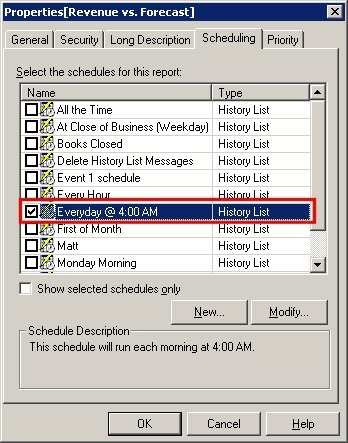
Select the newly created schedule by checking the box to the left of the name. Select 'OK'. This will save the schedule-report combination.
Ensure that this schedule request has been saved correctly by opening the Schedule Monitor in the Administration section of the 3-tier Project Source. The Schedule Monitor lists all the schedule requests for a particular project source.
The schedule will appear along with the correct 'Next Update', which is the next time that report will be run.
To check whether the schedule has launched the report as intended, the administrator of the project can query the Cache Monitor for the report. The report will appear in the list of available cached reports. This is ideal for allowing large resource-intensive reports to run at off-peak times.
