EducationSoftwareStrategy.com
StrategyCommunity

Knowledge Base

Product

Community

Knowledge Base

TopicsBrowse ArticlesDeveloper Zone

Product

Download SoftwareProduct DocumentationSecurity Hub

Education

Tutorial VideosSolution GalleryEducation courses

Community

GuidelinesGrandmastersEvents
x_social-icon_white.svglinkedin_social-icon_white.svg
Strategy logoCommunity

© Strategy Inc. All Rights Reserved.

LegalTerms of UsePrivacy Policy
  1. Home
  2. Topics

KB17917: How to create a metric that will return a static string in MicroStrategy Developer


Stefan Zepeda

Salesforce Solutions Architect • Strategy


How to create a metric that will return a static string in MicroStrategy Developer

In certain situations, a user might need to create a metric that returns a static string in a Strategy Developer report. Follow the next steps to create this type of metric.
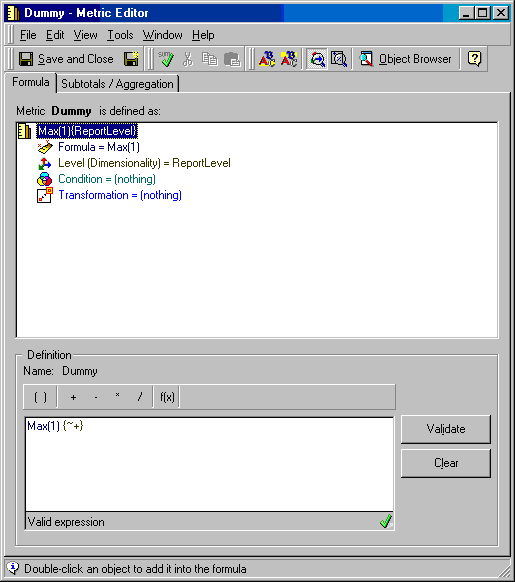
 

  • In Strategy Developer, create a dummy metric with the following definition
    Max(1)
  • The metric definition is shown in the image below:
     
ka02R000000kYE9QAM_0EM440000002Ewh.jpeg
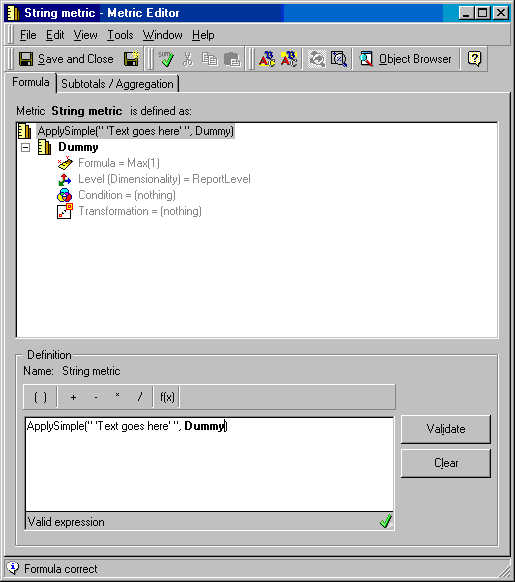
  • Create a second metric with an apply simple statement and using the dummy metric on its definition, as shown below.
ka02R000000kYE9QAM_0EM440000002Ewk.jpeg
  •  
    ApplySimple(" 'Text goes here' ", Dummy)

Below is the Structured Query Language (SQL) for a report that contains the attribute 'Year' and the metric created above in the Strategy Tutorial project:
 
select a11.YEAR_ID YEAR_ID,
'Text goes here' WJXBFS1
from LU_YEAR a11
group by a11.YEAR_ID
The results of the report are shown below. Note that the desired string is repeated across all rows.
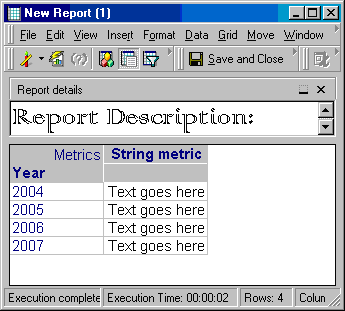
 

ka02R000000kYE9QAM_0EM440000002Ewj.jpeg


Comment

0 comments

Details

Knowledge Article

Published:

June 9, 2017

Last Updated:

June 9, 2017