EducationSoftwareStrategy.com
StrategyCommunity

Knowledge Base

Product

Community

Knowledge Base

TopicsBrowse ArticlesDeveloper Zone

Product

Download SoftwareProduct DocumentationSecurity Hub

Education

Tutorial VideosSolution GalleryEducation courses

Community

GuidelinesGrandmastersEvents
x_social-icon_white.svglinkedin_social-icon_white.svg
Strategy logoCommunity

© Strategy Inc. All Rights Reserved.

LegalTerms of UsePrivacy Policy
  1. Home
  2. Topics

KB17934: Different methods of canceling an executing report job on the MicroStrategy Intelligence Server


Community Admin

• Strategy


The following scenarios detail how an executing report job may be cancelled (deleted) in MicroStrategy Intelligence Server.

The following scenarios detail how an executing report job may be cancelled (deleted) in Strategy Intelligence Server 10.x.
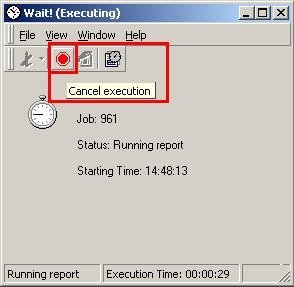
 

  • After submitting a report from Strategy Desktop 8.x, click the stop sign in the toolbar to cancel execution, as shown below:
ka04W000000Ofe1QAC_0EM440000002BNH.jpeg
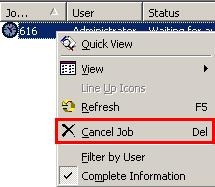
  • Right-click the job in the Administration/jJob Monitor and select 'Cancel Job' in the menu that appears, as shown below:
ka04W000000Ofe1QAC_0EM440000002BN6.jpeg
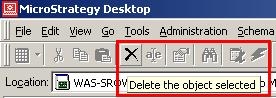
  • Click the 'Delete the object selected' button from the menu bar, as shown below:
ka04W000000Ofe1QAC_0EM440000002BNI.jpeg
  • Hit the Delete key on the keyboard.
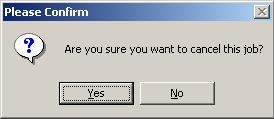
    In either of the scenarios in number 2, 3, or 4, the user will be prompted to confirm cancellation, as shown below::
     
ka04W000000Ofe1QAC_0EM440000002BNU.jpeg
  •  
    Please Confirm
    Are you sure you want to cancel this job?
  • Project Level Methods:
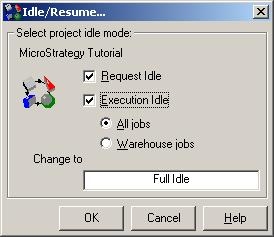
  • Placing the project in Full Idle cancels all jobs, as shown below:
ka04W000000Ofe1QAC_0EM440000002BNQ.jpeg
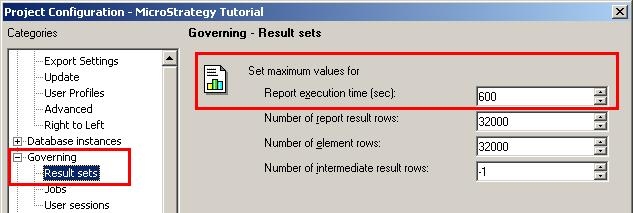
  • If a running job exceeds the project level setting of 'Report Execution Time' then it is cancelled. This setting is available through the Project Configuration > Governing > Results Sets > Set maximum values for 'Report execution time (sec)', as shown below:
ka04W000000Ofe1QAC_0EM440000002BNS.jpeg
  •  
    Database Instance and VLDB Methods:
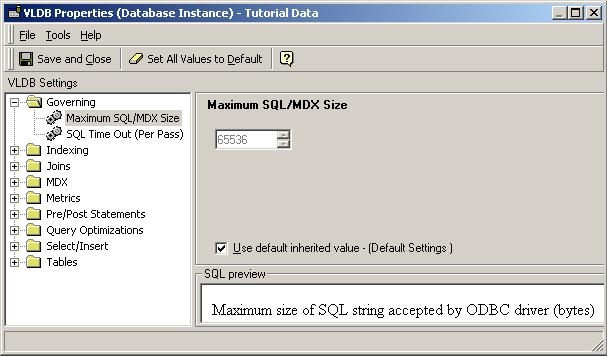
  • If the SQL/MDX Size exceeds the VLDB setting of 'Maximum SQL/MDX Size' - at the database instance or report level - the executing job is cancelled.
    To access this setting, edit the VLDB settings for either the database instance or a report, expand 'Governing' and 'Maximum SQL/MDX Size', as shown below:
     
ka04W000000Ofe1QAC_0EM440000002BNK.jpeg
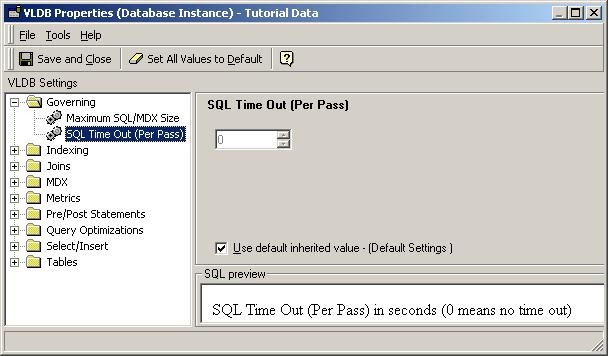
  • If a single SQL Pass exceeds the VLDB setting of 'SQL Time Out (Per Pass)' - at the database instance or report level - the executing job is cancelled.
    To access this setting, edit the VLDB settings for either the database instance or a report, expand 'Governing' and 'SQL Time Out (Per Pass)', as shown below:
     
ka04W000000Ofe1QAC_0EM440000002BN5.jpeg
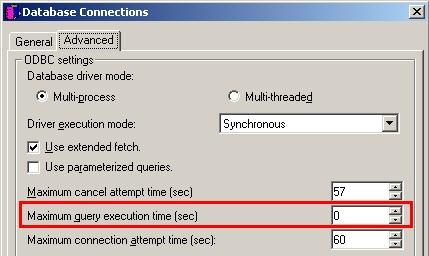
  • If a single pass of SQL exceeds the Database Instance setting 'Maximum Query Execution Time' - the executing job is cancelled.
    This setting is very similar to the SQL time out (per pass) VLDB setting that was discussed earlier; however, that VLDB setting overrides this setting. This setting is made on the database connection and may be used to govern the maximum across all projects using that connection. The VLDB setting may be used to override this setting for a specific report. Values of 0 and -1 indicate no limit. To set this limit, edit the database instance, then modify the database connection (at the bottom of the Database Instances dialog box), and on the Database Connections dialog box Advanced tab, specify the Maximum query execution time (sec).
     
ka04W000000Ofe1QAC_0EM440000002BNT.jpeg
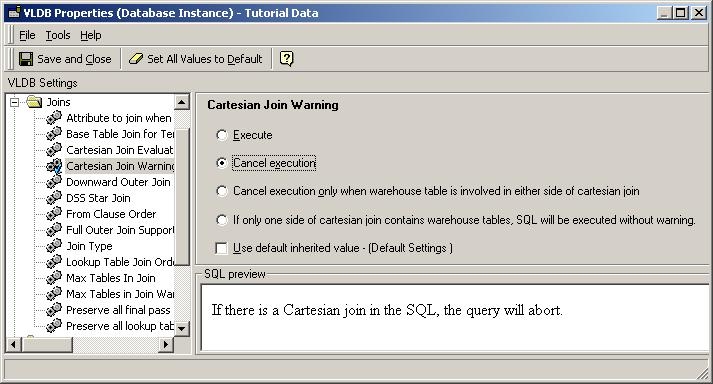
  • If a Cartesian Join exists in the SQL and the VLDB setting 'Cartesian Join Warning' is set to either 'Cancel execution', 'Cancel execution only when warehouse table is involved in either side of cartesian join', or 'If only one side of cartesiean join contains warehouse tables, SQL will be executed without warning' - then the executing job is cancelled.
    This VLDB setting is accessed through the VLDB Properties >> Joins >> Cartesian Join Warning.
     
ka04W000000Ofe1QAC_0EM440000002BNN.jpeg
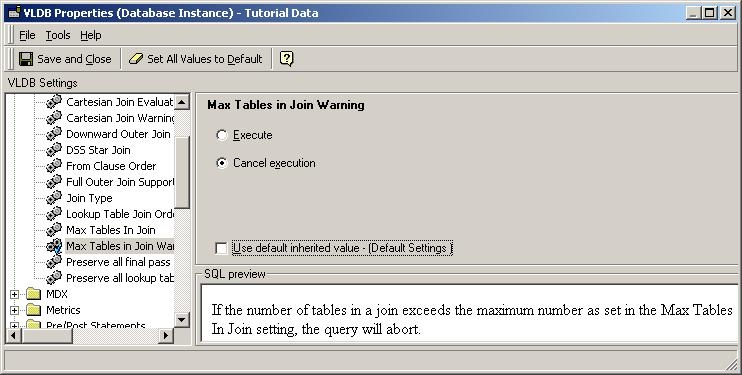
  • If the number of tables in a join exceeds the maximum number as set in the 'Max Tables In Join' VLDB setting and the VLDB setting 'Max Tables in Join Warning' is set to 'Cancel execution'. - then the executing job is cancelled.
ka04W000000Ofe1QAC_0EM440000002BN4.jpeg
  •  
    Methods specific to Strategy Web:
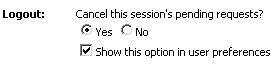
  • When logging out of the project in Strategy Web, jobs may be cancelled if the 'Cancel this session's pending requests?' setting is enabled:
ka04W000000Ofe1QAC_0EM440000002BNR.jpeg
  •  
    In Web Preferences, Security tab, the 'Logout' section contains an option to 'Cancel this session's pending requests?' If the user or administrator has selected "Yes', then all current job requests will be cancelled when the user logs out.
     
    Methods in Other Clients:
  • Shutting down the intelligence server. This will cancel all jobs.
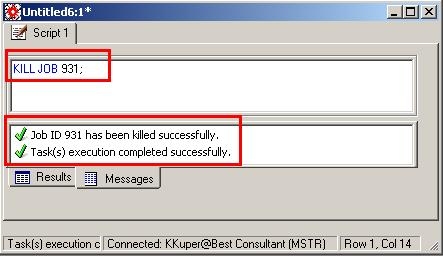
  • Running the 'Kill Job XXX' script in Strategy Command Manager.
ka04W000000Ofe1QAC_0EM440000002BNF.jpeg

Note: Maximum cancel attempt time
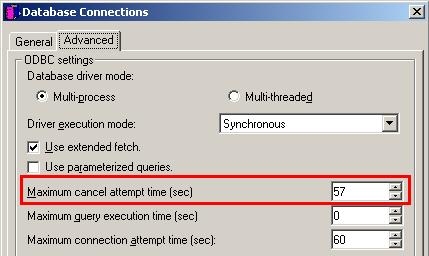
Once the execution cancel request is made, if the cancel is not successful after a short time (30 seconds) a timer starts counting. Users can set a limit on how long Intelligence Server should count (in addition to the 30 seconds) while the cancel occurs. If the cancel is not successful before the limit, Intelligence Server deletes that database connection thread. To set this limit, edit the database instance, then modify the database connection (at the bottom of the Database Instances dialog box), and on the Database Connections dialog box Advanced tab, specify the Maximum cancel attempt time (sec).
 

ka04W000000Ofe1QAC_0EM440000002BN3.jpeg

 
12109


Comment

0 comments

Details

Knowledge Article

Published:

June 5, 2017

Last Updated:

May 23, 2018