EducationSoftwareStrategy.com
StrategyCommunity

Knowledge Base

Product

Community

Knowledge Base

TopicsBrowse ArticlesDeveloper Zone

Product

Download SoftwareProduct DocumentationSecurity Hub

Education

Tutorial VideosSolution GalleryEducation courses

Community

GuidelinesGrandmastersEvents
x_social-icon_white.svglinkedin_social-icon_white.svg
Strategy logoCommunity

© Strategy Inc. All Rights Reserved.

LegalTerms of UsePrivacy Policy
  1. Home
  2. Topics

KB17977: How to define individual metrics on a report to ignore the metric qualification in the report filter in MicroStrategy Developer 10.x


Stefan Zepeda

Salesforce Solutions Architect • Strategy


Users can define an individual metric to ignore the metric qualification in a report filter in MicroStrategy Developer 10.x

Users can define an individual metric to ignore the metric qualification in a report filter in Strategy Developer 10.x by executing the following steps as shown in the Strategy Tutorial project:
 

  • Create and define a new metric in the Metric Editor with the definition of Sum().
  • Select Level Dimensionality.
  • Select the 'ignore' option under the 'Filtering' column for 'Report Level', as shown below:
ka02R000000kVp2QAE_0EM440000002EwF.jpeg
  • Save the new metric as 'Ignore Filter'.
  • Create a new report in the Report Editor as follows:
     
    • Add the Category attribute to the rows.
    • Add the 'Ignore Filter' and 'Units Sold' metrics to the columns.
    • Add 'Units Sold' to the filter with qualification that the metric value is greater than 5000.
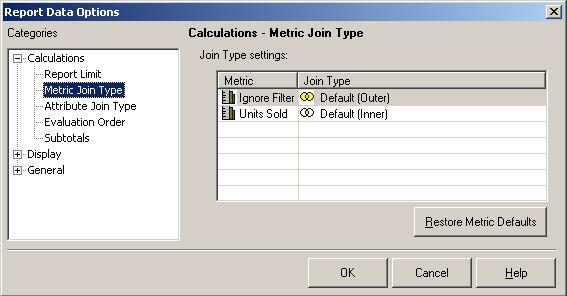
  • Change the join type of 'Ignore Metric' by doing either of the following:
     
ka02R000000kVp2QAE_0EM440000002EwD.jpeg
  •  
    This method is used to make this setting only apply at the report level, as shown below:
     
ka02R000000kVp2QAE_0EM440000002Ew9.jpeg
    • Within the Metric Editor, go to the Tools menu, select Metric Join Type, and change the default to an Outer Join, as shown below:
    • Within the report, go to the Data menu, choose Report Data Options, and select Join Type menu. Then select 'Outer' as the Join Type of the 'Ignore Filter' metric to ensure all data is returned since 'Units Sold' is also on the template.
  • Click 'OK' and save the report.
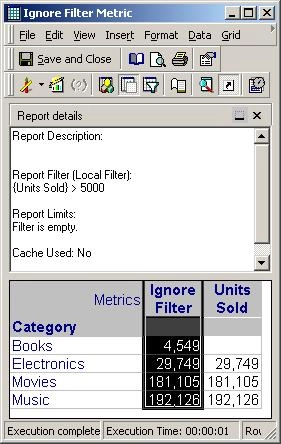
  • Run the report, as shown below:
ka02R000000kVp2QAE_0EM440000002EwB.jpeg

NOTE:
This knowledge base article focuses on the metric that ignores the metric qualifier, not the metric that is affected by the metric qualifier. For this example, the metric 'Units Sold' is defined exactly the same as the metric 'Ignore Filter' with two exceptions:
 

  1. The filtering in 'Units Sold' is set to 'standard' (so that it will not ignore the metric qualifier).
  2. The join type for 'Units Sold' is set to 'inner' in the Report Editor.

Comment

0 comments

Details

Knowledge Article

Published:

May 23, 2017

Last Updated:

May 23, 2017