EducationSoftwareStrategy.com
StrategyCommunity

Knowledge Base

Product

Community

Knowledge Base

TopicsBrowse ArticlesDeveloper Zone

Product

Download SoftwareProduct DocumentationSecurity Hub

Education

Tutorial VideosSolution GalleryEducation courses

Community

GuidelinesGrandmastersEvents
x_social-icon_white.svglinkedin_social-icon_white.svg
Strategy logoCommunity

© Strategy Inc. All Rights Reserved.

LegalTerms of UsePrivacy Policy
  1. Home
  2. Topics

KB18021: How to calculate a level metric that has a condition based on a dynamic Max Date in MicroStrategy Developer


Stefan Zepeda

Salesforce Solutions Architect • Strategy


This article explains how to create a level metric with a dynamic max date filter in MicroStrategy.

SYMPTOM
 
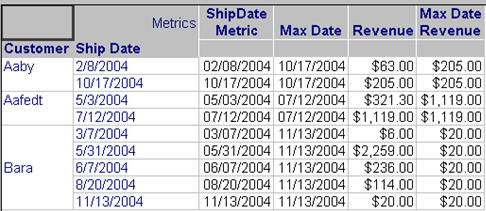
There is a scenario where is necessary to create a level metric that brings back just the metric value at the max or min date in Strategy, as shown in the image below from Developer:
ka02R000000kchlQAA_0EM440000002EtM.jpeg

ACTION:
The following steps are based in the Strategy Tutorial Project:
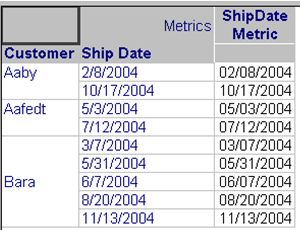
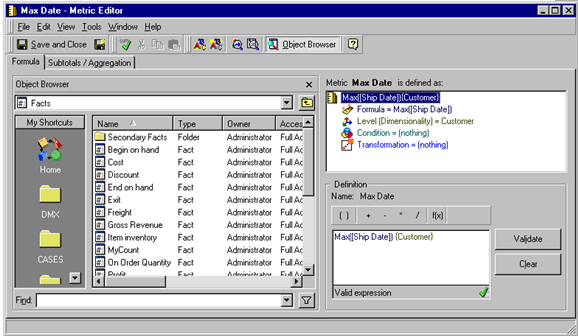
  • Create a metric that brings back the same elements than the Date attribute (in this example Ship Date). It can be defined as: Max([attribute]){~}, as shown in the example image below:
  • Note: ShipDate in the formula refers to the attribute.
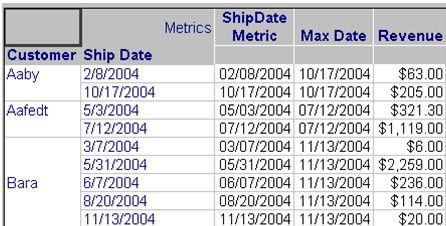
  • Save and close the metric and add it to the report, it should contain the same values as the attribute as shown below:
ka02R000000kchlQAA_0EM440000002EtL.jpeg
  • Create a new metric that calculates the max date at Customer level as shown in the image below:
ka02R000000kchlQAA_0EM440000002EtT.jpeg
  • Save and close the metric, add it to the report and add the Revenue metric as shown in the image below:
ka02R000000kchlQAA_0EM440000002EtP.jpeg
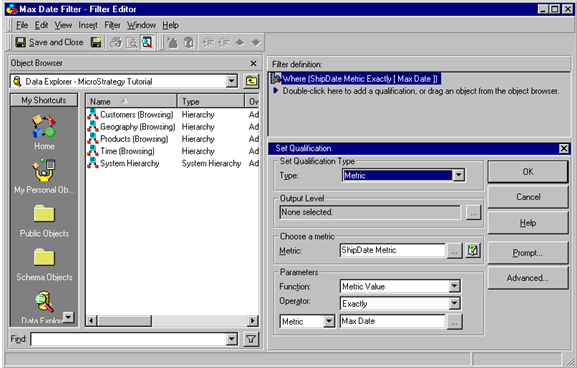
  • Create a new Set Qualification filter, where the ShipDate metric is exactly equal to the Max Date metric as shown in the image below:
ka02R000000kchlQAA_0EM440000002EtN.jpeg
  • Note: Users can drag and drop the metric from the Object Browser Window into the metric field or they can browse it.
     
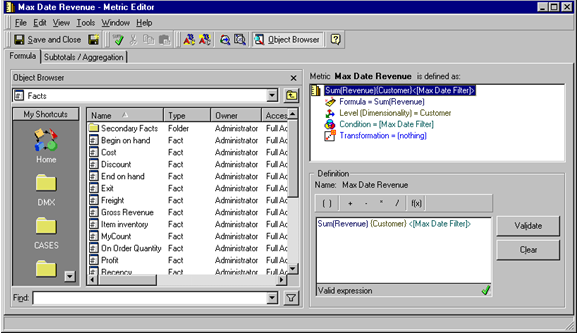
  • Create a new metric and add the filter already created into it. Set the level to Customer and remove the report level (this depends on the desired dimensionality) as shown below:
ka02R000000kchlQAA_0EM440000002EtQ.jpeg
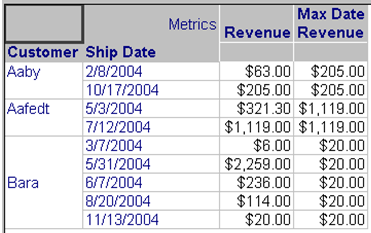
  • Save and close the metric and add it into the report. Execute it and the correct data should appear as it shown below:
ka02R000000kchlQAA_0EM440000002EtR.jpeg
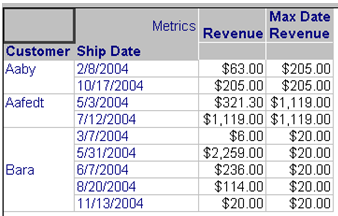
  • ShipDate and Max Date metric may be removed from the report to give a better presentation, as shown below:
ka02R000000kchlQAA_0EM440000002EtS.jpeg

Comment

0 comments

Details

Knowledge Article

Published:

April 3, 2017

Last Updated:

April 3, 2017