EducationSoftwareStrategy.com
StrategyCommunity

Knowledge Base

Product

Community

Knowledge Base

TopicsBrowse ArticlesDeveloper Zone

Product

Download SoftwareProduct DocumentationSecurity Hub

Education

Tutorial VideosSolution GalleryEducation courses

Community

GuidelinesGrandmastersEvents
x_social-icon_white.svglinkedin_social-icon_white.svg
Strategy logoCommunity

© Strategy Inc. All Rights Reserved.

LegalTerms of UsePrivacy Policy
  1. Home
  2. Topics

KB18025: How to create a year-to-date report without a relationship table in MicroStrategy Developer 9.4.x - 10.x


Stefan Zepeda

Salesforce Solutions Architect • Strategy


This technical note lists the steps to create a year-to-date report without a relationship table in MicroStrategy Developer 9.4.x - 10.x

SYMPTOM:
Dynamic dates can be employed to create a year-to-date report, or even a year-to month report.
Users may want to have access to this information even if transformations have not been mapped out in Strategy or the warehouse.
 
ACTION:
In order to create a dynamic date prompt that returns year-to-date metric values, follow the steps below in Strategy Tutorial project:
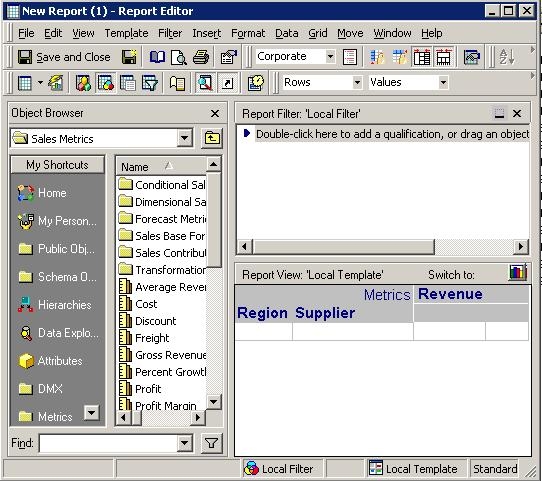
 

  • Create the following simple report where Revenue is a simple metric defined as SUM(revenue), as shown below:
ka02R000000kaR8QAI_0EM440000002Et4.jpeg
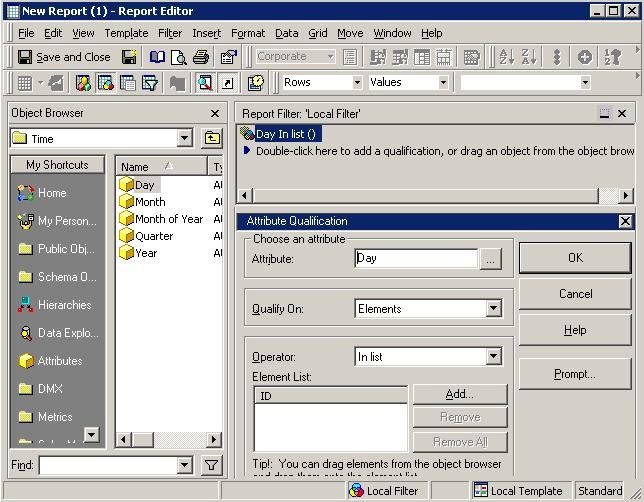
  • In the Object Browser of the Report Editor, locate the Day attribute and drag it into the Report Filter window, as shown below:
ka02R000000kaR8QAI_0EM440000002Esy.jpeg
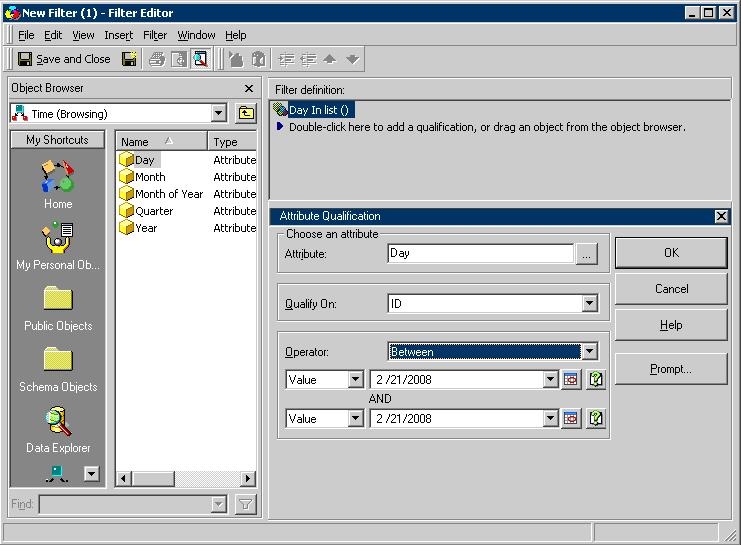
  • Qualify on ID, which will bring up the date options and then select the operator 'Between' as shown below:
ka02R000000kaR8QAI_0EM440000002Esw.jpeg
  • Click on the Calendar icon next to the first date displayed in the window and a new screen appears.
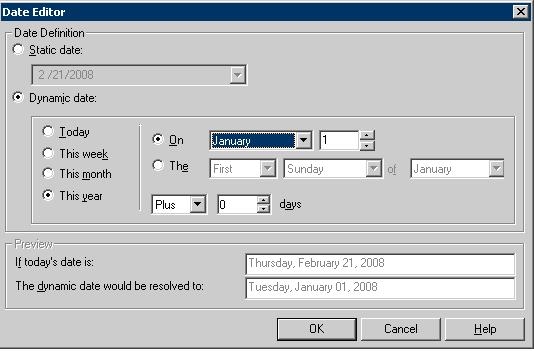
  • Click on the Dynamic date radio button and set the indicator date, which, in this example, is set to January 1st of this year, as shown below:
ka02R000000kaR8QAI_0EM440000002Esr.jpeg
  • Click on the OK button and proceed to the main filter-creation screen.
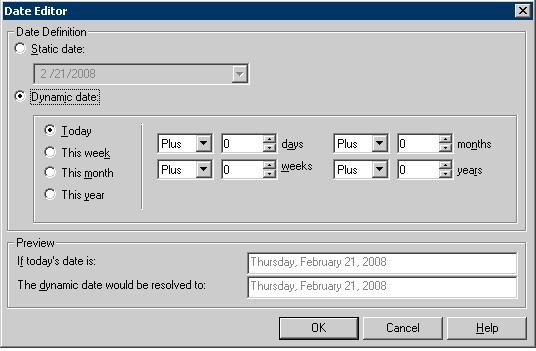
  • Modify the second date displayed in the interface to be a dynamic date as follows:
ka02R000000kaR8QAI_0EM440000002Et2.jpeg

Notice that the indicator is changed to 'Dynamic date' and the radio button is changed to 'Today.' This step ensures that the filter is updated every day.
 
After executing the steps above, the filter definition should appear as follows:
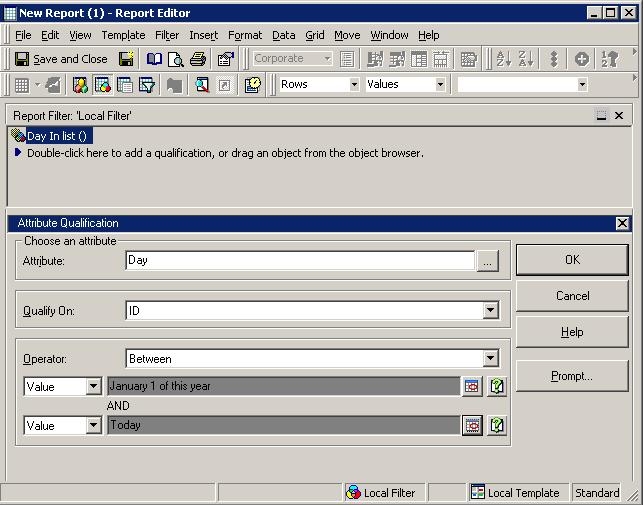
 

ka02R000000kaR8QAI_0EM440000002Esp.jpeg

 
The report SQL from the combination of this template and this filter, in the case of Microsoft Access database, appears as follows:
max(a15.) AS REGION_NAME,
a14. AS SUPPLIER_ID,
max(a16.) AS SUPPLIER_NAME,
sum((a11. * (a11. - a11.))) AS Revenue
a12,
a13,
a14,
a15,
a16
a12. = a13. and
a11. = a14. and
a13. = a15. and
a14. = a16.
and a11. between #2008-01-01# and #2008-02-21#
a14.
select a13. AS REGION_ID,
from a11,
where a11. = a12. and
group by a13.,


Comment

0 comments

Details

Knowledge Article

Published:

April 24, 2017

Last Updated:

April 24, 2017