EducationSoftwareStrategy.com
StrategyCommunity

Knowledge Base

Product

Community

Knowledge Base

TopicsBrowse ArticlesDeveloper Zone

Product

Download SoftwareProduct DocumentationSecurity Hub

Education

Tutorial VideosSolution GalleryEducation courses

Community

GuidelinesGrandmastersEvents
x_social-icon_white.svglinkedin_social-icon_white.svg
Strategy logoCommunity

© Strategy Inc. All Rights Reserved.

LegalTerms of UsePrivacy Policy
  1. Home
  2. Topics

KB18075: How to treat a NULL value as a zero (0) for Analytical Engine calculations in MicroStrategy 2021


Stefan Zepeda

Salesforce Solutions Architect • Strategy


This "How to"knowledge base article describes the method to treat a NULL value as a zero by enabling the VLDB settings.

NULL values can be treated as zeros (0) for computational purposes by enabling suitable settings in Very Large Database (VLDB) properties at different levels in Strategy 2021.
This VLDB setting can be changed at the Database instance (Project Level in case of Workstation), Report, and Metric levels.
To change the VLDB properties at any of the three levels, execute the following:
Database Instance Level:
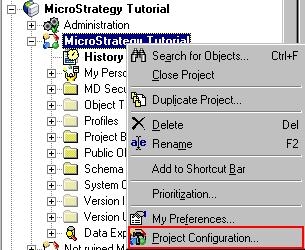
  • Right-click on the Project name > Project Configuration.
ka0PW0000002vNBYAY_0EM440000002EuI.jpeg
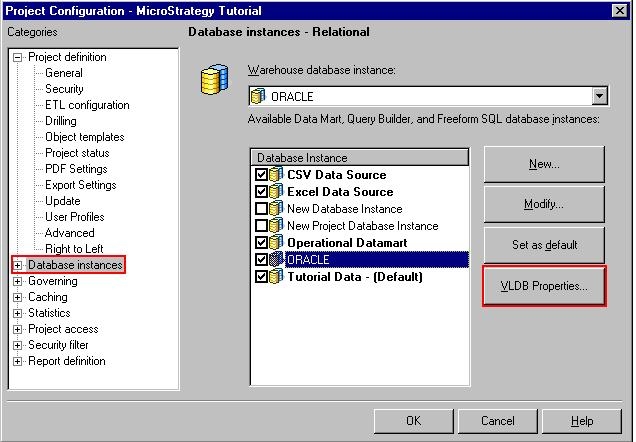
  • Under 'Database instances', select VLDB Properties.
ka0PW0000002vNBYAY_0EM440000002EuL.jpeg
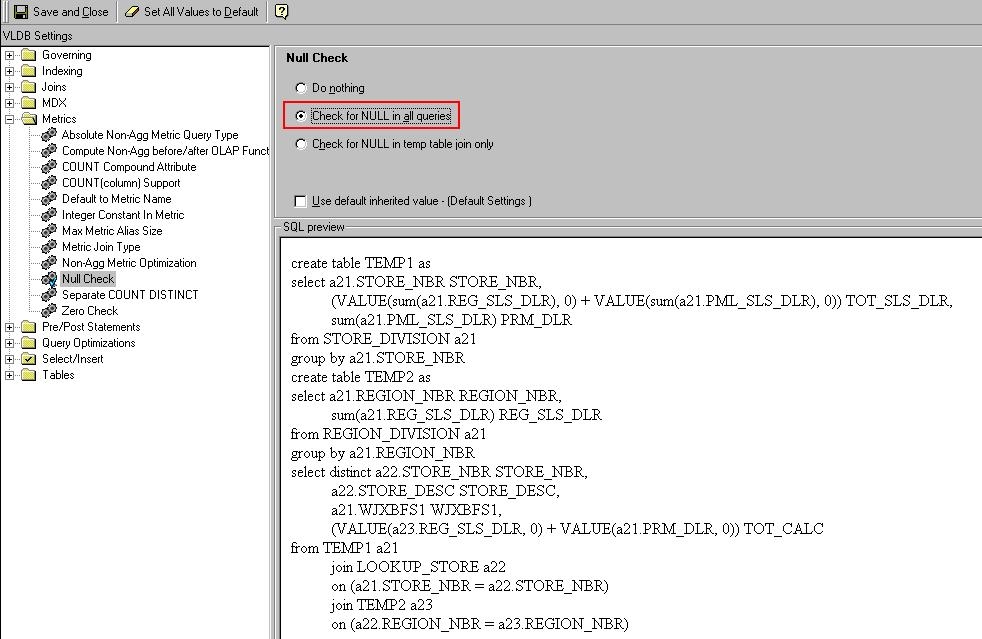
  • Go to Metrics > NULL Check.
  • Uncheck the 'Use default inherited values' checkbox and click on the 'Check for NULL in all queries' radio button.
ka0PW0000002vNBYAY_0EM440000002Eu7.jpeg
  • Save and close.
  • Restart the I-Server for the VLDB settings to take effect.

For Steps in Strategy Workstation: 
1. Right-click on the Project.
2. Select Advanced properties.
3. Search for Null Check under the Analytical Engine section
4. Locate the setting "Null Checking for Analytical Engine"
 
Report level:
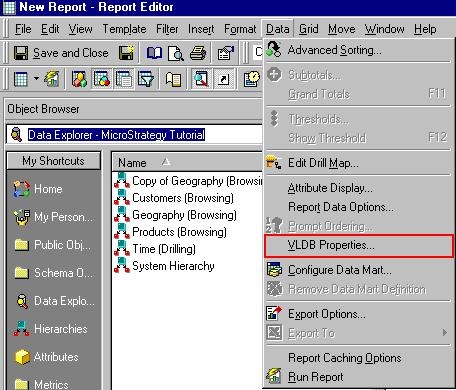
  • In the Report Editor, go to the 'Data' Menu and select:
ka0PW0000002vNBYAY_0EM440000002EuC.jpeg
  • Continue with Step 3 from the Project Level section above.

Note: There is no need to restart the I-Server to reflect Report Level VLDB settings.
Workstation Steps: 
Same setting can be found under the Advanced Properties tab in "Report Properties" option of File Menu on the Report editor window.
 
Metric level:
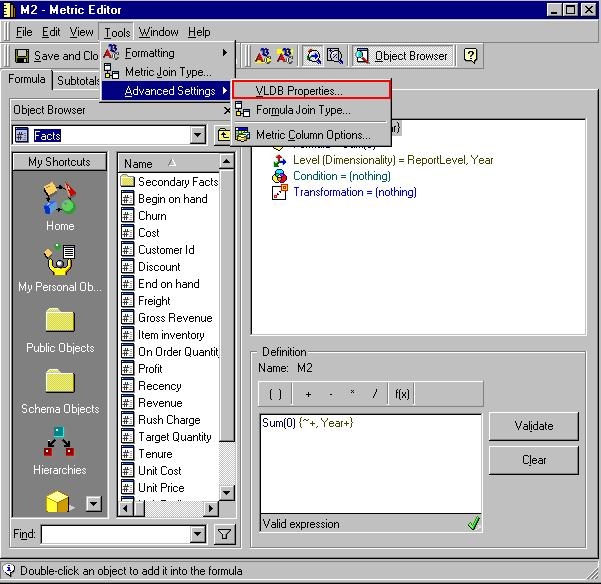
  • Edit the metric that will perform the NULL calculation.
  • In the Metric Editor, go to Tools > Advanced Settings > VLDB Properties.
ka0PW0000002vNBYAY_0EM440000002EuA.jpeg
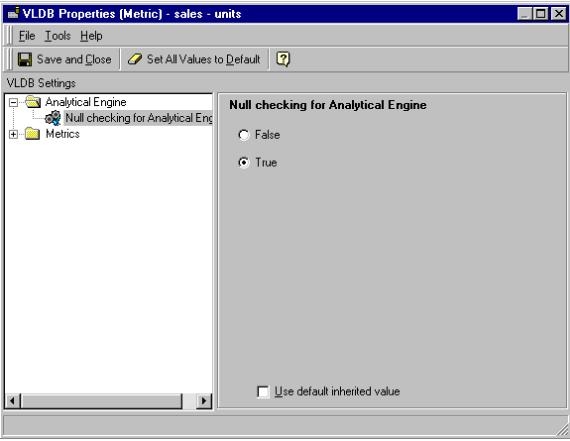
  • Go to Analytical Engine > NULL checking for Analytical Engine.
  • Uncheck 'Use default inherited value' for the following change to take effect. Change the 'Null checking for Analytical Engine' to 'True'.
ka0PW0000002vNBYAY_0EM440000002Eu9.jpeg
  • Save and close.

Workstation Steps:
This setting can be found under Metric Options in VLDB Properties Tab in the Metric Editor.
 
NOTE: By following the steps outlined in this document, Null values will be converted to zeros only if there is a calculation performed in the metric.
 
For example, the expression '+0' will generate Structured Query Language (SQL) which is checking for NULLs. However, the expression '' alone will not check for NULLs although the Very Large Database (VLDB) setting is activated. To force a Null check for the second case, use the Function 'NullToZero' either in the metric or Fact Editor. 


Comment

0 comments

Details

Knowledge Article

Published:

April 6, 2017

Last Updated:

August 9, 2024