EducationSoftwareStrategy.com
StrategyCommunity

Knowledge Base

Product

Community

Knowledge Base

TopicsBrowse ArticlesDeveloper Zone

Product

Download SoftwareProduct DocumentationSecurity Hub

Education

Tutorial VideosSolution GalleryEducation courses

Community

GuidelinesGrandmastersEvents
x_social-icon_white.svglinkedin_social-icon_white.svg
Strategy logoCommunity

© Strategy Inc. All Rights Reserved.

LegalTerms of UsePrivacy Policy
  1. Home
  2. Topics

KB18078: Scheduled data loads in MicroStrategy Enterprise Manager 9.x are not triggered as per the defined schedule with a ‘Get Registry Key Error’ in the Windows Event Viewer


Community Admin

• Strategy


The scheduled data loads in MicroStrategy Enterprise Manager 9.x are not being triggered according to the defined schedule. The Windows Event Viewer shows the following message at the time when the data load was supposed to be triggered.

SYMPTOM:
The scheduled data loads in Strategy Enterprise Manager 9.x are not being triggered according to the defined schedule. The Windows Event Viewer shows the following message at the time when the data load was supposed to be triggered:


The description for Event ID (xxxx) in Source (Strategy Enterprise Manager) cannot be found. The local computer may not have the necessary registry information or message DLL files to display messages from a remote computer. The following information is part of the event:
(GetServiceParameter) Get Registry Key Error,\HKEY_LOCAL_MACHINE\SOFTWARE\MicroStrategy\Enterprise Manager\Schedule\StartTime

CAUSE:
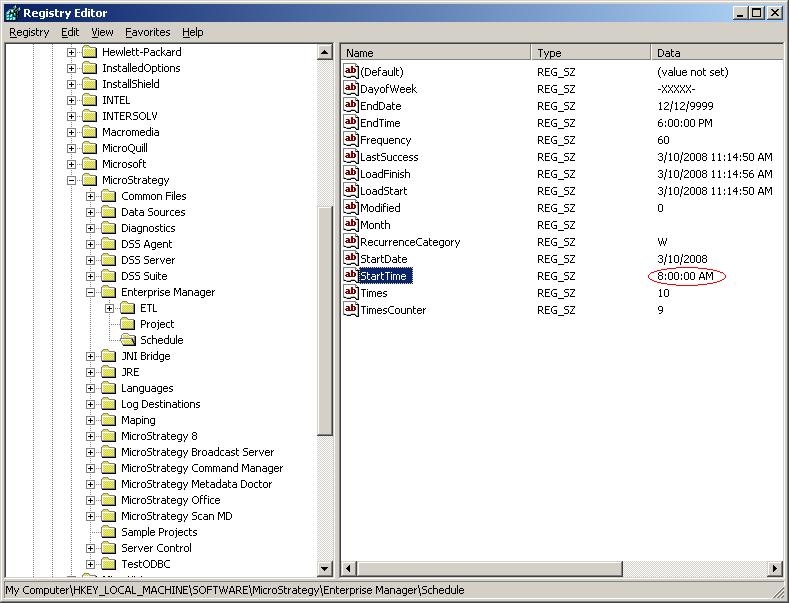
This issue occurs when the StartTime key for the Strategy Enterprise Manager 9.x schedule's registry settings is not populated. The value for this key might have been deleted manually or due to an inconsistency.

ka04W000000OgzFQAS_0EM440000002BLZ.jpeg

 
ACTION:
In order to correctly re-populate all the registry keys necessary for the scheduled data load, follow this procedure:
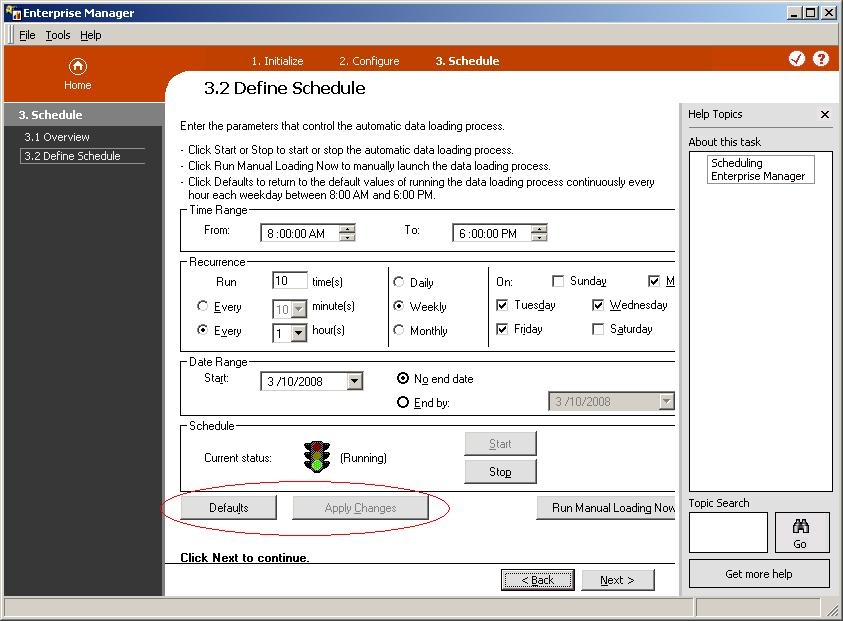
  • Open the Strategy Enterprise Manager 9.x Console and access the third section ('Schedule').
  • Click on the 'Defaults' button and then on the 'Apply Changes' button. This will re-populate the registry keys correctly.
  • Customize the desired schedule now and hit the 'Apply Changes' button one last time, as shown below:
ka04W000000OgzFQAS_0EM440000002BLX.jpeg

After following this procedure, the registry keys will be correctly populated and the scheduled data loads will be triggered accordingly, as shown below:
ka04W000000OgzFQAS_0EM440000002BLc.jpeg

Comment

0 comments

Details

Knowledge Article

Published:

June 6, 2017

Last Updated:

June 6, 2017