SYMPTOM:
After adding a new table to the warehouse and then bringing the table into the Strategy environment using the warehouse catalog, a user may want to map their attribute or fact expressions to this new table.
When editing an attribute form or fact, the attribute form or fact expression cannot be mapped to the new source table because it is not displayed as an available table in the source table listing for that column that exists in the warehouse.
For example, a new table with name YR_ORDER has been added to the warehouse catalog. It has a column with the name ORDER_ID and the same data type. When the user edits the attribute Order he notices that the new table does not appear as source table for that form expression even if the mapping method is set to automatic, as shown below:
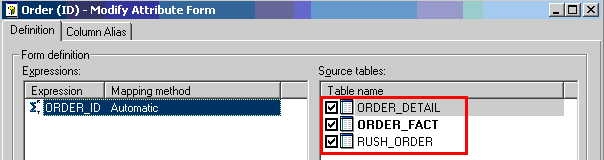
The expected behavior is to see the newly added table as part of the source tables for that attribute, as shown below:

CAUSE:
If the 'Do Not Merge' option is selected in the Column Merging Options, located in the Warehouse Catalog Options button > Catalog > Read Settings, any new updates to columns will not be merged with existing columns and will therefore be treated as a separate column object in Strategy, as shown below:

This will cause two separate column system objects with different GUID to be created even if both columns have the same name and data type once a table is updated or a new table is added. Those column objects are internal Strategy system objects.
For more information on the column merging options, refer to the following Strategy Knowledge Base technical note:
KB11524 (KB4100-800-0347): What are the new Column Merging Options in the Warehouse Catalog Options dialog box in Strategy 10.x?
ACTION:
Contact Strategy Technical Support for further steps on how to troubleshoot this issue in case that the user wants to map both columns to a single object. Note that the column data type must be the same in order to merge those columns and investigation must be conducted prior to any modifications to the metadata.
WORKAROUND:
Heterogeneously map the attribute form expression to the column in the new table. This can be done by creating a new separate form expression in the 'Modify Attribute Form' window, and defining the form expression with the column that exists in the new table.
Metadata Modification:
WARNING:
Manually editing values in the Strategy Metadata incorrectly may cause serious, project-wide problems that may make your project unusable. Since these are user-initiated changes, they are not covered by any Strategy warranty. Users are strongly encouraged to backup Metadata prior to any alteration.
