If a rank of a metric value needs to be computed in a multidimensional (MDX Cube) report, the simplest approach is to create the ranking metric as a smart metric so that it will be evaluated in the Strategy Analytical Engine. The metric should be added to the cube as a compound metric, per instructions in the following Strategy KnowledgeBase article.
KB15870: Feature in Strategy Compound metrics for OLAP Cube data sources
The general procedure is as follows.
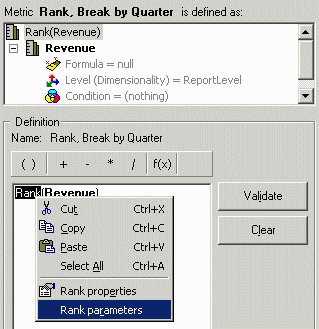
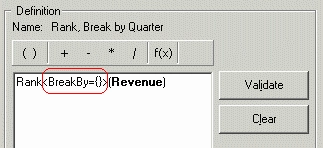
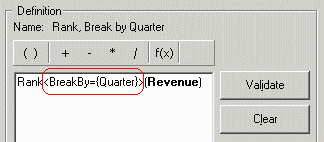
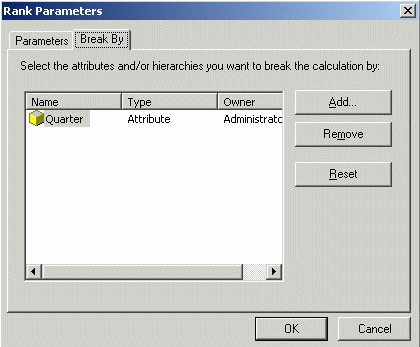
When this compound metric is used in a report, the Rank calculation will appear in the Analytical Engine steps.
with set [dim0_select_members] as '{[SH_DATE TIME_HIER].[LEVEL01].members, [SH_DATE TIME_HIER].[LEVEL02].members}'
select {[Measures].[493W69Q9AVO307KT6LI5RQ3Q0]} on columns,
non empty hierarchize({[dim0_select_members]}) on rows
from [QE_TUTO/REP_20080311203502]
[Analytical engine calculation steps:
1. Calculate metric: <Rank, Break by Quarter>
2. Perform cross-tabbing
]
Ranking qualifications
The report filter editor for MDX reports does not allow qualifying on a standard metric's rank. (By contrast, in a SQL report, a metric qualification can filter on a metric's value, rank or percentage.)
To perform a ranking qualification such as top 10, a ranking metric should be created as above. Then, a qualification based on the ranking metric may be added to the report.
Ranking metrics use ascending order by default, meaning that the lowest value gets rank 1. This is suitable for "Bottom x" filters. For "Top x," edit the Rank parameters as in step 4 and set ASC to False.
For example, the following report ranks (descending) on Revenue. It is sorted on the rank for clarity.
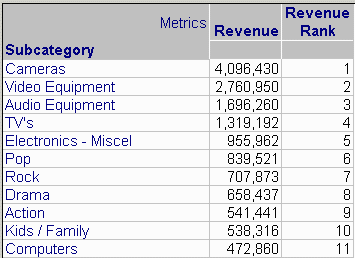
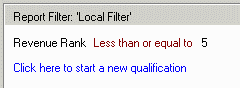
Adding a report filter qualification "Revenue Rank Less than or equal to 5" causes the report to return the top 5 ranking Subcategories in terms of Revenue.
Considerations for Analytical Engine ranking qualifications
A ranking qualification performed in the Analytical Engine is evaluated as a "metric limit." The Analytical Engine must have all of the rows to rank the available to it prior to evaluating the filter. Thus, the MDX query will be executed without reference to the ranking qualification, and the analytical engine will hide rows from the display that do not meet the ranking condition.
For large datasets, this could have an impact on memory or performance.
Under some conditions, it is possible to evaluate metric ranks (and thereby ranking qualifications) in the MDX query itself, restricting the result set before transferring it to Intelligence Server memory. This requires the use of a custom MDX expression, which may not be suitable for every reporting requirement.
For details on custom MDX formulas for ranking, consult the following Strategy article.
KB18206: How to write a custom MDX formula to rank report rows in MDX Cube reports in Strategy Engine
