As noted in the following Strategy Knowledge Base technical note, using Strategy's built-in Rank function to perform ranking in the Analytical Engine is the easiest way to create ranking metrics and filters for OLAP Cube reports.
KB18201: How to perform ranking in the Analytical Engine for OLAP Cube (MDX) reports in MicroStrategy Engine 8.1.x
However, in some scenarios performing the ranking as part of the MDX query may have some benefits. For example, if a report needs to display the top 10 rows out of several thousand, Analytical Engine ranking must must retrieve the entire dataset, evaluate the ranks, and finally apply the filter to display only the desired rows. That is, the proportion of data presented to the user, against that retrieved into Strategy Intelligence Server, is relatively low. In this scenario, ranking and filtering in the query would retrieve only the rows that would be displayed.
How MDX ranking works
The Rank function in MDX by itself does not rank metric values. Rather, it returns the position of an item within a set. That is, given a set of product categories { Books, Electronics, Movies, Music }, the rank of Electronics would always be 2, regardless of metric values.
Thus, to obtain ranking according to metric values, the reference set must be sorted in order according to some metric. In MDX, this is accomplished with the Order() function.
MDX ranking takes the general structure:
Rank(.CurrentMember, Order(set of members for ranking, ., order_flag))
If multiple dimensions are involved, the "CurrentMember" expression can be replaced by a list of similar expressions enclosed in parentheses, one per dimension that needs to be ranked, e.g., (.CurrentMember, .CurrentMember). The set used in the Order function will also need to include both dimensions, probably combined using the Crossjoin function.
The order_flag may be one of the following:
BDESC will usually yield the most intuitive result.
A number of factors must be taken into account.
EXAMPLES
Ranking over a single dimension
In a cube containing data from the Strategy Tutorial project, the following metric ranks over the lowest level attribute in the Product hierarchy used on the report. It can adapt to report level through the use of "CurrentMember.Level.Members," which identifies the current level within the hierarchy and evaluates the rank over all the members of that level.
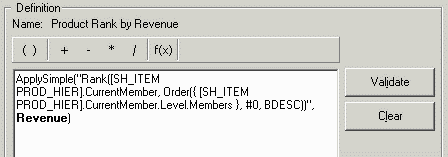
ApplySimple("Rank(.CurrentMember, Order({ .CurrentMember.Level.Members }, #0, BDESC))", Revenue)
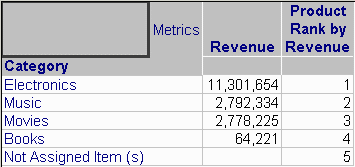
Defining an ascending sort within the Strategy report on the ranking metric produces the expected result.
Ranking qualifications
As with Analytical Engine ranking, a ranking metric defined as an MDX formula may be used for filtering. In this case, a Filter() expression will be generated to produce the set of attribute elements to retrieve for the report results.
Filtering on the MDX formula means that less data will be retrieved into the Strategy Intelligence Server, with less memory and performance impact on the Strategy side. However, the MDX query will have more work to do and may not perform as well as a query without the ranking condition.
Ranking with filtering on the ranking attribute
Adding a report filter to the above report, to remove Electronics, yields a perhaps surprising result.
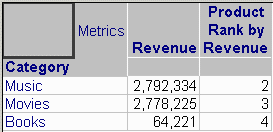
This is because the rank is calculated relative to the set of all Category elements. When a report filter is involved, the metric formula must take the filter into account.
The easiest way to keep the report filter in sync with a filter in a custom MDX formula is to use an attribute element list prompt. The prompt may be used in the ApplySimple function, and will be substituted at runtime.
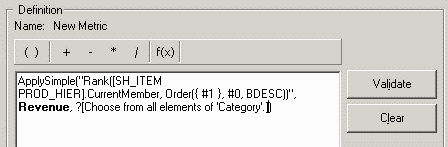
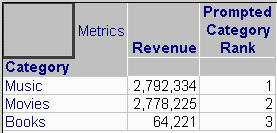
The prompt "Choose from all elements of 'Category'" is also placed into the report filter. When Books, Movies and Music are chosen at runtime, the report returns the expected result.
Ranking over multiple dimensions
Since MDX ranking is based on an ordered set of elements, to rank over multiple dimensions, the element set must include both dimensions. The MDX function Crossjoin() will generate the appropriate set.
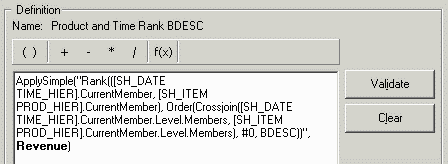
ApplySimple("Rank(
(.CurrentMember, .CurrentMember),
Order(
Crossjoin(
.CurrentMember.Level.Members,
.CurrentMember.Level.Members
),
#0, BDESC)
)", Revenue)
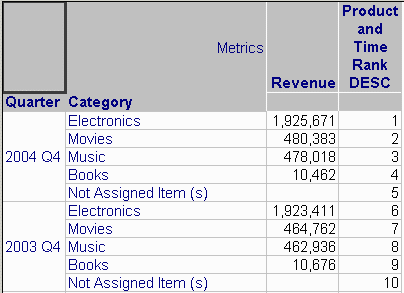
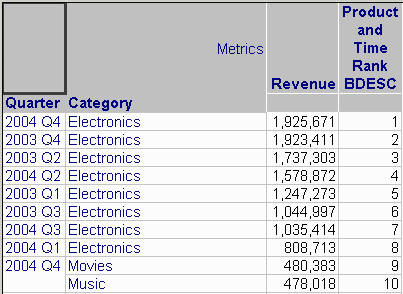
Use BDESC or BASC in the Order() function to rank row by row, intermingling the dimensional elements as needed. DESC or ASC will group elements of the first cross-joined dimension together, as in the following examples. (Not all rows are shown for brevity.)
With BDESC, the rank is strictly in order of revenue. Note that the Quarter elements are intermixed.
With DESC, the report shows that 2004 Q4 had the highest revenue, and shows the category rank within that quarter as ranks 1-5. 2003 Q4 had the second highest revenue and occupies ranks 6-10, and so on.