EducationSoftwareStrategy.com
StrategyCommunity

Knowledge Base

Product

Community

Knowledge Base

TopicsBrowse ArticlesDeveloper Zone

Product

Download SoftwareProduct DocumentationSecurity Hub

Education

Tutorial VideosSolution GalleryEducation courses

Community

GuidelinesGrandmastersEvents
x_social-icon_white.svglinkedin_social-icon_white.svg
Strategy logoCommunity

© Strategy Inc. All Rights Reserved.

LegalTerms of UsePrivacy Policy
  1. Home
  2. Topics

KB18247: How to specify a manual number of labels for a graph's category axis in MicroStrategy Desveloper 9.4.x - 10.x.


Stefan Zepeda

Salesforce Solutions Architect • Strategy


How to specify a manual number of labels for a graph's category axis in MicroStrategy Desveloper 9.4.x - 10.x.

In a Strategy Developer graph, users have the ability to specify only a certain number of category axis labels to be displayed. This allows the user to display only a set number of axis labels for analysis purposes and is often advantageous for graphs that have numerous labels in the category axis.
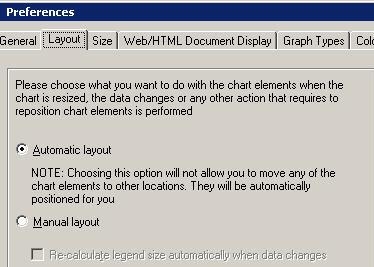
A graph by default will have its layout preference set to 'Automatic', as shown below:
 

ka02R000000kcQWQAY_0EM440000002ErP.jpeg

 
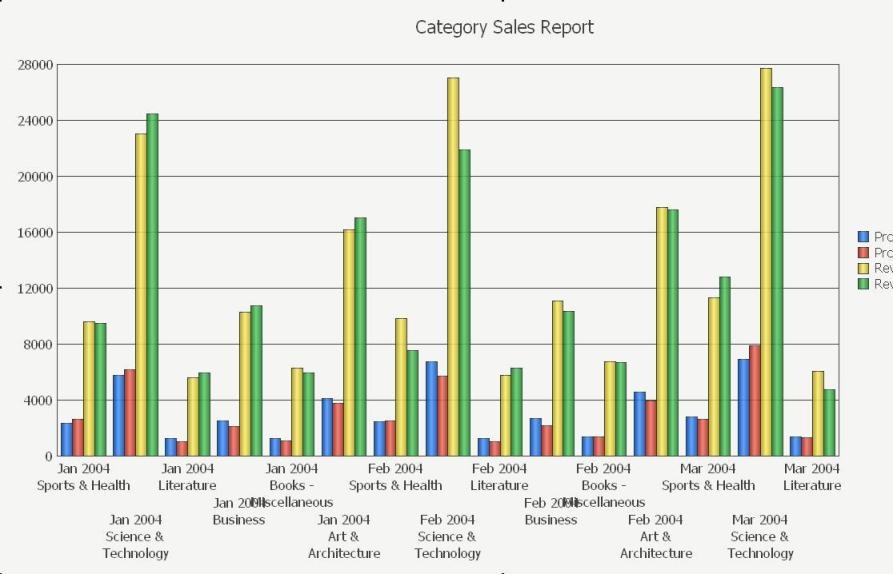
This will cause the graph to display all of labels that are available in the category axis by default, as shown below:
 

ka02R000000kcQWQAY_0EM440000002ErY.jpeg

 
In order to manually specify or hide only a certain number of labels in the category axis to be displayed, do the following:
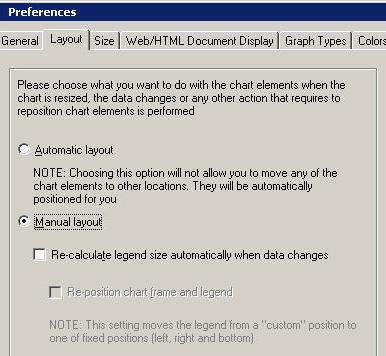
 

  • Go to the Graph menu and select 'Preferences…', then go to the 'Layout' tab and select 'Manual layout' as shown below:
ka02R000000kcQWQAY_0EM440000002Erc.jpeg
  • Go to Graph menu and select 'Grids and Scales…'
  • Select the 'Category Axis' tab on the left side and the 'Labels' tab on top.
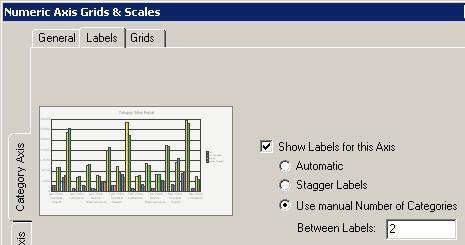
  • Select the 'Show Labels for this Axis' checkbox and select 'User manual Number of Categories' as shown below:
ka02R000000kcQWQAY_0EM440000002ErV.jpeg
  • Type in a number for the 'Between Labels' box. This number specifies to display every other 'n` number of data labels after the first one.
    NOTE: This option only allows the user to display every 'nth' data label after the first one.
     

Refer to the following examples:
 
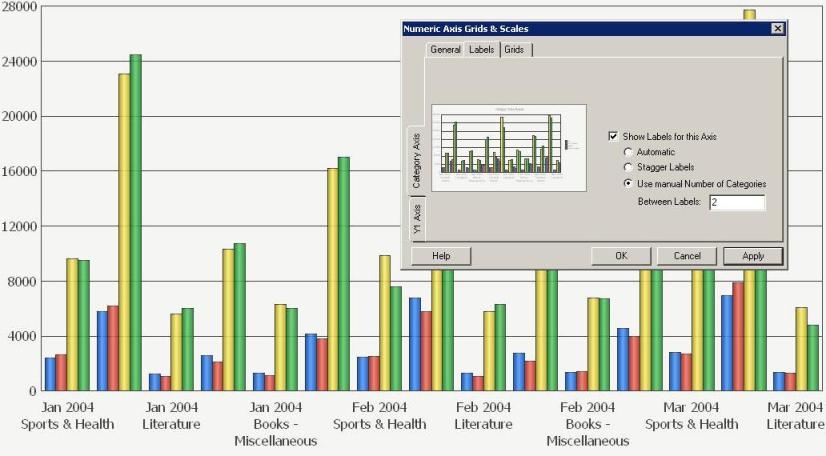
In this graph, the 'Between Labels' is set to 2. Every 2nd label after the first label is displayed, as shown below:
 

ka02R000000kcQWQAY_0EM440000002ErR.jpeg

 
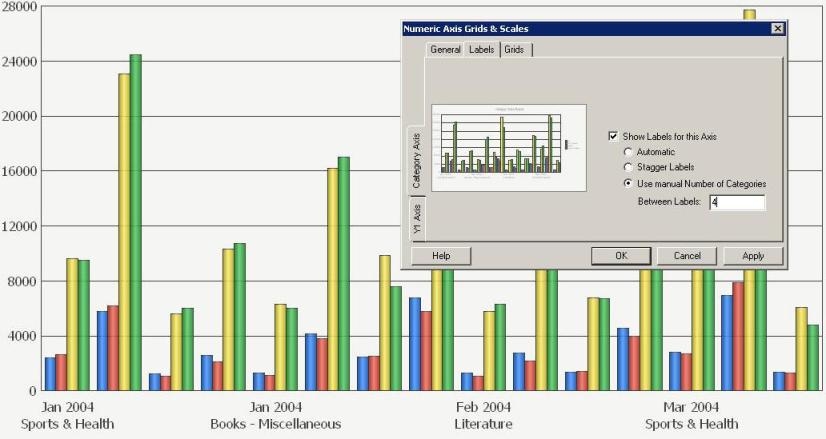
In this graph, the 'Between Labels' is set to 4. Every 4th label after the first label is displayed as shown below:
 

ka02R000000kcQWQAY_0EM440000002Erf.jpeg


Comment

0 comments

Details

Knowledge Article

Published:

April 25, 2017

Last Updated:

April 25, 2017