EducationSoftwareStrategy.com
StrategyCommunity

Knowledge Base

Product

Community

Knowledge Base

TopicsBrowse ArticlesDeveloper Zone

Product

Download SoftwareProduct DocumentationSecurity Hub

Education

Tutorial VideosSolution GalleryEducation courses

Community

GuidelinesGrandmastersEvents
x_social-icon_white.svglinkedin_social-icon_white.svg
Strategy logoCommunity

© Strategy Inc. All Rights Reserved.

LegalTerms of UsePrivacy Policy
  1. Home
  2. Topics

KB18252: How to remove the drilling option for some objects part of a report without having to modify the project drill map in MicroStrategy Developer 9.x


Stefan Zepeda

Salesforce Solutions Architect • Strategy


How to remove the drilling option for some objects part of a report without having to modify the project drill map in MicroStrategy Developer 9.x

In some cases, users may only want to allow the drill option for some objects present on a report template but not others in Strategy Developer 9.x.
 
An easy way to do this without modifying the project drill map is to create an empty drill map and associate it to all the objects in the report that should not have drilling options available.
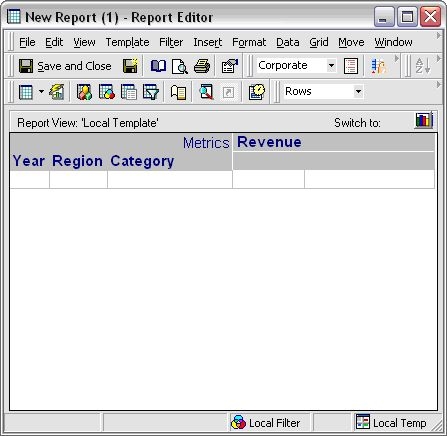
 

  • For example, create a report with the following objects:
ka02R000000kX0VQAU_0EM440000002EvM.jpeg
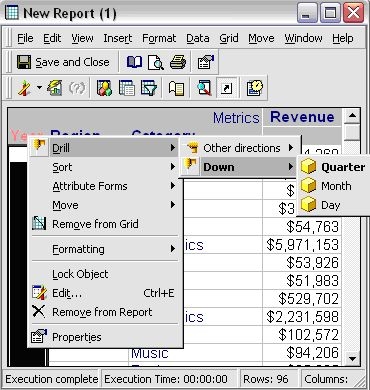
  • Upon executing the report, notice that all objects have drilling enabled, as shown below:
ka02R000000kX0VQAU_0EM440000002EvR.jpeg
  • Now open the drill map for the report and remove the drilling options for the attribute Category:
  • Edit the drill map under the Data menu in the toolbar.
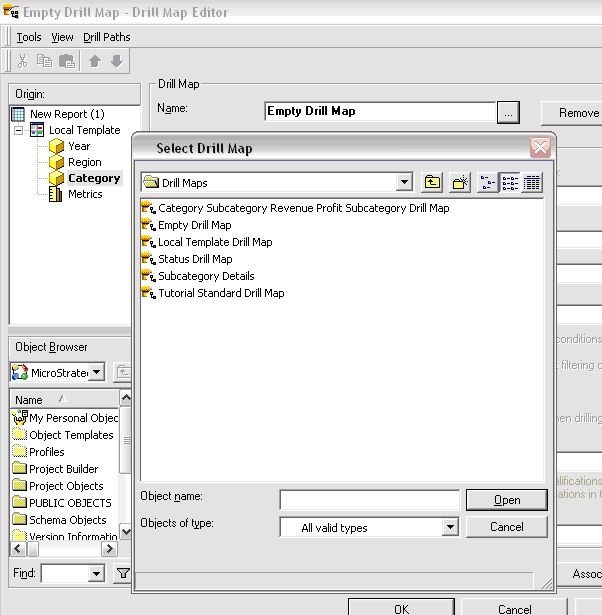
  • Select the attribute Category and associate the empty drill map to the attribute, as shown below:
ka02R000000kX0VQAU_0EM440000002EvK.jpeg
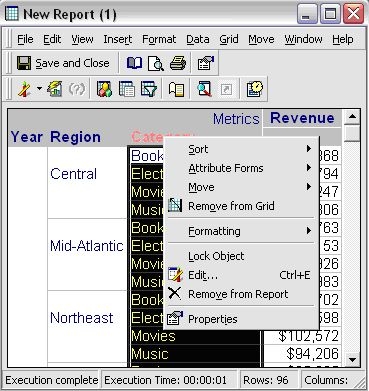
  • Run the report again and right click on the attribute Category. Notice that the drill option is not available, as shown below:
ka02R000000kX0VQAU_0EM440000002EvO.jpeg

Comment

0 comments

Details

Knowledge Article

Published:

April 12, 2017

Last Updated:

April 12, 2017