EducationSoftwareStrategy.com
StrategyCommunity

Knowledge Base

Product

Community

Knowledge Base

TopicsBrowse ArticlesDeveloper Zone

Product

Download SoftwareProduct DocumentationSecurity Hub

Education

Tutorial VideosSolution GalleryEducation courses

Community

GuidelinesGrandmastersEvents
x_social-icon_white.svglinkedin_social-icon_white.svg
Strategy logoCommunity

© Strategy Inc. All Rights Reserved.

LegalTerms of UsePrivacy Policy
  1. Home
  2. Topics

KB18392: What logs are useful in troubleshooting issues with the MicroStrategy Enterprise Manager Console in MicroStrategy 9.x?


Community Admin

• Strategy


The document introduces logs are useful in troubleshooting issues with the MicroStrategy Enterprise Manager Console in MicroStrategy 9.4.x.

The standard logs used to troubleshoot issues with Strategy Enterprise Manager data load and the Strategy Enterprise Manager Console are the following four:
 

  1. DSSErrors (default location: C:\Program Files\Common Files\Strategy\Log\DSSErrors.log and C:\Program Files\Common Files\Strategy\Log\DSSErrors.log.bak)
  2. MSTRMigration.log (default location: C:\Program Files\Strategy\Administrator\Enterprise Manager\MSTRMigration.log)
  3. EMProjectMover.log (default location: C:\Program Files\Strategy\Administrator\Enterprise Manager\EMProjectMover.log)
  4. LookUpFailedSQL.log (default location: C:\Program Files\Strategy\Administrator\Enterprise Manager\LookUpFailedSQL.log)

Sometimes these logs are not enough to fully troubleshoot issues with the Strategy Enterprise Manager Console. This can happen for some GUI errors encountered upon accessing the menus on the console. In these special cases, additional logging from the 'DSS EnterpriseManager - Scope Trace' component can be turned on and logged to a new file.
 
To enable this log, implement the following steps:
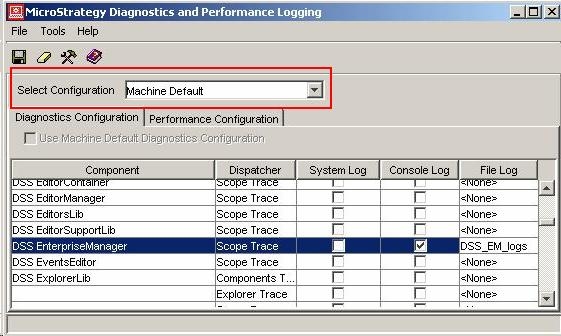
 

  • On the Strategy Enterprise Manager Console machine, access the Diagnostics Configuration editor by navigating to Start > Programs > Strategy > Tools > Diagnostics Configuration.
  • In the Diagnostics Editor, under configuration, select 'Machine Default'.
ka04W000000OfVhQAK_0EM440000002BKT.jpeg
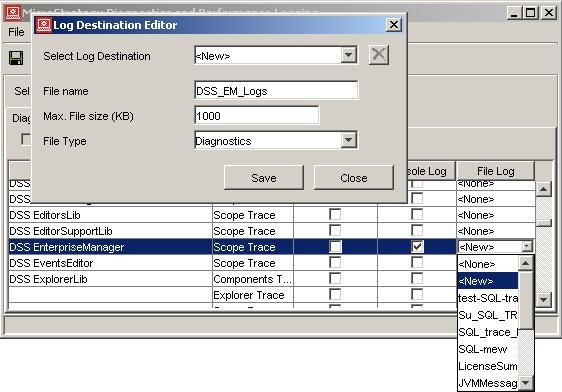
  • Under the component column, search for 'DSS Enterprise Manager' and enable the scope trace to create a new log file, as shown below:
     
    • To create the log in a new file, under the 'File Log' column select 'New'.
    • In the Log Destination Editor, provide a name for the log file in the 'File name' textbox and set the 'Max. File size (KB)' to something equal to or greater than 1000 (~1 MB).
    • The log file is created in the same location as the DSSErrors log file, which by default is located at: C:\Program Files\Common Files\Strategy\Log, as shown below:
ka04W000000OfVhQAK_0EM440000002BKS.jpeg
  • Save and close the Diagnostics Editor.

A log file containing all actions performed while accessing the Strategy Enterprise Manager console are written into the created log file. A snippet from these logs is shown below:
 
......
......
5716: 2008-03-05 09:30:28.990-05:00 Function Enter
5716: 2008-03-05 09:30:29.037-05:00 Function Enter
5716: 2008-03-05 09:30:29.068-05:00 Function Leave
5716: 2008-03-05 09:30:29.068-05:00
......
......
Note: This additional log is not for troubleshooting issues which are encountered during the process of dataload or for issues which are encountered during some operation being performed on the Strategy Enterprise Manager Warehouse tables.


Comment

0 comments

Details

Knowledge Article

Published:

April 3, 2017

Last Updated:

April 3, 2017