EducationSoftwareStrategy.com
StrategyCommunity

Knowledge Base

Product

Community

Knowledge Base

TopicsBrowse ArticlesDeveloper Zone

Product

Download SoftwareProduct DocumentationSecurity Hub

Education

Tutorial VideosSolution GalleryEducation courses

Community

GuidelinesGrandmastersEvents
x_social-icon_white.svglinkedin_social-icon_white.svg
Strategy logoCommunity

© Strategy Inc. All Rights Reserved.

LegalTerms of UsePrivacy Policy
  1. Home
  2. Topics

KB18487: How to lock the column or row headers in a grid object in a report service document in MicroStrategy Web


Community Admin

• Strategy


How to lock the column or row headers in a grid object in a report service document in MicroStrategy Web

When executing a Report Services document in Strategy Web, sometimes the grids will contain more rows then what is visually displayed causing the scroll bar to appear. When scrolling the grid, the headers and/or column titles will be lost as shown in the following screenshot:
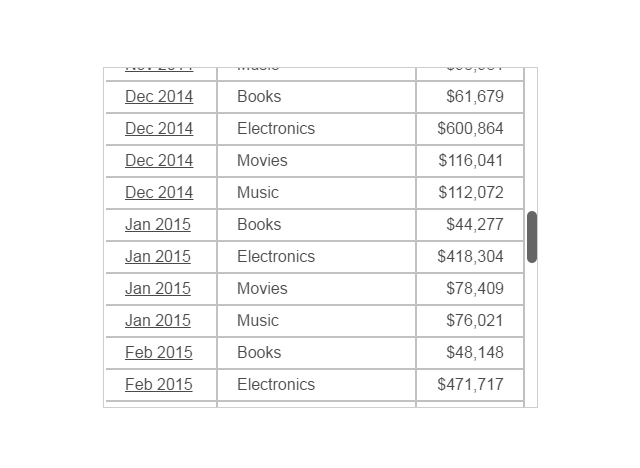
ka04W000001MKwbQAG_0EM440000002HjJ.png

In Strategy Web, it is possible to lock the row or column headers so they remain visible as the user scrolls. To accomplish this, perform the following steps.
  • Switch to design or editable view mode in the document. (User must have document design privileges)
  • Right click the grid object and select 'Properties and Formatting'.
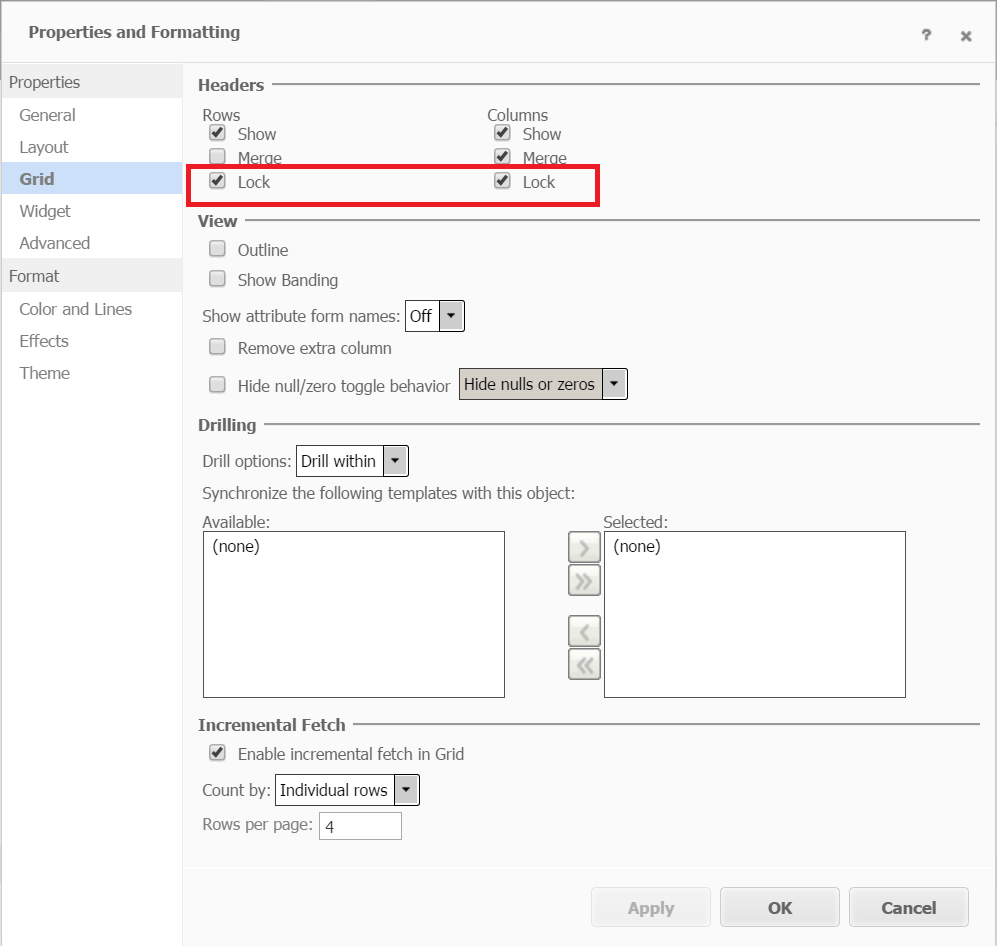
  • Switch to the 'Grid' tab and select the 'Lock' check box under 'Columns' or 'Rows' as shown below:
ka04W000001MKwbQAG_0EM440000002HjO.png
  • Click OK.
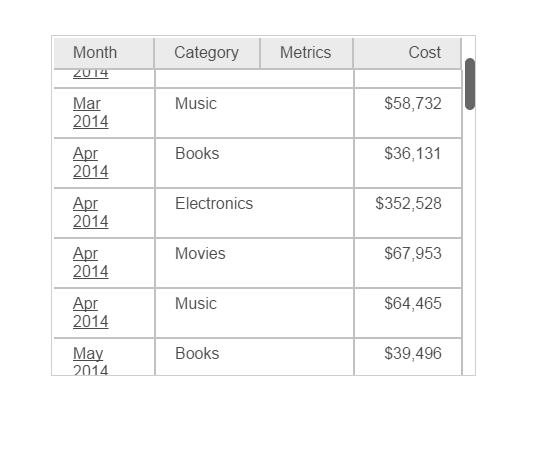
  • Run the Document and test scrolling the grid. Notice the headers stay in position:
ka04W000001MKwbQAG_0EM440000002HjT.png

Comment

0 comments

Details

Knowledge Article

Published:

April 3, 2017

Last Updated:

April 3, 2017