EducationSoftwareStrategy.com
StrategyCommunity

Knowledge Base

Product

Community

Knowledge Base

TopicsBrowse ArticlesDeveloper Zone

Product

Download SoftwareProduct DocumentationSecurity Hub

Education

Tutorial VideosSolution GalleryEducation courses

Community

GuidelinesGrandmastersEvents
x_social-icon_white.svglinkedin_social-icon_white.svg
Strategy logoCommunity

© Strategy Inc. All Rights Reserved.

LegalTerms of UsePrivacy Policy
  1. Home
  2. Topics

KB18680: When updating the table structure in the Warehouse Catalog, two columns of the identical name but different data type are designated as the same data type in MicroStrategy Architect


Community Admin

• Strategy


When two or more columns exist in the warehouse with the same name but different data type, those two columns may become designated as the same data type when viewing them from the MicroStrategy Warehouse Catalog.

SYMPTOM:
When two or more columns exist in the warehouse with the same name but different data type, those two columns may become designated as the same data type when viewing them from the Strategy Warehouse Catalog.
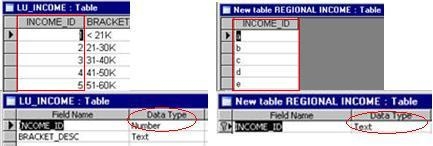
As shown in the picture below, two columns of the same name exist in two different warehouse tables but are designated as different data types; Text and Number. Both columns also contain different data.
 

ka04W000000OeNiQAK_0EM440000002EmZ.jpeg

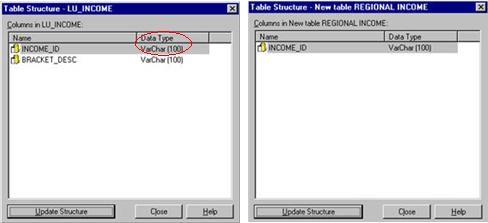
After bringing the new table that contains one of these columns into the project or updating its table structure, the data types of both columns are designated the same.
 
The column in the LU_INCOME table is designated incorrectly as a VarChar, as shown here:
 

ka04W000000OeNiQAK_0EM440000002Emb.jpeg

CAUSE:
Without using the 'Do not merge' option in the read settings, Strategy will treat same name columns as if they were the same object and will overwrite its data type with either the most recent or the maximum denominator column.
 
ACTION:
Choose the Warehouse Catalog read option to `DO NOT MERGE` by following these steps:
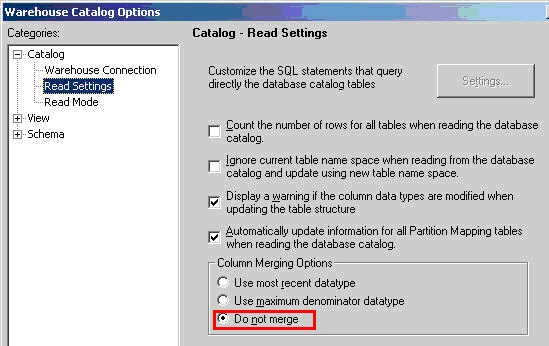
 

  • Open the Warehouse Catalog and click the `Options` button in the tool bar.
  • Click `Read Settings` under the Catalog section.
  • In the `Column Merging Options`, click on `Do Not Merge` as shown below:
ka04W000000OeNiQAK_0EM440000002EmY.jpeg
  • Then perform an update structure on all the tables that have this same name column.

After these steps, the same name columns will be treated as different column objects and will have their respective data types, as shown below:
 
RELATED TECHNOTE:

  • KB18133: Automatic mapping does not recognize a source table with the same column name in Strategy Architect

Comment

0 comments

Details

Knowledge Article

Published:

June 10, 2017

Last Updated:

June 10, 2017