EducationSoftwareStrategy.com
StrategyCommunity

Knowledge Base

Product

Community

Knowledge Base

TopicsBrowse ArticlesDeveloper Zone

Product

Download SoftwareProduct DocumentationSecurity Hub

Education

Tutorial VideosSolution GalleryEducation courses

Community

GuidelinesGrandmastersEvents
x_social-icon_white.svglinkedin_social-icon_white.svg
Strategy logoCommunity

© Strategy Inc. All Rights Reserved.

LegalTerms of UsePrivacy Policy
  1. Home
  2. Topics

KB18686: 'QueryEngine encountered error: Fetch failed. Error type: Odbc error. Odbc operation attempted: SQLFetch. [XXXX]XXXXX: invalid number' error occurs when running a report using Query Builder in MicroStrategy 9.4.x-10.x


Community Admin

• Strategy


When running a report built using the out-of-the-box Query Builder template in MicroStrategy Developer 9.4.x-10.x, an error may occur if the date columns specified in the report have different formats on several of the tables being joined

SYMPTOM:
The following error occurs when running a report built using the out-of-the-box Query Builder template in Strategy Developer 9.4.x-10.x (for demonstration an Oracle driver was used - however the actual 'invalid number' error can occur with any database):
QueryEngine encountered error: Fetch failed. Error type: Odbc error. Odbc operation attempted: SQLFetch. ORA-01722: invalid number.
Error in Process method of Component: QueryEngineServer, Project Contact History Datamart, Job 51348, Error Code= -2147212544.
 
CAUSE:
One potential cause for this error is that the date columns specified in the report have different formats on several of the tables being joined.
 
For example, if the date format 'YYYY:MM:DD:HH24' is used in a view table and the date format 'YYYY:MM:DD' is used in a lookup table, the report will return this error.
 
ACTION:
Follow the steps below to resolve this issue:
  • In the Data Warehouse, modify the date columns in the view table to match the data type in the lookup table.
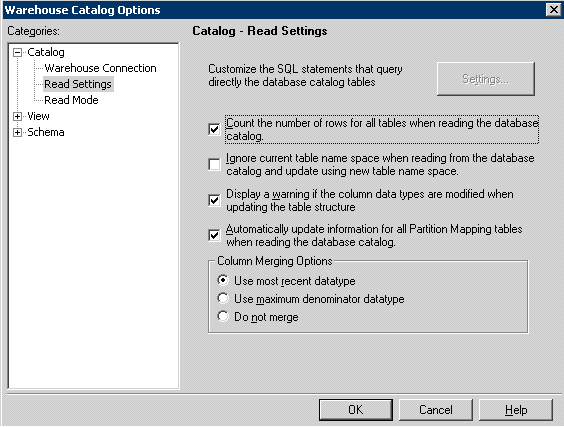
  • In Strategy Developer 9.4.x-10.x, open the Warehouse Catalog (Schema > Warehouse Catalog). From the Tools menu, select 'Options' to gain access to the 'Catalog > Read Settings' section. In the 'Read Settings' section under the 'Column Merging Options' make sure that 'Use most recent Datatype' is checked, as shown below:
ka04W000000OhkPQAS_0EM440000002EqY.jpeg
  • Click OK.
  • In the section on the right, locate the tables that were update in the data warehouse in step 1. Right-click on the table and choose 'Update Structure' to update the table structure.
  • Click 'Save and Close' to save the changes.
  • Update the project schema.
  • Re-execute the report and the error should disappear.

Comment

0 comments

Details

Knowledge Article

Published:

April 17, 2017

Last Updated:

April 17, 2017