EducationSoftwareStrategy.com
StrategyCommunity

Knowledge Base

Product

Community

Knowledge Base

TopicsBrowse ArticlesDeveloper Zone

Product

Download SoftwareProduct DocumentationSecurity Hub

Education

Tutorial VideosSolution GalleryEducation courses

Community

GuidelinesGrandmastersEvents
x_social-icon_white.svglinkedin_social-icon_white.svg
Strategy logoCommunity

© Strategy Inc. All Rights Reserved.

LegalTerms of UsePrivacy Policy
  1. Home
  2. Topics

KB18700: How to use the results of ‘Search for objects’ in MicroStrategy to create macros in Microsoft Excel


Stefan Zepeda

Salesforce Solutions Architect • Strategy


This article notes how to move the results of a search object to Excel for use with macros

SYMPTOM:
 
Users are not able to use the results from search objects in Strategy to create macros in Microsoft Excel.
 
CAUSE:
 
There is no automated way to export the results from search objects to Microsoft Excel.
 
WORKAROUND:
 
Users can use the following workaround to export the results from search objects to Microsoft Excel.
 

  • Specify any desired custom delimiter for the data elements resulting from the search object. To do this go to Strategy and do the following:
     
ka02R000000kWLUQA2_0EM440000002VAc.jpeg
    • Open Tools > My Preferences.
    • Go to the Reports tab and select 'Export Options.'
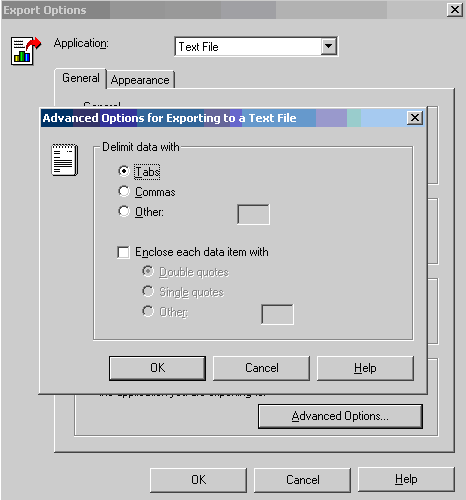
    • In Application, change to 'Text File' and select Advanced.
    • Specify the delimiter desired for each data item, as shown below:
  • Create a search object using Strategy defined by the search criteria specified by the user, as shown below:
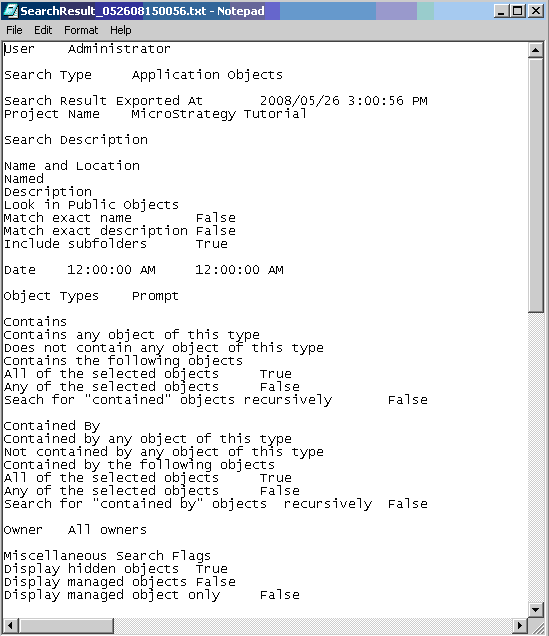
  • Export the results from the search object to a text file, as shown below:
ka02R000000kWLUQA2_0EM440000002VAd.jpeg
  • Import the text file to Microsoft Excel, as shown below:
  • Create the macros desired in Microsoft Excel.

Comment

0 comments

Details

Knowledge Article

Published:

July 18, 2017

Last Updated:

July 18, 2017