During the regular course of troubleshooting cases involving the Strategy 10.x platform, it is common for additional logging and tracing to have become enabled. Since these traces may lower performance, it is always suggested to disable any traces after troubleshooting has been completed.
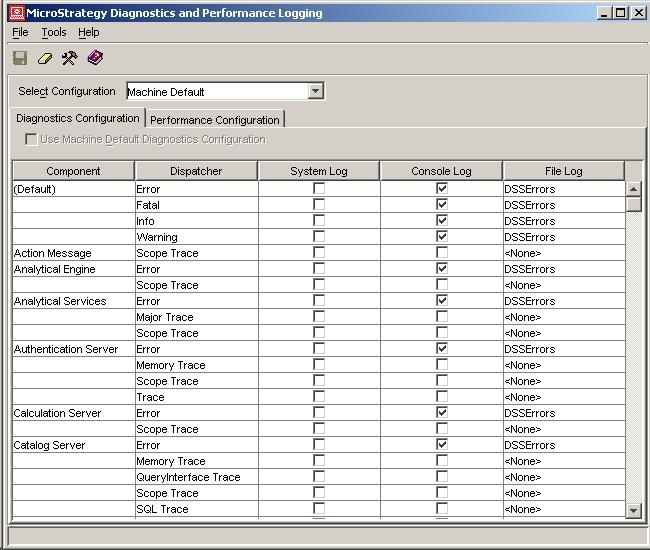
A commonly asked question is 'What are the factory default settings for diagnostic and performance logging?'
The Strategy Diagnostics and Performance Logging 8.x (Diagnostics Configuration) utility has four main sections:
Below are the default values for each of the traces included in the Strategy Diagnostics and Performance Logging utility:
NOTE: System and Console logging is enabled/disabled via the corresponding checkbox in the associated column (see image above). If this checkbox is checked, the logging for the component is enabled; simply un-checking the checkbox will disable the logging. File logging is determined by the value in the last column ('File Log'), if any value other than '<None>' is selected, file logging is enabled. Simply select '<None>' from the drop down to disable logging.
Machine Default > Diagnostics Configuration:
Castor Server Instance > Performance Configuration:
All of these traces are disabled (off) by default.
Download the attached PDF, located under Files of this KB article, for more information.
18745
