EducationSoftwareStrategy.com
StrategyCommunity

Knowledge Base

Product

Community

Knowledge Base

TopicsBrowse ArticlesDeveloper Zone

Product

Download SoftwareProduct DocumentationSecurity Hub

Education

Tutorial VideosSolution GalleryEducation courses

Community

GuidelinesGrandmastersEvents
x_social-icon_white.svglinkedin_social-icon_white.svg
Strategy logoCommunity

© Strategy Inc. All Rights Reserved.

LegalTerms of UsePrivacy Policy
  1. Home
  2. Topics

KB18753: Exporting to Excel produces different results than PDF in a document that contains multiple grids and a large page size in MicroStrategy Web 9.x


Community Admin

• Strategy


This Knowledge Base articles describes an identified defect in MicroStrategy Web 9.x that occurs when exporting a Report Services document that contains multiple grids to Excel. Additionally, a workaround is included.

SYMPTOM:
When a Report Services document contains multiple grids and the page size is set to a large number to accommodate the grids, the document displays correctly when exported to PDF from Strategy Web 9.x, as shown below:
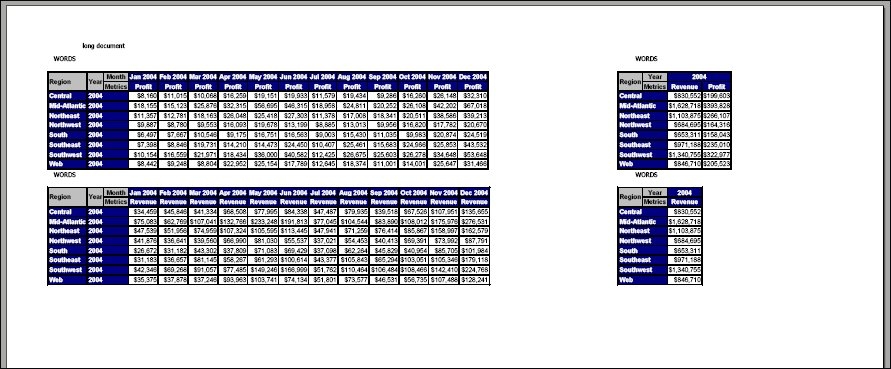
 

ka04W000000OetcQAC_0EM4400000028YG.jpeg

 
When the document is exported to Excel, the space between the grids is no longer present and the grids are overlapping each other, as shown below:
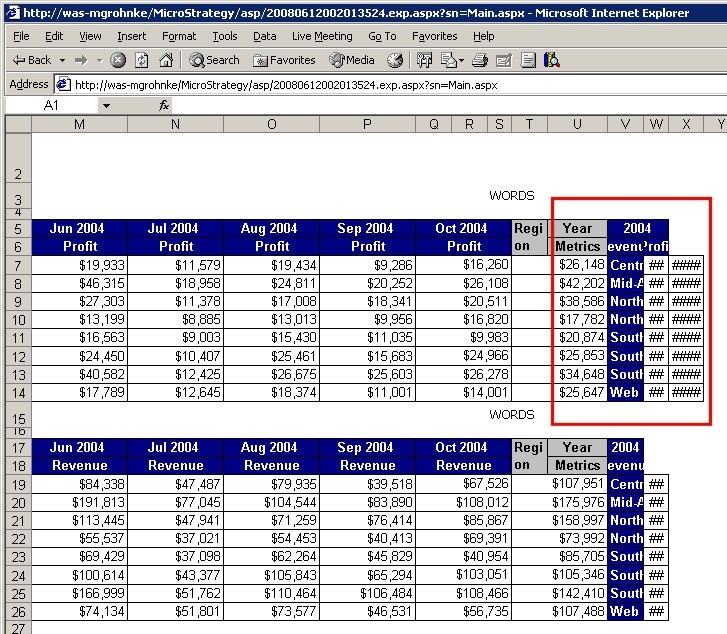
 

ka04W000000OetcQAC_0EM4400000028YE.jpeg

 
STEPS TO REPRODUCE:
Follow the steps below to reproduce this issue:
 

  1. Create a report with Year, Region, Month, Profit and Revenue. Filter on a single year.
  2. Add the report to a document.
  3. Change the page size to 19"W x 13"H.
  4. In the detail header section, add the dataset as a grid.
  5. Move Month to the Columns and remove Revenue.
  6. Scroll to the right and add another grid, this time remove everything but region on the rows and profit on the columns.
  7. Export to PDF and tweak the position so that there is a gap of a couple inches between the two grids.
  8. Export to Excel and notice that the gap is no longer present and the right grid is overlapping the left hand grid.

CAUSE:
This is an identified defect in Strategy Web 9.x.
 
ACTION:
This issue was reviewed by our Technology team for feasibility and will not be scoped for a code fix in any upcoming Strategy release..
 
WORKAROUND:
Change the column width to a fixed number. Edit each dataset and set Grid > Options > Fixed > All Grid > X inches, where X is a number that allows all data to be correctly displayed.


Comment

0 comments

Details

Knowledge Article

Published:

July 10, 2017

Last Updated:

July 10, 2017