When answering a date value prompt in Strategy Web the prompts page contains a calendar picker to help users select a date, as shown below:

The calendar picker will obey the user and project locale preferences, but it can be confusing on where the different sections of the picker or prompt collect the data locale to be used at render time.
The following Strategy Knowledge Base technical note explains how to add a new locale to Strategy Web:
KB31468: Adding a new locale to MicroStrategy Web
In the prompts page, the language used to render the calendar picker is picked from the project / user language preference, as shown below:

If the preference is set to default, the language is picked from the browser language setting, as shown below:

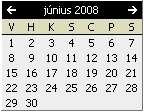
In this example, Hungarian has been selected for the language locale, this will render the month name, first day of the week and weekdays letter in the calendar using the Hungarian locale as specified in the message bundle file.
For the Hungarian locale, a custom MessagesBundle_hu.properties file has been created and saved under WEB-INF\classes\resources.
The month name are found in the file between mstr.1956 and mstr.1967.
The weekdays letter are between mstr.1968 and mstr.1974.
If Hungarian had been selected but did not have a MessageBundle_(language initials).xml file for it then Strategy Web would have used the default MessageBundle.xml file.
The rendered calendar using the Hungarian locale looks as follows:
When selecting a date from the calendar using javascript we pre-populate the text box in the prompt page.
The date put in the text box is formatted according to the project / user preference set in the Number and Date Format locale preference, as shown below:

Again if the preference is left as default, the one used by the browser is picked.
Strategy Web determines the formatting of the date to be entered in the text box by using the date formatting specified in format_config.xml under WEB-INF\xml for the language specified in the "Number and Date Format" locale in the preferences.
This example uses:
<locale language="es" country="ES">
 <data-type name="date">
   <out>d/MM/yyyy</out>

When submitting the prompt, Strategy Web and Intelligence Server 8.1.x will check that the correct formatting for the date entered matches the specification date formatting for the locale being used.
There are two validation steps:
In Strategy Web, inside format_config.xml administrators can add any formatting they want but if the formatting entered does not match the formatting specified in the LCID list the prompt submission will fail.
The following URL contains a list of locales and valid format for Date, Time, currency…:
LCID List
If one of the validations fails, Strategy Web will return the following error message:

Your answer must be a date in the correct date format
In this example, Spanish has been selected as the 'Number and date format.' The LCID list shows the following 'accepted' formats for short dates:
The format_config.xml should be built accordingly:
<locale language="es" country="ES">
 <data-type name="date">
   <out>d/MM/yyyy</out>
   <in>d/M/yyyy</in>
   <in>d/M/yy</in>
   <in>d-M-yy</in>
   <in>d.M.yy</in>
   <in>yyyy-M-d</in>
