SYMPTOM:
Users can create a report that contains a custom group and a metric that returns the count of an attribute in Strategy. When running the report, even when the count for that attribute is zero, the values are displayed in the report, as shown below:

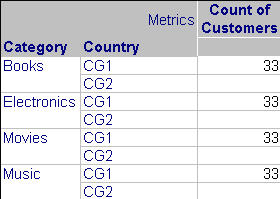
However, if the users add an attribute to the report, the custom group elements that have a metric value of zero disappear from the report, as shown below:

In this example, when adding the Category attribute to the report, the CG2 element of the custom group disappears from the result set.
The SQL Engine uses one pass for each custom group element, grouping by the attribute elements:
select a13.CATEGORY_ID CATEGORY_ID,
max(a15.CATEGORY_DESC) CATEGORY_DESC,
count(distinct a11.EMP_ID) WJXBFS1
from ORDER_DETAIL a11,
LU_ITEM a12,
LU_SUBCATEG a13,
LU_EMPLOYEE a14,
LU_CATEGORY a15
where a11.ITEM_ID = a12.ITEM_ID and
a12.SUBCAT_ID = a13.SUBCAT_ID and
a11.EMP_ID = a14.EMP_ID and
a13.CATEGORY_ID = a15.CATEGORY_ID
and (a14.COUNTRY_ID in (1)
and a14.COUNTRY_ID in (1)
and a14.COUNTRY_ID in (1))
group by a13.CATEGORY_ID
CAUSE:
When only the custom group is on the template, the calculation of the count (without dimensionality) over the set is passed through by the report. If that set is empty, the count is 0 in the report displays as expected.
With the attribute on the template, the SQL Engine needs to calculate the count over the attribute. If the input set is empty, there are no attribute elements to group by and the result has zero rows (instead of a single row with a 0 count).
ACTION:
To force the engine to keep the elements that have an empty result set for the attribute, follow the steps below:
By changing these VLDB properties, the SQL Engine separates the pass for each single custom group element and forces the engine to get the count for each category element first. This will create an outer join to the lookup table for the attributes on the template. The 'Downward Outer Join' VLDB property allows higher-level metrics to be outer joined by constructing a table of all necessary attribute elements to be included early in the join path:
create table ZZTS003024WOL000 nologging as
select a13.CATEGORY_ID CATEGORY_ID,
count(distinct a11.EMP_ID) WJXBFS1
from ORDER_DETAIL a11,
LU_ITEM a12,
LU_SUBCATEG a13,
LU_EMPLOYEE a14
where a11.ITEM_ID = a12.ITEM_ID and
a12.SUBCAT_ID = a13.SUBCAT_ID and
a11.EMP_ID = a14.EMP_ID
and (a14.COUNTRY_ID in (1)
and a14.COUNTRY_ID in (1)
and a14.COUNTRY_ID in (1))
group by a13.CATEGORY_ID
After this, the SQL Engine makes the joint between this previously created table and the lookup table for the attribute:
select a11.CATEGORY_ID CATEGORY_ID,
a11.CATEGORY_DESC CATEGORY_DESC,
pa12.WJXBFS1 WJXBFS1
from LU_CATEGORY a11,
ZZTS003024WOL000 pa12
where a11.CATEGORY_ID = pa12.CATEGORY_ID (+)
