EducationSoftwareStrategy.com
StrategyCommunity

Knowledge Base

Product

Community

Knowledge Base

TopicsBrowse ArticlesDeveloper Zone

Product

Download SoftwareProduct DocumentationSecurity Hub

Education

Tutorial VideosSolution GalleryEducation courses

Community

GuidelinesGrandmastersEvents
x_social-icon_white.svglinkedin_social-icon_white.svg
Strategy logoCommunity

© Strategy Inc. All Rights Reserved.

LegalTerms of UsePrivacy Policy
  1. Home
  2. Topics

KB18838: How to create a filter that gets a dynamic range of dates based on the maximum date value of a table in MicroStrategy Developer 10.x


Stefan Zepeda

Salesforce Solutions Architect • Strategy


KB18838: How to create a filter that gets a dynamic range of dates based on the maximum date value of a table in MicroStrategy Developer 10.x

Users may want to create a filter that picks a range of dates based on the maximum date value for an attribute or fact in Strategy Developer 10.x
 
There is no available functionality that addresses this kind of filter directly. Users can implement the following workaround in order to create this filter.
 

  • Create a metric object based on the maximum of the date attribute. The metric must be at the report level, as shown below:
  • Create a metric object based on the maximum of the date attribute at the desired level (the one that is desired for the end user report). This metric object will represent the base date used to get the range desired. This metric should also include any conditionality desired for the date attribute, as shown below:
  • Create a metric object that gets the left limit of the range of dates according to the range desired. This metric should be a compound metric that uses the metric defined in step 2. In this example, the left limit of the range is one week before the base date:
  • Create a metric object that gets the right limit of the range of dates. This is defined using the same logic that the metric created in step 3, as shown below:
  • Create a report that will work as a filter for the end user report. Include the output level attribute (the same attribute used to define the level of the metric created in step 2), the date attribute, and the metrics created in step 2, 3, and 4, as shown below:
ka02R000000kbJ1QAI_0EM440000002VAP.jpeg
  • Define the report filter as a set qualification based on the metric created in step 1 (date metric) that is limited by the metrics that represent the limits of the range of dates, created in steps 3 and 4, as shown below:
ka02R000000kbJ1QAI_0EM440000002VAW.jpeg
  • Save and close the report.
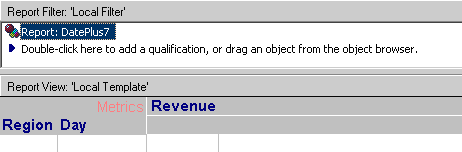
  • In order to filter dates based in the desired range, users must include the previous report as a 'Report as Filter' in the end user reports, as shown in the example below:
ka02R000000kbJ1QAI_0EM440000002VAS.jpeg
  • When running the report, users will see dates filtered by the desired range of valid dates, as shown below:
ka02R000000kbJ1QAI_0EM440000002VAO.jpeg

Comment

0 comments

Details

Knowledge Article

Published:

July 19, 2017

Last Updated:

July 19, 2017