EducationSoftwareStrategy.com
StrategyCommunity

Knowledge Base

Product

Community

Knowledge Base

TopicsBrowse ArticlesDeveloper Zone

Product

Download SoftwareProduct DocumentationSecurity Hub

Education

Tutorial VideosSolution GalleryEducation courses

Community

GuidelinesGrandmastersEvents
x_social-icon_white.svglinkedin_social-icon_white.svg
Strategy logoCommunity

© Strategy Inc. All Rights Reserved.

LegalTerms of UsePrivacy Policy
  1. Home
  2. Topics

KB18860: How to enable the advanced filter option for security filters in MicroStrategy Desktop 9.x


Stefan Zepeda

Salesforce Solutions Architect • Strategy


SYMPTOM:
In Strategy Desktop 9.x, the advanced qualification option is not enabled by default causing the security filter to only display the 'Add an attribute qualification' and 'Add a shortcut to a filter' options available, as shown below:
 

ka02R000000kWRXQA2_0EM440000002V2h.jpeg

ACTION:
The following steps provide instructions on how to enable the advanced filter option in a security filter:
 

  • Open Strategy Desktop 9.x and open the project where a security filter should be created.
  • Go to the Tools menu and select My Preferences as shown below:
ka02R000000kWRXQA2_0EM440000002V2f.jpeg
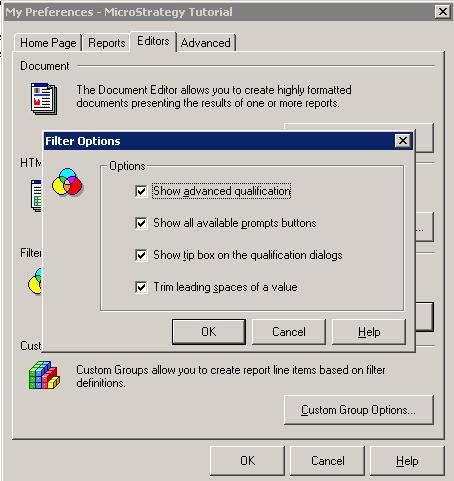
  • In the My Preferences window, select the Editors tab and click on the Filter Options.
  • In the Filter Options pop up window, select the 'Show advanced qualification' option and click the OK button, as shown below:
ka02R000000kWRXQA2_0EM440000002V2k.jpeg
  • Click OK to close My Preferences window.
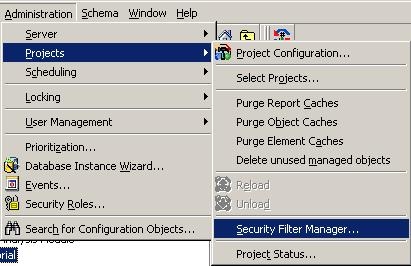
  • Go to the Administration menu, select Project, then click on Security Filters Manager, as shown below:
ka02R000000kWRXQA2_0EM440000002V2l.jpeg
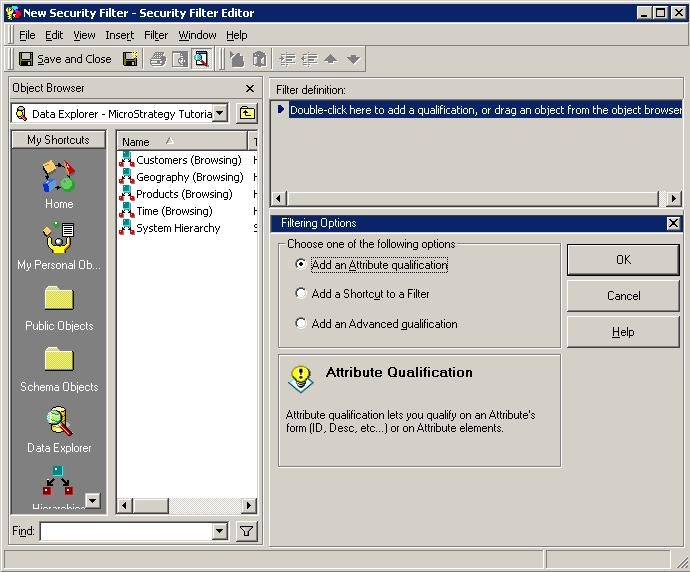
  • Click on the New button and when double clicking in the right pane to create a new filter, the 'Add an Advanced qualification' option is now available, as shown below.
ka02R000000kWRXQA2_0EM440000002V2g.jpeg

Comment

0 comments

Details

Knowledge Article

Published:

July 14, 2017

Last Updated:

July 14, 2017