Because of the multilevel storage in MDXCube (multidimensional) data sources such as SAP BI, Microsoft Analysis Services and Hyperion Essbase, filtering must be handled differently from the methods used in SQL.
Of special importance is the distinction between a filter and a limit. A filter restricts data prior to aggregation, as in the SQL where clause. A limit applies to data that have already been aggregated to the desired result level; this is the having clause in SQL.
In a multidimensional cube, all data are pre-aggregated to every possible level at once. Many qualifications that Strategy typically calls "filters" are really limits, because they simply select a subset of precalculated rows. This is the case whenever the filtering attribute, or attributes from the same hierarchy, are on the template.
If the filtering attribute or related attributes are absent from the template, then the results must be restricted before selecting the desired reporting level, making such qualifications apply as true filters.
Qualifications that are related to the template (limit conditions)
The simplest type of limit in MDX is when the filtering attribute is itself present on the template.

There is a one-to-one correspondence between the elements chosen in the attribute qualification and the rows presented in the grid. (This assumes that metric values are populated for every attribute element. If any metric rows are empty, they may be eliminated by the MDX "nonempty" keyword.) In the MDX query, the qualification is applied by creating a set of attribute elements, and then selecting exactly those elements.
with set as '{
...&&,
...&&,
...&&,
...&&
}'
select {.} on columns,
non empty on rows
from
Attribute qualifications need not be at the same level as the template for the qualification to be treated as a limit in this way. Any attribute(s) from the same hierarchy may be on the template, provided that at least one of these attributes either matches the filtering attribute or is a child of the filtering attribute.
For example, a report a filter on Fiscal Quarter as above, but include Fiscal Year and Fiscal Month attributes on the template.

To obtain this result, the query must select not only Q2 FY 2003 as specified in the filter, but also the parent (ancestor) fiscal year element corresponding to the filter, and the children (descendant) elements at Month level falling within the filter. Accordingly, the MDX Ancestor and Descendants functions appear in the query to produce the final set of elements used in the MDX select clause.
with set as '{...&&}'
set as '{Generate(, Descendants(..CurrentMember, .., SELF_AND_BEFORE))}'
set as '{Generate(, {Ancestor(..CurrentMember, ..)})}'
set as '{, }'
set as '{...members, ...members, ...members}'
set as 'Intersect({}, {})'
select {.} on columns,
non empty hierarchize({}) on rows
from
Many permutations are possible, and the same logic applies to multiple dimensions used on the same report. The general principles remain consistent, however.
Limit conditions cannot filter at a lower level than the level being selected. Consequently, a report that filters on a child attribute but selects one of its parent attributes is not valid. That type of qualification requires pre-filtering the data before selecting at report level, but qualifications related to report level must be treated as limits, which rules out the possibility of pre-filtering. This situation is discussed in the following Strategy Technical Note.
KB16979: 'The child of an attribute in the template may not be used to restrict the data' error appears when executing an OLAP cube report in MicroStrategy
Qualifications that are unrelated to the template (filter conditions)
If a qualification comes from a dimension that is not used on the template, the filtering attribute has no influence over the attribute elements selected for the grid (as in a limit). Instead, it must "invisibly" restrict the metric values that are available for selection.
MDX accomplishes this using the "slicer axis." The slicer axis defines a subset of available data that will factor into the selected elements, but only for dimensions that are not present in the select clause. (Thus, a qualification must be either a filter or a limit.)
The slicer axis is defined in the MDX where clause. Unlike SQL, MDX does not accept Boolean conditions in the where clause. Instead, one and only one member from each off-template dimension may be listed. When selecting metric values, only data associated with these members will be considered.
For example, a report might show financial amounts for Departments, but only for Q4 FY 2002.
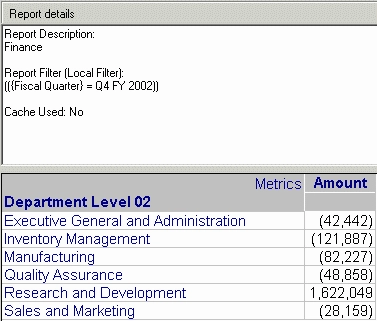
In the MDX, Q4 FY 2002 is listed alone in the where clause, meaning that the individual Department values will come from the cells associated with that quarter only. Otherwise, the values would come from the cells for all quarter data aggregated together.
with set as '{...members}'
select {.} on columns,
non empty on rows
from
where (...&&)
As noted, only one member from each dimension may be used in the MDX where clause. A Strategy attribute qualification can refer to several attribute elements, however. To handle this situation, a "calculated member" is created as a new, ad-hoc member of the filtering dimension. The calculated member's purpose is to aggregate several elements into one value, which will take the place of the single element allowed in the where clause.
The above report might filter over Q3 and Q4 FY 2002.
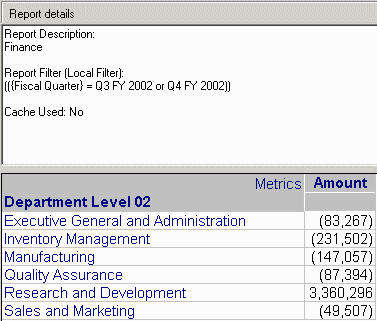
with set as '{...members}'
set as '{...&&, ...&&}'
member .. as 'Aggregate()'
select {.} on columns,
non empty on rows
from
where (..)
This illustrates an important point about MDX, specifically the fluidity between base data elements and on-the-fly calculations. In most cases, a member of an OLAP Cube hierarchy corresponds to an attribute element, or a row of data in some underlying table. Members can also be calculations. The metrics that Strategy imports from an OLAP Cube are actually members of the dimension. Custom MDX metrics defined in Strategy are handled by adding new members to the dimension within the context of the query. But such "calculated members" are not restricted to the role of a Measure. They can be added to any dimension and any hierarchy, and used interchangeably with any other member of the hierarchy.
Once the ad-hoc member .. has been defined in the query, there is no difference between using this member in the where clause as opposed to a member that exists only as a data point in the underlying physical data. The meaning of a calculated member in the where clause is, then, to apply the calculation to the Measure for each cell.
IMPORTANT: If any cube measures are not fully aggregatable with respect to one or more dimensions, such as inventory values relative to time or any percentage or average computations, the Aggregate function required for where-clause conditions involving multiple attribute elements could produce incorrect results. Note that in such a case, it is impossible to write the query without aggregation, so the issue must be addressed by modifying either the cube or the report design. Adding a related attribute to the template (including the page-by axis) eliminates the need for the extra aggregation in the query, by making the qualification a limit rather than a filter.
One such scenario in Microsoft Analysis Services reporting is described in the following Strategy Technical Note.
KB18947: Calculated members defined in a Microsoft Analysis Services cube return incorrect results after adding a filtering condition to a MicroStrategy report
Metric qualifications
Metric qualifications are always treated as a limit, at report level. The MDX Filter function produces the set of elements meeting the qualification, and this set is used in the select clause.
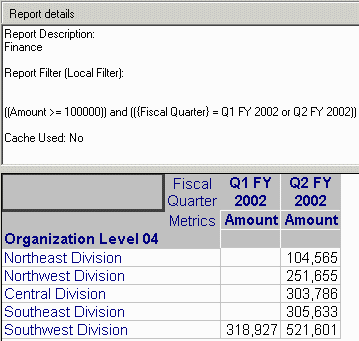
This report involves two dimensions, and . The set of possible attribute elements for this report is a cross join of the elements from these dimensions. (Not all elements are used -- only the ones required for the template. Qualifications related to template attributes are taken into account before applying the Filter function.) This set is used as the input to the Filter function, with the condition on the Amount metric as defined in the report. The resulting, filtered set then makes its way indirectly to the select clause, to apply as a limit. (The is important to get elements for parent attributes on the template. Parent elements should not be considered when evaluating the metric qualification, but they must be selected in the final result.)
with set as '{...members}'
set as '{...&&, ...&&}'
set as 'Filter(CROSSJOIN(, ), . >= 100000.0)'
set as '{Generate(, CROSSJOIN({..CurrentMember}, {..CurrentMember}))}'
select {.} on columns,
non empty hierarchize({}) on rows
from
KB18942
