EducationSoftwareStrategy.com
StrategyCommunity

Knowledge Base

Product

Community

Knowledge Base

TopicsBrowse ArticlesDeveloper Zone

Product

Download SoftwareProduct DocumentationSecurity Hub

Education

Tutorial VideosSolution GalleryEducation courses

Community

GuidelinesGrandmastersEvents
x_social-icon_white.svglinkedin_social-icon_white.svg
Strategy logoCommunity

© Strategy Inc. All Rights Reserved.

LegalTerms of UsePrivacy Policy
  1. Home
  2. Topics

KB19006: How to use Dependency Walker to profile DLL's accessed by an application


Community Admin

• Strategy


This article describes how to use Dependency Walker to profile DLL's accessed by an application.

The following steps demonstrate how to use Dependency Walker to generate a list of Dynamic Link Libraries(.dll) accessed when launching any Strategy executable files (e.g. MSTRDESK.exe or MSTRNCAD.exe) or reproducing any errors:
  • Download the Dependency Walker from http://www.dependencywalker.com/.
  • Extract the zip file to any folder. The Dependency Walker application does not need to install.
  • Run the 'depends.exe.'
  • Go to the menu 'File' > 'Open' and locate a Strategy executable file. In this case, 'MSTRDESK.exe' has been selected. 'MSTRDESK.exe' is the executable file for Strategy Developer.
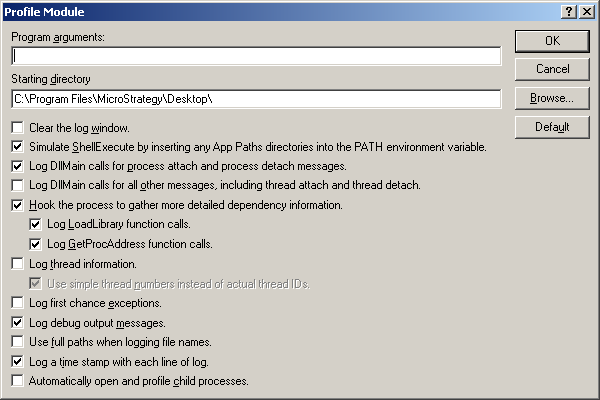
  • Go to the menu 'Profile' > 'Start Profiling'. The 'Profile Module' window will display, as shown below:
ka04W000000OhHtQAK_0EM440000002HVm.jpeg
  • Most of the time, users do not have to change any configuration settings in this window. However, there are three options (the last three in the above screenshot) used frequently to affect the output result:
    • Use full paths when logging file names: This option logs the full path of a file name. Instead of 'M8JCOWrp.dll', with the option selected, in the log file, it shows as 'C:\Program Files\Common Files\Strategy\M8JCOWrp.dll.'
    • Log a timestamp with each line of log: As the name of the option denotes, if selected, the log will contain timestamps.
    • Automatically open and profile child processes: This option should remain unchecked. If the option is selected, the child processes incurred by the target executable file will be profiled.
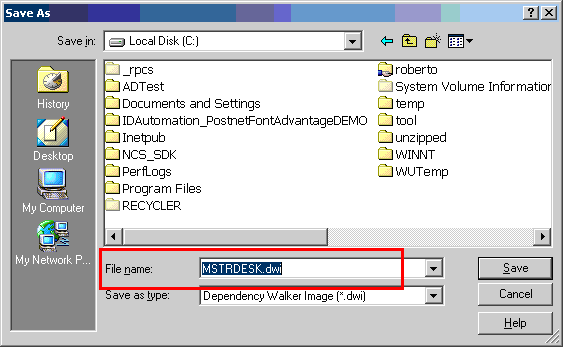
  • Once the operation is finished or the user has replicated the issue, go to the menu 'File' > 'Save As'. The default file name is '.dwi'. Do not change it and save the default file name, as shown below:
ka04W000000OhHtQAK_0EM440000002HVf.jpeg
  • Once the file is saved correctly, go back to the Dependency Walker application and exit it. It also closes the target application.

Third Party Software Installation:
WARNING:
The third-party product(s) discussed in this technical note is manufactured by vendors independent of Strategy. Strategy makes no warranty, express, implied or otherwise, regarding this product, including its performance or reliability.


Comment

0 comments

Details

Knowledge Article

Published:

May 26, 2017

Last Updated:

May 26, 2017