There are two main methods of creating attribute forms as hyperlinks or uniform resource locators (URLs) in Strategy Developer 9.4.x-10.x. Depending on which method is used, it will determine the behavior of the hyperlinks or uniform resource locators (URLs) when:
The following examples use the Strategy Tutorial project for illustration purposes.
Method 1:
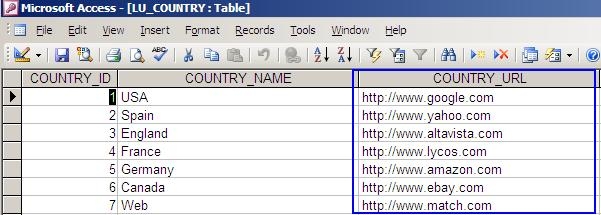
The following steps assume that in the data warehouse, the lookup table used for the attribute in question contains a column whose data type is text which defines the link to be used as a hyperlink or uniform resource locator (URL). For the purpose of this example, the Strategy Tutorial Data Warehouse that resides in Microsoft Access 200x is used, as shown below:
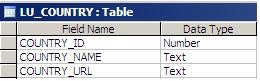
In Strategy Developer 9.4.x-10.x:
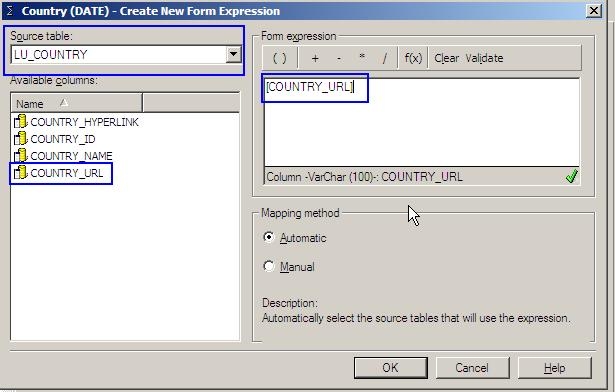
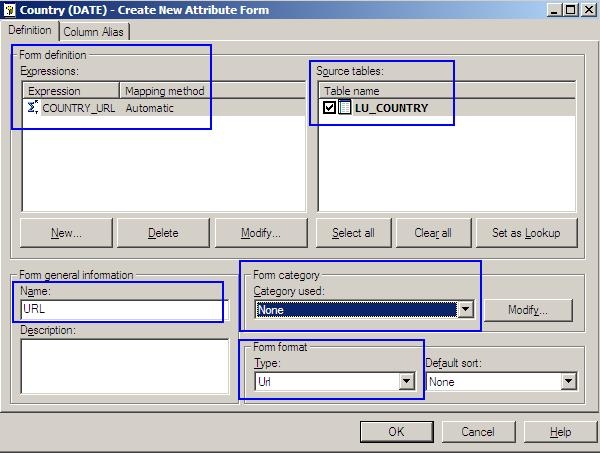
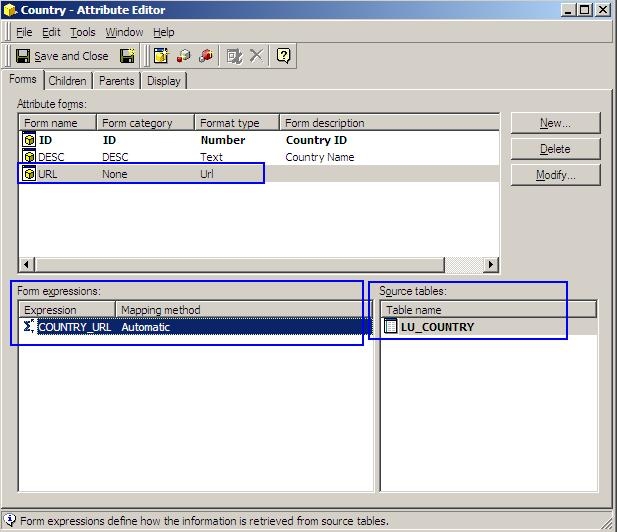
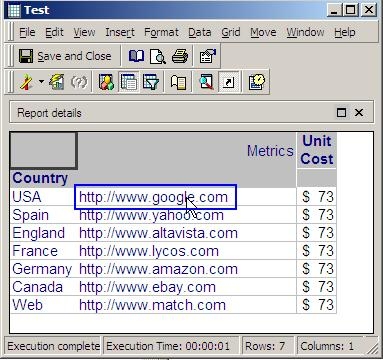
When the report is run, the hyperlink or uniform resource locator (URL) will be displayed as static text (link is not functional), as shown below:
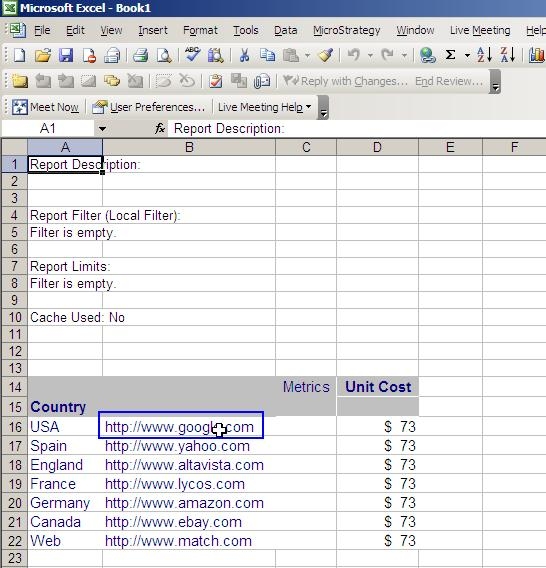
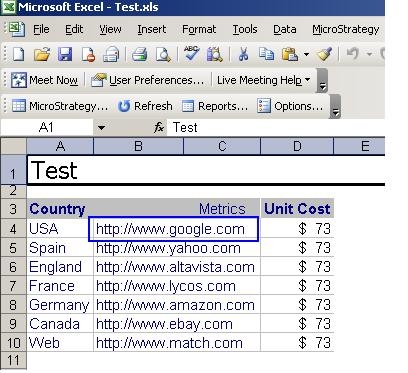
When the report is exported to Microsoft Excel 20xx, the hyperlink or uniform resource locator (URL) will be displayed as static text (link is not functional), as shown below:
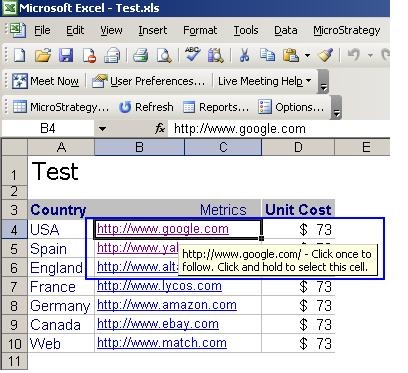
Note: If the user double clicks on the cell containing the hyperlink or uniform resource locator (URL) and then clicks outside of the cell, then the link will become functional, as shown below:
When the report is exported to portable document format (PDF) the hyperlink or uniform resource locator (URL) will be displayed as functional, as shown below:
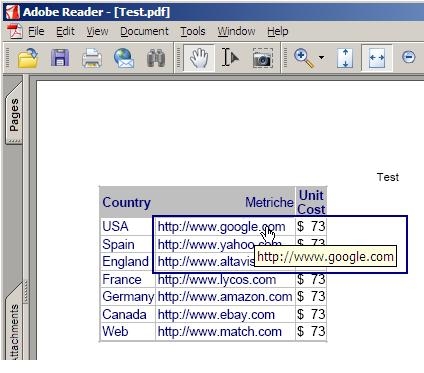
Note: In order for the hyperlinks or uniform resource locators (URLs) to be functional upon saving the portable document format (PDF) as a local file when exporting from Strategy Desktop 8.x, the user must make sure that the preferences for the file enable the functionality, as shown below.
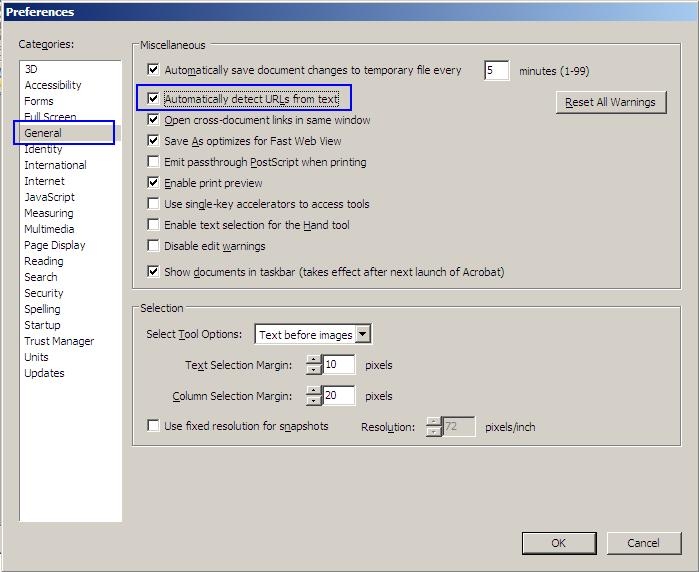
In Adobe Reader 7.x:
The 'Automatically detect URLs from text' preference must be enabled for the portable document format (PDF) file, as shown below:
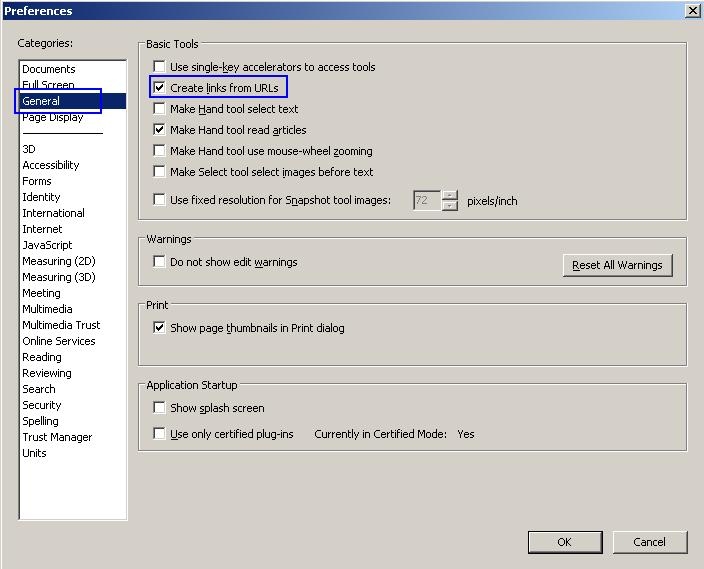
In Adobe Reader 8.x and higher:
The 'Create links form URLs' preference must be enabled for the portable document format (PDF) file, as shown below:
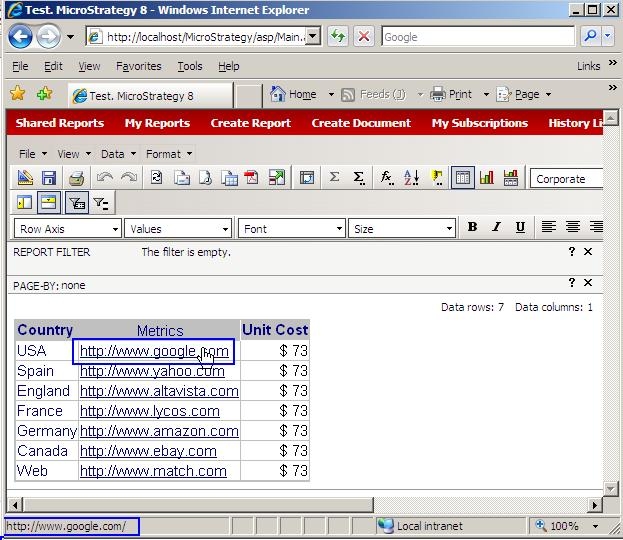
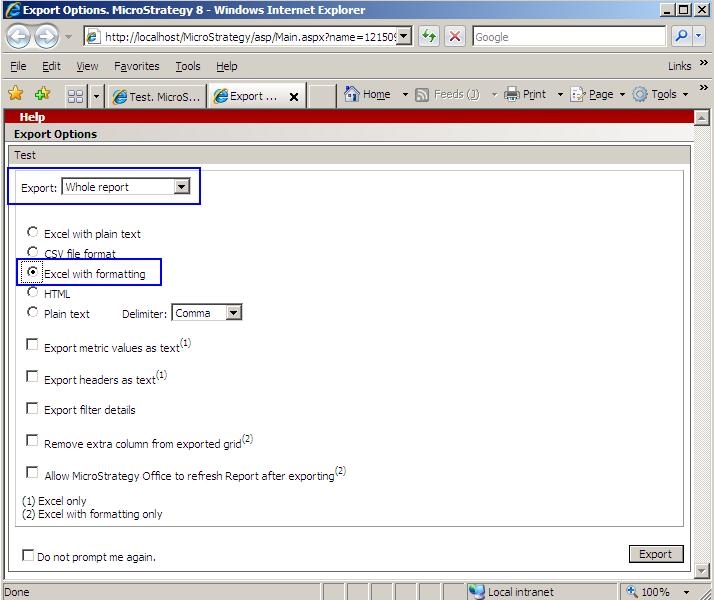
In Strategy Web 9.4.x-10.x:
Method 2:
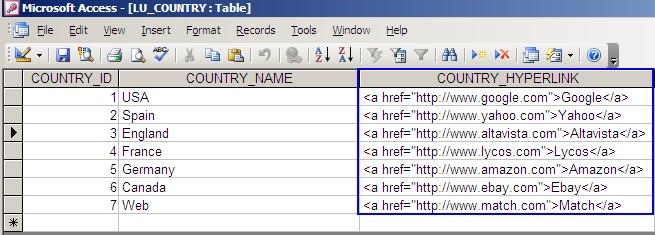
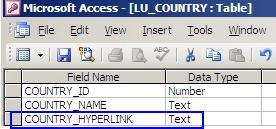
The following steps assume that in the data warehouse, the lookup table used for the attribute in question contains a column whose data type is text which defines the link to be used as a hyperlink or uniform resource locator (URL) with hypertext markup language (HTML) tags. For the purpose of this example, the Strategy Tutorial Data Warehouse that resides in Microsoft Access 20xx is used, as shown below:
In Strategy Developer 9.4.x-10.x:
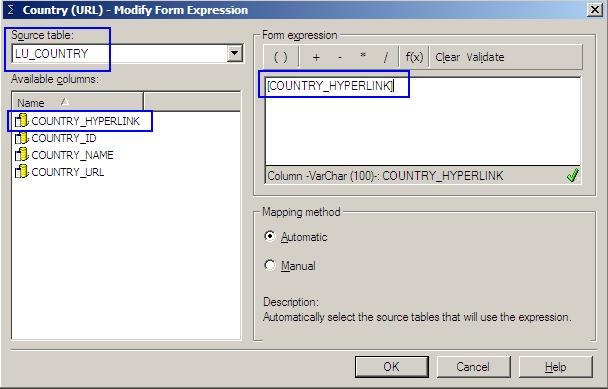
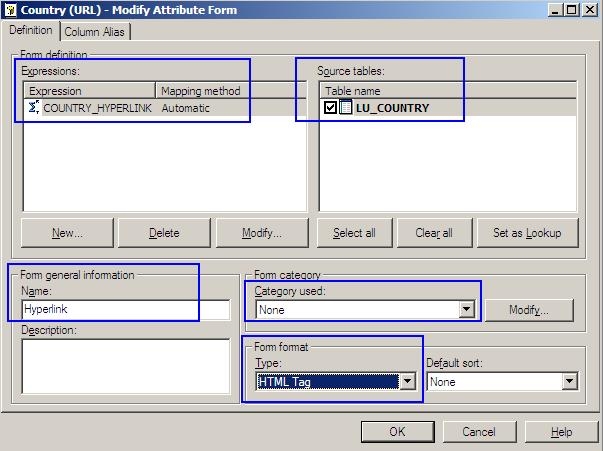
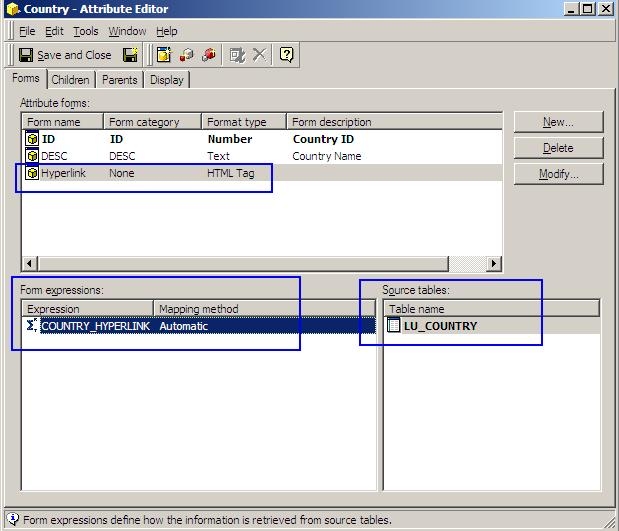
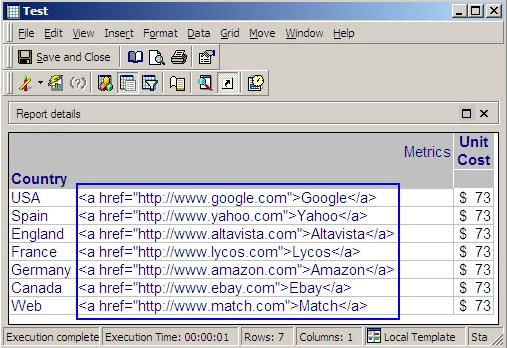
When the report is run the hyperlink or uniform resource locator (URL) will be displayed as static text (link is not functional), as shown below:
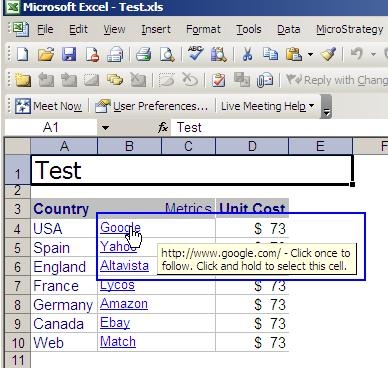
When the report is exported to Microsoft Excel 20xx the hyperlink or uniform resource locator (URL) will be displayed as static text (link is not functional), as shown below:
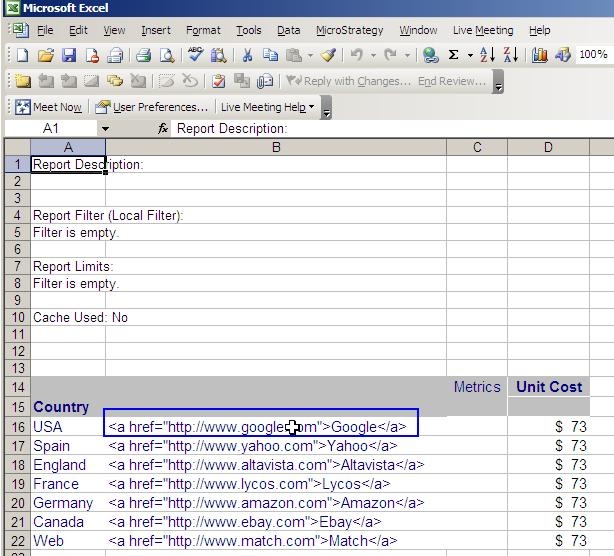
Note: If the user double clicks on the cell containing the hyperlink or uniform resource locator (URL) and then clicks outside of the cell it will not make the link functional.
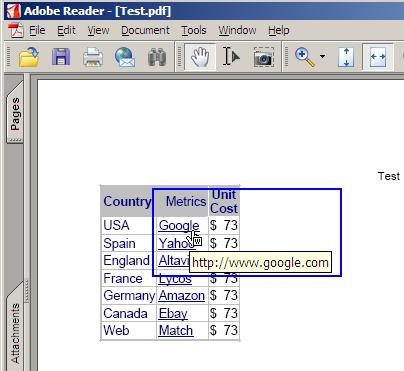
When the report is exported to portable document format (PDF) the hyperlink or uniform resource locator (URL) will be displayed as functional, as shown below:
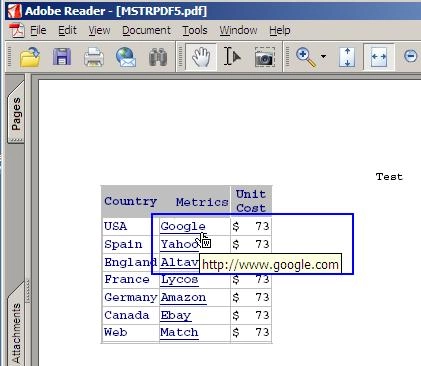
Note: In order for the hyperlinks or uniform resource locators (URLs) to be functional upon saving the portable document format (PDF) as a local file when exporting from Strategy Desktop 8.x, the user must make sure that the preferences for the file enable the functionality, as shown below.
In Adobe Reader 7.x, the 'Automatically detect URLs from text' preference must be enabled for the portable document format (PDF) file, as shown below:
In Adobe Reader 8.x and above, the 'Create links form URLs' preference must be enabled for the portable document format (PDF) file, as shown below:
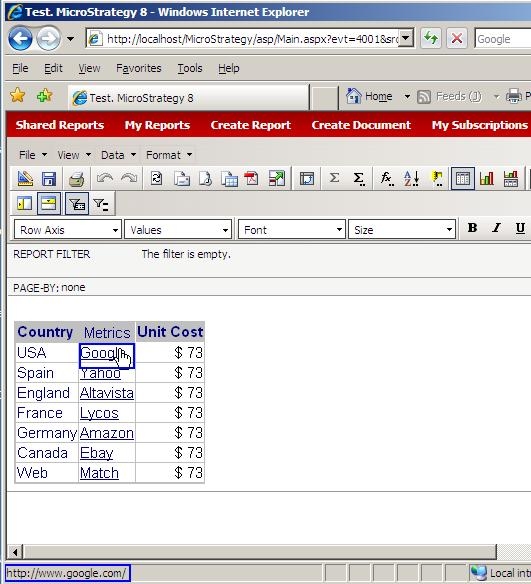
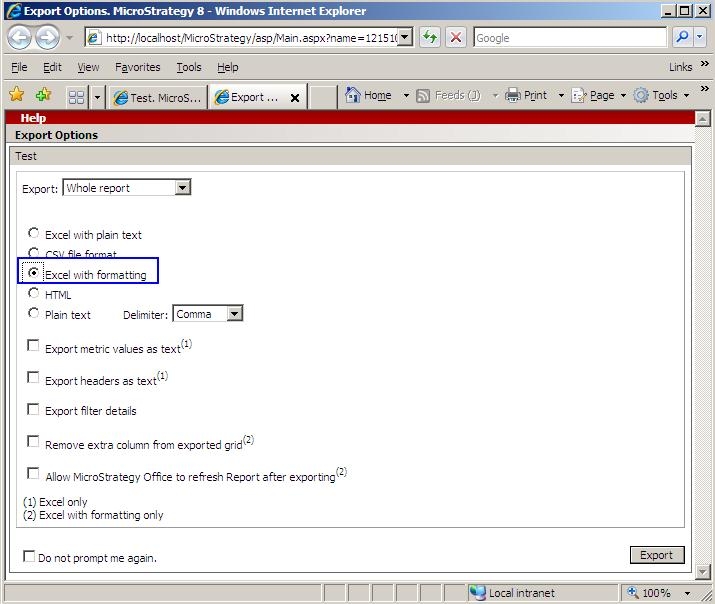
In Strategy Web 8.x: