EducationSoftwareStrategy.com
StrategyCommunity

Knowledge Base

Product

Community

Knowledge Base

TopicsBrowse ArticlesDeveloper Zone

Product

Download SoftwareProduct DocumentationSecurity Hub

Education

Tutorial VideosSolution GalleryEducation courses

Community

GuidelinesGrandmastersEvents
x_social-icon_white.svglinkedin_social-icon_white.svg
Strategy logoCommunity

© Strategy Inc. All Rights Reserved.

LegalTerms of UsePrivacy Policy
  1. Home
  2. Topics

KB19022: How to display all elements of a custom group even if no data exist for one or more elements in MicroStrategy Engine


Community Admin

• Strategy


This article describes how to display all elements of a custom group regardless of if data exists in MicroStrategy.

SYMPTOM:
 
A custom group is used on a report with one or more attributes. Based on other filtering conditions, some of the custom group elements will be empty (no data will be returned). These custom group elements are not displayed in the report results.
The issue may be illustrated in Strategy Tutorial using a report with the following construction:
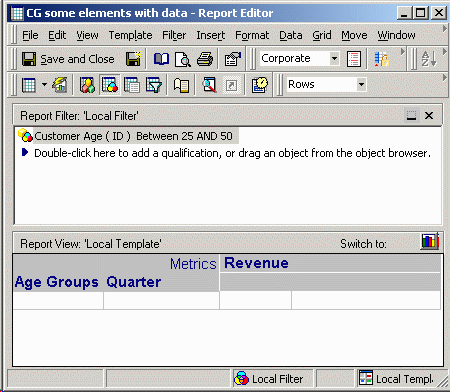
  • Rows: custom group Age Groups, attribute Quarter
  • Columns: metric Revenue
  • Filter: customer age@ID between 25 and 50
ka04W000000OfQ9QAK_0EM440000002Enu.gif

 
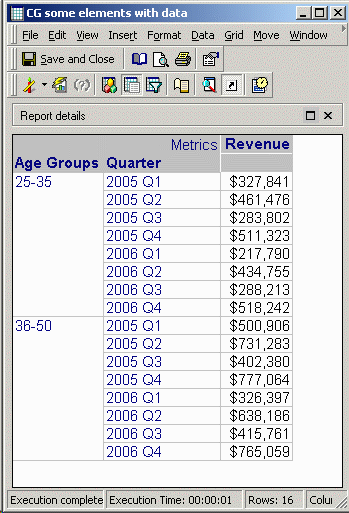
When this report is executed, only two custom group elements are displayed even though five elements are defined in the custom group.
ka04W000000OfQ9QAK_0EM440000002Enr.gif

 
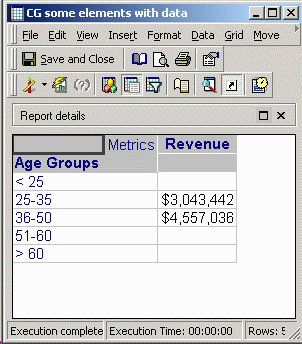
If the quarter attribute is removed from the template, all custom group elements are displayed, with empty metric values for the custom group elements that lie outside of the report filter.
ka04W000000OfQ9QAK_0EM440000002Ens.gif

 
CAUSE:
 
By design, custom group elements are displayed only if there is at least one row in the SQL results for that element.
Effectively, each custom group element is executed as if it were a separate report. Depending on the custom group's display options, one or two result tables are retrieved: one for the "grand total" of the custom group element, and another for the individual items within the element. The grand total result is evaluated at the level of other attributes on the template, excluding the level of the individual items.
 
When there are no attributes on the template, the grand total pass takes the following form, here for the "< 25" element.


select sum(a11.TOT_DOLLAR_SALES) WJXBFS1
from CUSTOMER_SLS a11
   join LU_CUSTOMER a12
      on (a11.CUSTOMER_ID = a12.CUSTOMER_ID)
where ((DATEPART(YEAR, GETDATE()) - DATEPART(YEAR, a12.CUST_BIRTHDATE)) between 25 and 50
   and (DATEPART(YEAR, GETDATE()) - DATEPART(YEAR, a12.CUST_BIRTHDATE)) < 25)


All data will be excluded from this query because there is no customer age that can be both "less than 25" and "between 25 and 50" simultaneously. However, because no attributes are present in the select or group by clauses, the result of this query is a single row with a NULL value for the metric. Since there is a row in the result set, the custom group element may be displayed with the NULL metric value.
 
With an attribute on the template along with the custom group, the same pass appears as follows:

select a13.QUARTER_ID QUARTER_ID,
   max(a14.QUARTER_DESC) QUARTER_DESC,
   sum(a11.ORDER_AMT) WJXBFS1
from ORDER_FACT a11
   join LU_CUSTOMER a12
      on (a11.CUSTOMER_ID = a12.CUSTOMER_ID)
   join LU_DAY a13
      on (a11.ORDER_DATE = a13.DAY_DATE)
   join LU_QUARTER a14
      on (a13.QUARTER_ID = a14.QUARTER_ID)
where ((DATEPART(YEAR, GETDATE()) - DATEPART(YEAR, a12.CUST_BIRTHDATE)) between 25 and 50
   and (DATEPART(YEAR, GETDATE()) - DATEPART(YEAR, a12.CUST_BIRTHDATE)) < 25)
group by a13.QUARTER_ID
 

The filter excludes not only all fact values, but also all Quarter values. Therefore, the proper result of this query is an empty set, with no rows whatsoever. In this case, the corresponding custom group element is suppressed from the report display.
 
ACTION
 
OLAP Services features may be used to display at least one row for each custom group element.

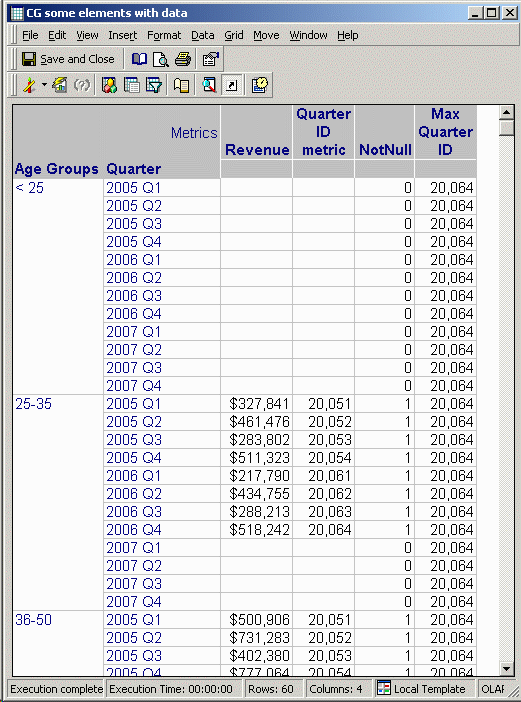
  • Create a metric named M1 whose formula is Max(Quarter@ID) at report level dimensionality, with Standard grouping and Ignore filtering. Add this metric to the Report Objects window (it is not necessary to display it on the template). Substitute the template attribute for Quarter in this formula.
  • In Report Data Options > Attribute Join Type, choose the third option, "Preserve lookup table elements joined to final pass result table based on template attributes without filter." This ensures that the result for every custom group element will include attribute elements, even if there are no metric values.
  • Add a derived metric (Insert > New Metric) with the formula IF(IsNull(Revenue), 0, 1). Substitute one of the template metrics for Revenue.
  • Add a second derived metric with the formula Max(NullToZero(M1)){} , where M1 is the metric created in step 1. This returns the highest quarter ID for which metric values exist across the entire report.
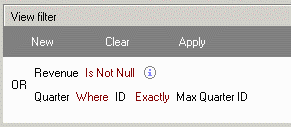
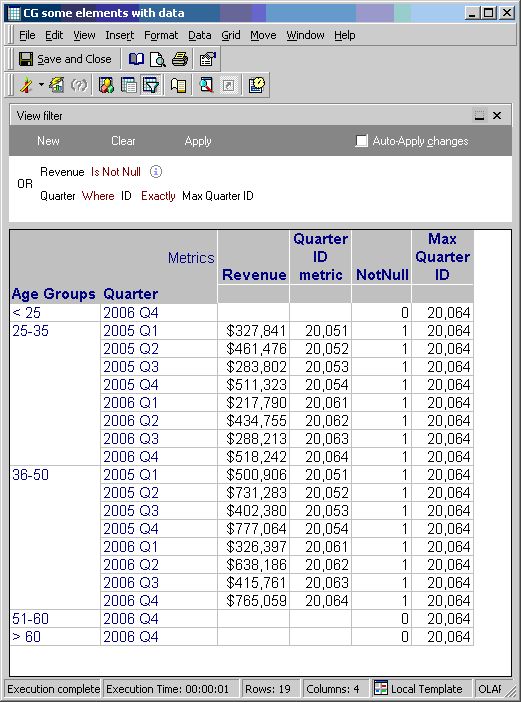
  • Create the following conditions in the view filter (where Max Quarter ID is the derived metric created in step 4):
    Revenue Is Not Null
    OR
    Quarter Where ID Exactly Max Quarter ID
ka04W000000OfQ9QAK_0EM440000002Eno.gif

The following illustrations demonstrate how the workaround functions. Each custom group element now returns data, even if the metric results are empty throughout. The view filter on Revenue eliminates rows, such as 2007 Q1, that should be dropped from the result. Then, to keep one row for "empty" custom group elements, the Quarter view filter qualification preserves, for every element, the row corresponding to the latest Quarter that has a metric result anywhere in the report.
 

ka04W000000OfQ9QAK_0EM440000002Ent.gif

 
The final display, with view filtering qualification applied, follows. Note that the quarter ID metric and the two derived metrics do not have to be displayed on the template.
ka04W000000OfQ9QAK_0EM440000002Enp.gif

 
If the report has more than one attribute on the template, separate metrics and view filter conditions should be created for each attribute.
 
KB19022


Comment

0 comments

Details

Knowledge Article

Published:

April 14, 2017

Last Updated:

January 8, 2019