EducationSoftwareStrategy.com
StrategyCommunity

Knowledge Base

Product

Community

Knowledge Base

TopicsBrowse ArticlesDeveloper Zone

Product

Download SoftwareProduct DocumentationSecurity Hub

Education

Tutorial VideosSolution GalleryEducation courses

Community

GuidelinesGrandmastersEvents
x_social-icon_white.svglinkedin_social-icon_white.svg
Strategy logoCommunity

© Strategy Inc. All Rights Reserved.

LegalTerms of UsePrivacy Policy
  1. Home
  2. Topics

KB19097: How to display hidden objects in the search editor on MicroStrategy Developer when Developer preferences do not allow the display of hidden objects?


Stefan Zepeda

Salesforce Solutions Architect • Strategy


This article describes how to display hidden objects in the search editor when the display of hidden objects is turned off in Developer preferences.

When Strategy Developer preferences are set not to display hidden objects, the search editor also does not display any hidden objects as shown below:

ka02R000000kbNKQAY_0EM440000002V2Z.jpeg

 
If users need to view hidden objects when performing a search through the search editor, implement the steps below:

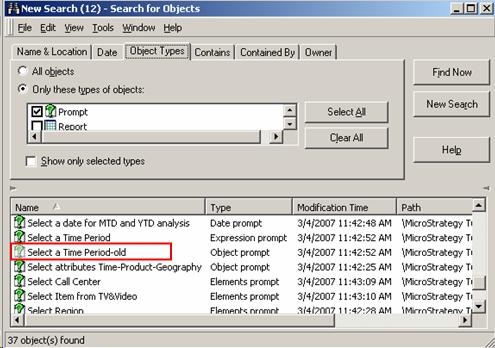
  • Open the search editor and select 'Options' from the Tools menu.
  • In the 'Search Options' dialog, check the 'Display hidden objects (ignore Desktop setting)' checkbox, as shown in the screen shot below:
ka02R000000kbNKQAY_0EM440000002V2a.jpeg
  • Click the 'OK' button to re-execute the search and the hidden objects will be returned, as illustrated below:
ka02R000000kbNKQAY_0EM440000002V2r.jpeg

Comment

0 comments

Details

Knowledge Article

Published:

July 14, 2017

Last Updated:

July 14, 2017