EducationSoftwareStrategy.com
StrategyCommunity

Knowledge Base

Product

Community

Knowledge Base

TopicsBrowse ArticlesDeveloper Zone

Product

Download SoftwareProduct DocumentationSecurity Hub

Education

Tutorial VideosSolution GalleryEducation courses

Community

GuidelinesGrandmastersEvents
x_social-icon_white.svglinkedin_social-icon_white.svg
Strategy logoCommunity

© Strategy Inc. All Rights Reserved.

LegalTerms of UsePrivacy Policy
  1. Home
  2. Topics

KB19237: “One or more columns were not found in table ‘xxx’….” error message appears while updating table structures in the MicroStrategy Warehouse Catalog in MicroStrategy Developer


Stefan Zepeda

Salesforce Solutions Architect • Strategy


When a user attempts to propagate the changes made to a table in a warehouse to the MicroStrategy Warehouse Catalog, they receive the following error message: “One or more columns were not found in table ‘xxx’….”

SYMPTOM
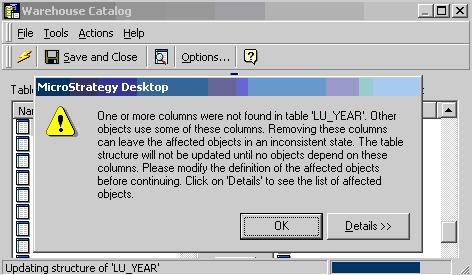
When a user attempts to propagate the changes made to a table in a warehouse to the Strategy Warehouse Catalog, they receive the following error message:
ka0PW0000000dZFYAY_0EM440000002FkK.jpeg

 
One or more columns were not found in table 'LU_YEAR'. Other objects use some of these columns. Removing these columns can leave the affected objects in inconsistent state. The table structure will not be updated until no objects depend on these columns. Please modify the definition of the affected objects before continuing.
CAUSE
This issue occurs because the column name, which has been modified, contains objects dependent on it in Strategy. Changing the table structure will leave these objects in an inconsistent state.
 
For example:
 
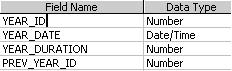
The original table structure has fields: YEAR_ID, YEAR_DATE, YEAR DURATION, PREV_YEAR_ID
 

ka0PW0000000dZFYAY_0EM440000002FkJ.jpeg

 
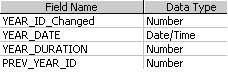
Modified Table Structure:  YEAR_ID_Changed, YEAR_DATE, YEAR DURATION, PREV_YEAR_ID
ka0PW0000000dZFYAY_0EM440000002Fk3.jpeg

There may be attributes or facts that are using YEAR_ID and renaming the column will make these objects inconsistent and joins will not perform correctly.
 
ACTION
In order to reflect this column name change in Strategy, follow the steps below:
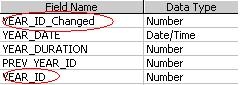
 

  • Search for all the dependent objects by going to Schema Objects > Tables. Right-click on a table name to obtain a list of dependent objects.
  • Use Project Documentation Wizard to document the schema objects. This will help in determining how this column is used in various objects.
  • In the warehouse, edit the table and add a dummy column.
  • Rename the original column and name the dummy column with the original column name. Save and close:
ka0PW0000000dZFYAY_0EM440000002FkL.jpeg
  • In Strategy, go to Schema > Warehouse Catalog and update the table structure.
  • Go to the dependent attributes and facts and change the mapping to a new column name.
  • Add a new expression and add this table as a source table in schema objects where it was a source table.
  • Update Schema.
  • Go to the warehouse and delete the dummy column/old column name.
  • Update the table structure in the Warehouse Catalog.

 
KB19237


Comment

0 comments

Details

Knowledge Article

Published:

June 2, 2017

Last Updated:

February 13, 2024