EducationSoftwareStrategy.com
StrategyCommunity

Knowledge Base

Product

Community

Knowledge Base

TopicsBrowse ArticlesDeveloper Zone

Product

Download SoftwareProduct DocumentationSecurity Hub

Education

Tutorial VideosSolution GalleryEducation courses

Community

GuidelinesGrandmastersEvents
x_social-icon_white.svglinkedin_social-icon_white.svg
Strategy logoCommunity

© Strategy Inc. All Rights Reserved.

LegalTerms of UsePrivacy Policy
  1. Home
  2. Topics

KB19275: Attributes on a report template added with an object prompt revert back to original locations, even after saving the report in MicroStrategy Web


Community Admin

• Strategy


Attributes on a report template added with an object prompt revert back to original locations, even after saving the report in MicroStrategy Web.

SYMPTOM:
When users that have created a Dynamic Custom Report Template or custom Report Wizards based on object prompts, move objects in the template around and save, the next time they run the report the attributes will revert back to their original positions Strategy Web.
 
STEPS TO REPRODUCE:
The following instructions represent the simplest way to reproduce the issue.
  • Create a new object prompt.
  • Use a pre-defined list of objects and click 'add'.
  • Select Year and Month attributes.
  • Finish the object prompt and add it to the rows in a new report's template.
  • Add a metric to the template columns.
  • Save and Run the report from Strategy Web adding both attributes to the prompt answers, Year and Month.
  • Move Year to the page-by field.
  • Save and close the report keeping the report prompted
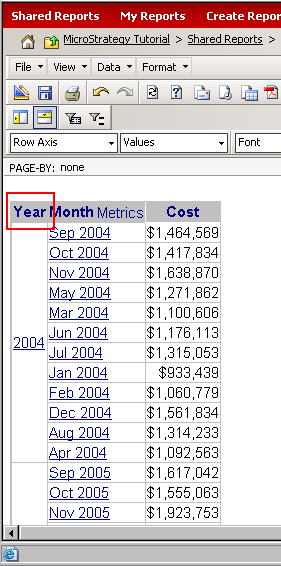
  • Re-run the report with the same prompt answers. Notice that the Year attribute is back in the Rows even when it was moved to the page-by field before saving it, like shown in the image below.
ka04W00000148cOQAQ_0EM440000002VQZ.jpeg

CAUSE:
This is working as designed. Since the report is meant to be prompted every time, it recognizes the prompt object as the object in the template and not the separate attributes chosen in the prompt. When not all of the attributes have been moved to a different place in the template, the object prompt keeps its original place in the template and reverts back to it after re-running the report. On the other hand, if all of the attributes were to be moved together to the same place, then the object prompt's place will be moved entirely to the new location, and will keep the new location after it's been re-run.
 
ACTION:

  1. Create an object prompt for the rows and place it at the rows. Name it accordingly so that users know these attributes will go in the rows.
  2. Create an object prompt for the columns and place it at the columns. Name it accordingly so that users know these attributes will go in the columns.
  3. Create an object prompt for the page-by field and place it at the page-by field. Name it accordingly so that users know these attributes will go in the page-by field.
    Note: If the user is allowed to choose that no attributes are needed in the rows, columns, or page-by, make each respective object prompt not required.

Comment

0 comments

Details

Knowledge Article

Published:

July 12, 2017

Last Updated:

July 12, 2017