EducationSoftwareStrategy.com
StrategyCommunity

Knowledge Base

Product

Community

Knowledge Base

TopicsBrowse ArticlesDeveloper Zone

Product

Download SoftwareProduct DocumentationSecurity Hub

Education

Tutorial VideosSolution GalleryEducation courses

Community

GuidelinesGrandmastersEvents
x_social-icon_white.svglinkedin_social-icon_white.svg
Strategy logoCommunity

© Strategy Inc. All Rights Reserved.

LegalTerms of UsePrivacy Policy
  1. Home
  2. Topics

KB19301: How to create a filter that prompts on two metrics and uses a comparison operator to compare them in MicroStrategy Developer 9.x and 10.x


Stefan Zepeda

Salesforce Solutions Architect • Strategy


KB19301: How to create a filter that prompts on two metrics and uses a comparison operator to compare them in MicroStrategy Developer 9.x and 10.x

Users may want to create a filter that prompts the user to select two metric objects and a comparison operator to compare them in Strategy Developer 9.x and 10.x.
 
There is no available functionality that addresses this kind of filter directly. Users can implement the following workaround in order to create this filter:
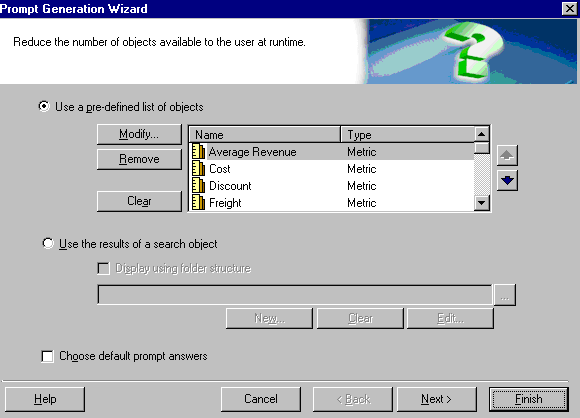
 

  • Create an object prompt to select a metric object from the different metric to be listed. Save this prompt as 'Select a Metric A' as shown below:
ka02R000000kbIxQAI_0EM440000002V8q.jpeg
  • Create another object prompt to select a metric from the different metric to be listed. Save this prompt as 'Select a Metric B'.
  • Create an object prompt to select an operator to compare the metrics selected using the object prompts created in steps 1 and 2. The comparison operators can be found in Schema object > Functions and Operators > Operators > Comparison Operators from 'Available objects' to 'Selected objects' area in 'Select Objects' window. Save this prompt as 'Choose from a list of operators' as shown below:
ka02R000000kbIxQAI_0EM440000002V8n.jpeg
  • Create a metric named `Comparison` with the formula:
    @ (? ,? )
  • Where:
     
     
    • @ is the object prompt for the operator
    • ? and ?) are the object prompts for the metrics
  • Create a new report and include the Category attribute and the Profit and Revenue metrics, as shown below:
ka02R000000kbIxQAI_0EM440000002V8o.jpeg
  • In the report filter, define a set qualification in the report filter:
     
    • Metric: Comparison
    • Condition: Exactly 0 (0 is returned if the condition is true, 1 if it is false).
ka02R000000kbIxQAI_0EM440000002V8w.jpeg
  •  
    NOTE: SQL Server does not work with this syntax, so the filter should be defined as Advanced qualification: ApplyComparison(`#0`,Comparison)
     
ka02R000000kbIxQAI_0EM440000002V8y.jpeg
  • Run the report, and select the Freight, Profit, and the '<' operator. Notice that the elements are filtered by the condition Freight < Profit, as shown below:
ka02R000000kbIxQAI_0EM440000002V8m.jpeg

Comment

0 comments

Details

Knowledge Article

Published:

July 19, 2017

Last Updated:

July 19, 2017