EducationSoftwareStrategy.com
StrategyCommunity

Knowledge Base

Product

Community

Knowledge Base

TopicsBrowse ArticlesDeveloper Zone

Product

Download SoftwareProduct DocumentationSecurity Hub

Education

Tutorial VideosSolution GalleryEducation courses

Community

GuidelinesGrandmastersEvents
x_social-icon_white.svglinkedin_social-icon_white.svg
Strategy logoCommunity

© Strategy Inc. All Rights Reserved.

LegalTerms of UsePrivacy Policy
  1. Home
  2. Topics

KB19304: How to add a prefix/suffix to an attribute using custom formatting in a report in MicroStrategy Developer 9.4.x - 10.x


Stefan Zepeda

Salesforce Solutions Architect • Strategy


This technical note explains how to add a prefix/suffix to an attribute using custom formatting in a report in MicroStrategy Developer 9.4.x - 10.x

Users may wish to add a prefix or suffix to an attribute in a report for display purposes by using custom formatting. Using custom formatting avoids the need of using ApplySimple statements in the definition of the attributes, providing a simpler way to format these objects.
 
The following procedure describes how to define the prefix/suffix using the custom formatting:
 

  • Create a report that includes the attribute to be formatted. Place the attribute in the report template. When running the report, the attribute displays the attribute data as pulled from the warehouse, as shown below:
ka02R000000kcP6QAI_0EM440000002Ekg.jpeg
  • Right-click on the attribute and select the 'Formatting' option. Then select '<AttributeName> Values' as shown below:
ka02R000000kcP6QAI_0EM440000002Eka.jpeg
  • < P>
  • In the Number tab, under `Category`, select Custom.
  • To define a prefix/suffix, use double quotes to enclose them. The number zero (0) represents the attribute value pulled from the warehouse. For example, define a prefix 'Year':
ka02R000000kcP6QAI_0EM440000002EkS.jpeg
  • Click OK to accept the changes.
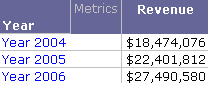
  • Notice how the attribute now shows the prefix defined followed by the value retrieved from the warehouse:
ka02R000000kcP6QAI_0EM440000002Eke.jpeg

Comment

0 comments

Details

Knowledge Article

Published:

April 27, 2017

Last Updated:

April 27, 2017