EducationSoftwareStrategy.com
StrategyCommunity

Knowledge Base

Product

Community

Knowledge Base

TopicsBrowse ArticlesDeveloper Zone

Product

Download SoftwareProduct DocumentationSecurity Hub

Education

Tutorial VideosSolution GalleryEducation courses

Community

GuidelinesGrandmastersEvents
x_social-icon_white.svglinkedin_social-icon_white.svg
Strategy logoCommunity

© Strategy Inc. All Rights Reserved.

LegalTerms of UsePrivacy Policy
  1. Home
  2. Topics

KB19316: Attribute elements are not being grouped correctly when running a report in MicroStrategy Developer


Stefan Zepeda

Salesforce Solutions Architect • Strategy


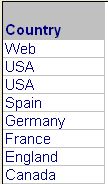
When running a report, attribute elements are not being grouped correctly by the Analytical Engine in MicroStrategy Developer.

SYMPTOM
When running a report, attribute elements are not being grouped correctly by the Analytical Engine in Strategy Developer, as shown in the image below:
 

ka02R000000kbqbQAA_0EM440000002Ej5.jpeg

CAUSE
This behavior is common when the ID of an attribute is mapped to a text column of a fixed length (e. g. CHAR(30)). In such case, it is possible that some elements are sometimes stored with trailing blank spaces.
 
ACTION
Use the Trim function on the attribute form definition to trim the trailing spaces. Go to the Attribute Editor and choose the attribute form that uses a fixed length column. Then, in the Attribute Form Editor, choose the expression and click Modify. In the Modify Form Expression window, type 'Trim(COLUMN_NAME)' as shown below:
 

ka02R000000kbqbQAA_0EM440000002Ej7.jpeg

Click OK and save the changes. The trailing spaces should now be trimmed and the report will group the attribute elements as expected.


Comment

0 comments

Details

Knowledge Article

Published:

June 7, 2017

Last Updated:

June 7, 2017