EducationSoftwareStrategy.com
StrategyCommunity

Knowledge Base

Product

Community

Knowledge Base

TopicsBrowse ArticlesDeveloper Zone

Product

Download SoftwareProduct DocumentationSecurity Hub

Education

Tutorial VideosSolution GalleryEducation courses

Community

GuidelinesGrandmastersEvents
x_social-icon_white.svglinkedin_social-icon_white.svg
Strategy logoCommunity

© Strategy Inc. All Rights Reserved.

LegalTerms of UsePrivacy Policy
  1. Home
  2. Topics

KB19323: How to create a metric that displays a date range defined by answering two date prompts in MicroStrategy Developer 9.4.x-10.x


Stefan Zepeda

Salesforce Solutions Architect • Strategy


It is possible to use a metric to display a date range defined by answering two date prompts in MicroStrategy Developer 9.4.x-10.x

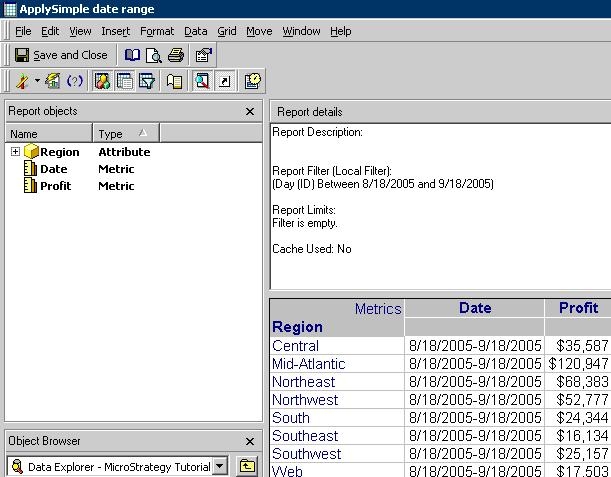
It is possible to use a metric to display a date range defined by answering two date prompts in Strategy Developer 9.4.x-10.x. In the report, the metric should look as follows:
ka02R000000kcSJQAY_0EM440000002EkH.jpeg

The following steps explain how to create a metric that displays a date range in which values come from two date prompts. The final expression depends on the database used in the warehouse.
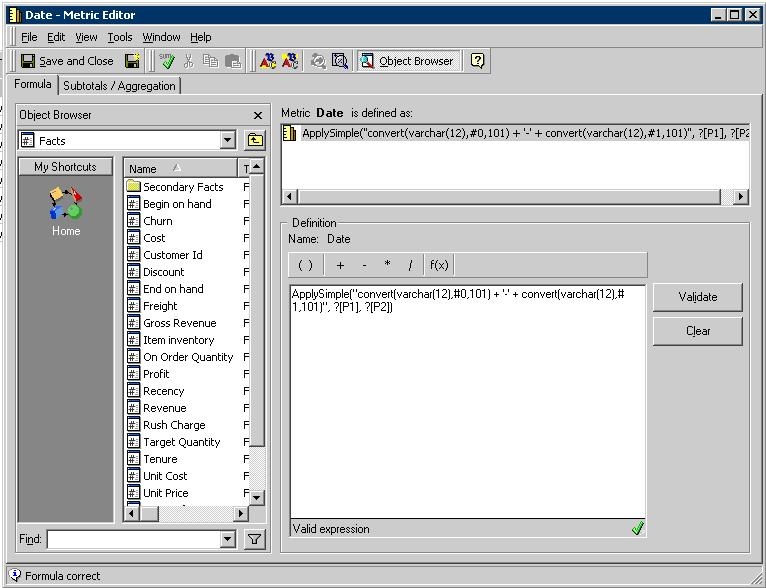
  • Create a new metric and use expression ApplySimple("convert(varchar(12),#0,101) + '-' + convert(varchar(12),#1,101)", ?, ?). Where P1 is the prompt for the initial date and P2 is the final date prompt.
ka02R000000kcSJQAY_0EM440000002EkG.jpeg
  • Click on the Validate button to recognize the prompts.
  • Add this metric to a new report and add Region and Profit to the template.
  • Add the filter that contains both prompts to generate the date prompt.
ka02R000000kcSJQAY_0EM440000002EkH.jpeg

Note: The convert function is specific to SQL Server and is used for converting a Date to String.


Comment

0 comments

Details

Knowledge Article

Published:

April 19, 2017

Last Updated:

April 19, 2017