EducationSoftwareStrategy.com
StrategyCommunity

Knowledge Base

Product

Community

Knowledge Base

TopicsBrowse ArticlesDeveloper Zone

Product

Download SoftwareProduct DocumentationSecurity Hub

Education

Tutorial VideosSolution GalleryEducation courses

Community

GuidelinesGrandmastersEvents
x_social-icon_white.svglinkedin_social-icon_white.svg
Strategy logoCommunity

© Strategy Inc. All Rights Reserved.

LegalTerms of UsePrivacy Policy
  1. Home
  2. Topics

KB19361: When exporting a report to PDF in MicroStrategy Developer 9.4.x-10.x that contains the Autotext "&[Page By]", a comma "," is displayed in between the Page By Attribute elements.


Stefan Zepeda

Salesforce Solutions Architect • Strategy


In MicroStrategy Developer 9.4.x-10.x, when exporting a report to PDF that contains the Autotext "&", a comma "," is displayed in between Page By elements.

SYMPTOM
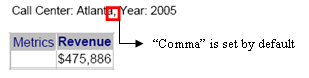
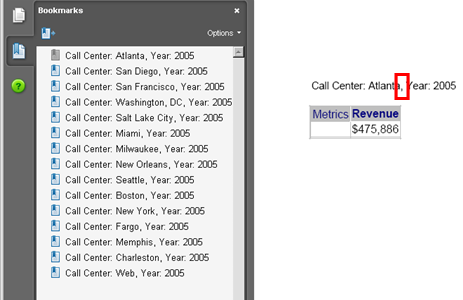
When exporting a report to PDF in Strategy Developer 9.4.x-10.x that contains the Autotext "&", a comma "," is displayed in between Page By elements as shown below.
 

ka02R000000kciJQAQ_0EM440000002Eku.jpeg

 
STEPS TO REPRODUCE:
Using Strategy Tutorial:
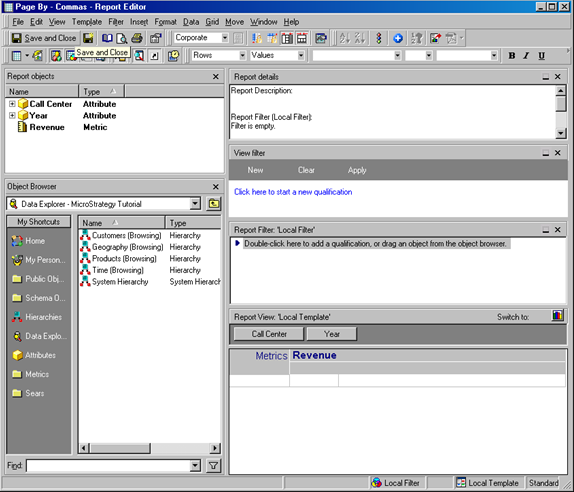
 

  • Create a simple report with the Attributes Call Center and Year in the Page By and the metric Revenue in the grid as shown below.
ka02R000000kciJQAQ_0EM440000002Eks.jpeg
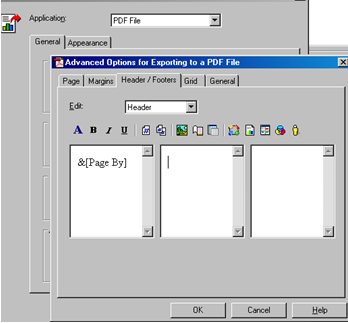
  • Add & under Data-> Export Options -> PDF File -> Advanced options -> Header/Footers tab and click OK as shown in the image below.
ka02R000000kciJQAQ_0EM440000002Ekv.jpeg
  • Run the report and export it to PDF.
  • The PDF now contains the following String: Call Center: Atlanta, Year: 2005
ka02R000000kciJQAQ_0EM440000002Eki.jpeg

CAUSE:
This is currently working as designed in Strategy Developer 9.4.x-10.x. There is no way to modify the formatting for the & Autotext.
 
WORKAROUND:
Perform the following steps to workaround this issue:
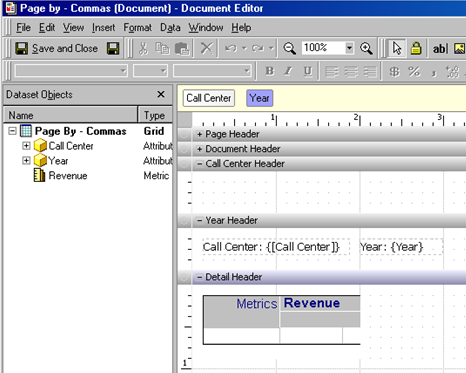
 

  • Create a Report Service Document with the report denoted above as a dataset.
  • Add both Attributes to the Grouping section and the grid to the detail header section as shown in the image below.
ka02R000000kciJQAQ_0EM440000002Ekj.jpeg
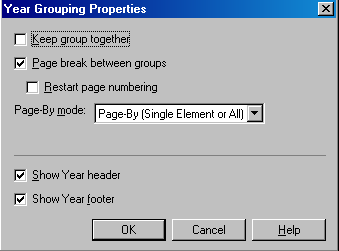
  • Under Year-> Grouping properties, check "Page By between groups" as shown in the image below:
ka02R000000kciJQAQ_0EM440000002Ekx.jpeg
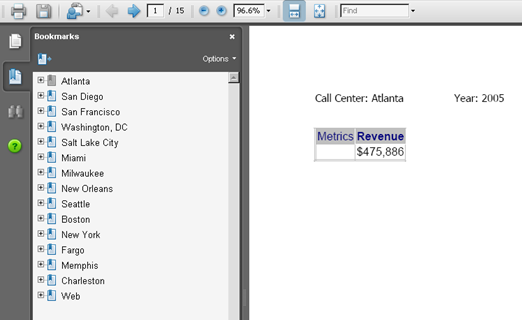
  • Run the Report Service Document.
  • The result should get grid off the comma "," as shown below.
ka02R000000kciJQAQ_0EM440000002Eko.jpeg

Comment

0 comments

Details

Knowledge Article

Published:

April 3, 2017

Last Updated:

April 3, 2017