EducationSoftwareStrategy.com
StrategyCommunity

Knowledge Base

Product

Community

Knowledge Base

TopicsBrowse ArticlesDeveloper Zone

Product

Download SoftwareProduct DocumentationSecurity Hub

Education

Tutorial VideosSolution GalleryEducation courses

Community

GuidelinesGrandmastersEvents
x_social-icon_white.svglinkedin_social-icon_white.svg
Strategy logoCommunity

© Strategy Inc. All Rights Reserved.

LegalTerms of UsePrivacy Policy
  1. Home
  2. Topics

KB19491: Transformation is not being applied in the SQL of the report when the metric is based on a count of an attribute in MicroStrategy Developer 9.x and 10.x


Stefan Zepeda

Salesforce Solutions Architect • Strategy


When creating a report that contains a transformation metric based on the count of an attribute, the transformation is not applied in the SQL of the report in MicroStrategy Developer 9.x and 10.x.

SYMPTOM:
 
When creating a report that contains a transformation metric based on the count of an attribute, the transformation is not applied in the SQL of the report in Strategy Developer 9.x and 10.x.
In the following example, a simple report contains the Year attribute, a report filter based on Year, and a metric that returns the Count of Employees (attribute) with the Last Year transformation applied, as shown below:
 
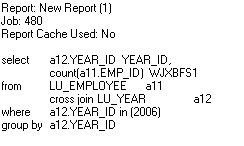
Going to the SQL View shows that the transformation is not being applied in the report, as shown below:
 

ka02R000000kbMXQAY_0EM440000002V8c.jpeg

CAUSE:
This is a limitation with Strategy Developer 9.x and 10.x when the count is performed against a look up table.
 
ACTION:
 
In most cases, users can get the correct results if the metric is based on the count of a fact instead of the count of an attribute.
 
Follow these steps to implement the workaround:
 

  • Create a new fact, based on the same column of the ID column of the attribute in question.
  • Save and close the fact. Update the schema to reflect changes.
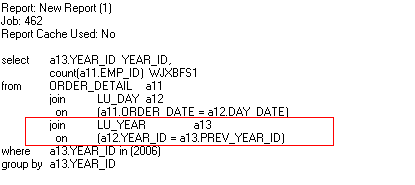
  • Modify the metric previously created. Replace the attribute inside the Count() function for the fact created in step 1.
  • Save and close the changes
  • Re-execute the report. Go to the SQL View. Notice how the transformation is applied correctly:
ka02R000000kbMXQAY_0EM440000002V8e.jpeg

In the cases where the customer wants to return the count of all entries based on the lookup table, this workaround will not apply.


Comment

0 comments

Details

Knowledge Article

Published:

July 17, 2017

Last Updated:

July 17, 2017