In Strategy 9.x, drilling to a template is supported only for reports built against the project's primary, relational schema. When the user drills from an attribute, or attribute element, to a template, filter qualifications from the original report are attached to the new template to form a new report to execute against the warehouse. Resolving the filter against the template requires the full relational schema, and cannot be supported for Extended Data Access (XDA) reporting (Freeform SQL or Query Builder).
Strategy Developer (formerly known as Desktop) has a feature whereby a report can be linked to another report. The target report may be run as is, or prompts in the target report could be answered based on information in the source report. For the end-user, this behaves the same as right-clicking on an attribute and drilling, where the drill map is configured to add this element to the new report's filter.
A report of any type can link to a report of any other type. There is no restriction that Freeform SQL reports must link only to other Freeform SQL reports.
Report object mapping
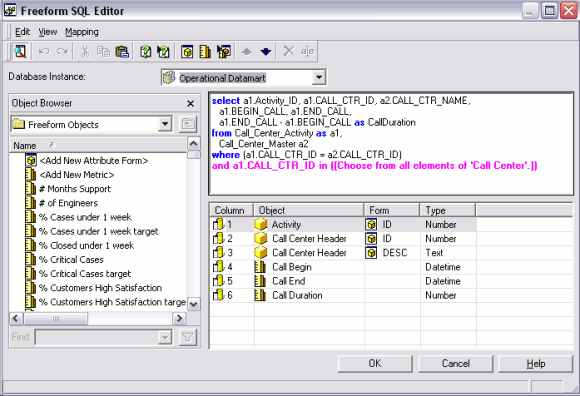
If an attribute element from the source report should be passed into a prompt in the target report, the prompt must be an attribute element list prompt, and the source report's template attribute must be the same object as the attribute in the prompt. An element list prompt must be based on a normal project attribute*; therefore, the template attribute in the source report must be mapped onto the same normal project attribute. Mapping columns onto project attribute forms is accomplished in the Freeform SQL or Query Builder editor by navigating in the object browser at left to the Schema Objects folder. Once the attribute is located, it can be expanded to reveal its attribute forms, and these forms can be dragged into the column list.
To verify that the mapping is correct, go into grid design mode, save the report, and then right-click on the attribute to edit it. Any attribute forms that were mapped to XDA columns should have a form expression for Freeform SQL and/or Query Builder. The source tables for this form expression should be all of the XDA reports that define a mapping for the form.
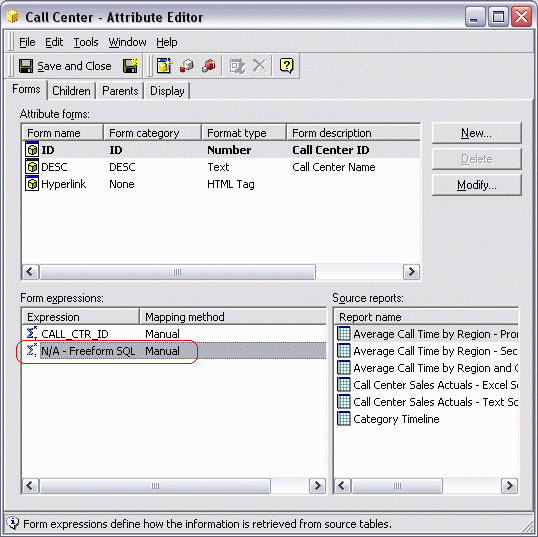
* Note: Element list prompts may also be built using attributes imported from OLAP Cubes. Technically speaking, these are XDA objects, but they are still valid for element browsing because importing an OLAP Cube into a Strategy project creates a schema that allows the Strategy MDX Engine to generate an element browsing query. Freeform SQL or Query Builder reports do not have the benefit of this additional schema information; therefore prompts for these reports must use regular project attributes, which do have the schema support required for query generation.
If it is required to link from a SQL report to an MDX (OLAP Cube) report, the cube attribute should be mapped onto the same project attribute used in the SQL report, and the prompt in the OLAP Cube should use the project attribute.
Linking reports
To set up a report link that behaves like template drilling, perform the following steps:
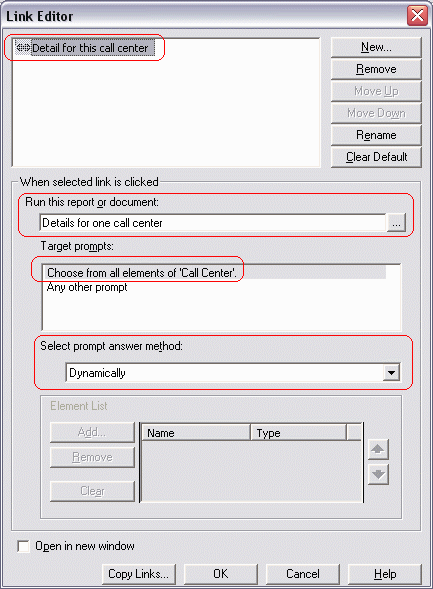
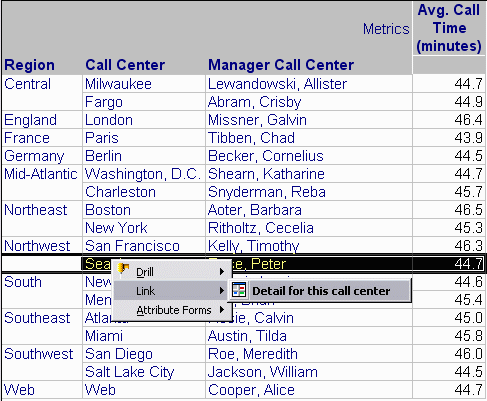
Now, when the report is run, a user can right-click on a Call Center element and choose the target report under the Link submenu. The report will be run and only that Call Center's data will be retrieved (as seen in the page-by selection, where only Seattle is available in the target report).
Further reading
A complete description of the report linking feature is found in the Strategy Advanced Reporting Guide. This PDF manual also includes documentation on Freeform SQL and Query Builder features, with additional details on introducing prompts into Freeform SQL reports, and mapping XDA attributes to project attributes.
