EducationSoftwareStrategy.com
StrategyCommunity

Knowledge Base

Product

Community

Knowledge Base

TopicsBrowse ArticlesDeveloper Zone

Product

Download SoftwareProduct DocumentationSecurity Hub

Education

Tutorial VideosSolution GalleryEducation courses

Community

GuidelinesGrandmastersEvents
x_social-icon_white.svglinkedin_social-icon_white.svg
Strategy logoCommunity

© Strategy Inc. All Rights Reserved.

LegalTerms of UsePrivacy Policy
  1. Home
  2. Topics

KB19718: How to create an event based schedule in the MicroStrategy Intelligence Server 9.x and on.


Community Admin

• Strategy


The MicroStrategy Intelligence Server 9.x and 10.x includes the ability to perform non interactive execution of a variety of tasks. These tasks can be run by providing an external stimulus (called event based schedules), or configured to run at a predetermined time (time based schedules)

The Strategy Intelligence Server 9.x and 10.x includes the ability to perform non interactive execution of a variety of tasks. These tasks can be run by providing an external stimulus (called event based schedules), or configured to run at a predetermined time (time based schedules). The type of actions that may be associated with the schedule, include report and document execution, and some administrative tasks such as invalidating caches.
 
To create an event based schedule, users may follow the steps below:
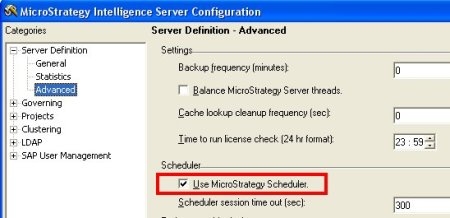
 

  • Check the Intelligence Server configuration to ensure that Strategy Scheduler feature is enabled as expected.
ka04W000000OhPUQA0_0EM440000002BEG.jpeg
  • Create a new schedule by navigating in Strategy Desktop to the Administration tab and then to the Schedule Manager folder. Right click and select New and then Schedule. Alternatively, when the Schedule Manager folder is selected, users may go to the File menu in Strategy Desktop and Select New and then Schedule.
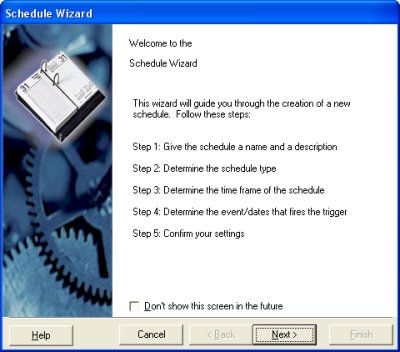
  • The schedule wizard will be displayed as shown below. Users should click the "Next" button to continue.
ka04W000000OhPUQA0_0EM440000002BEE.jpeg
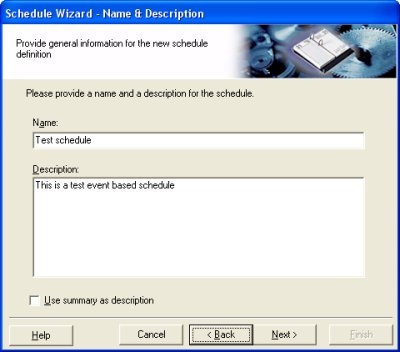
  • The user will now be prompted to enter a name and description for the schedule as shown below. Users should click on the "Next" button to continue.
ka04W000000OhPUQA0_0EM440000002BER.jpeg
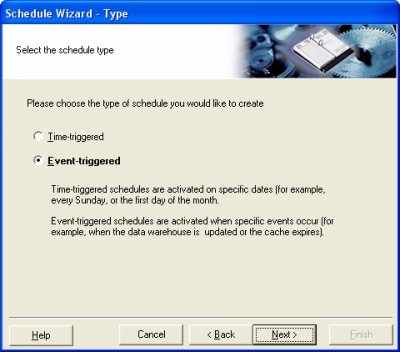
  • Users should select "Event-triggered" as the type of schedule and click on the "Next" button.
ka04W000000OhPUQA0_0EM440000002BEP.jpeg
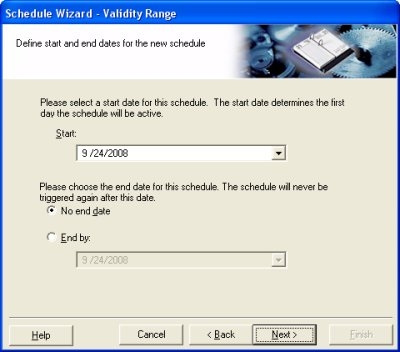
  • Users can now pick the start date and end date within which the schedule will be active. This is the length of time for which the schedule will run. Users can select the "No end date" to keep the schedule active forever.
ka04W000000OhPUQA0_0EM440000002BEN.jpeg
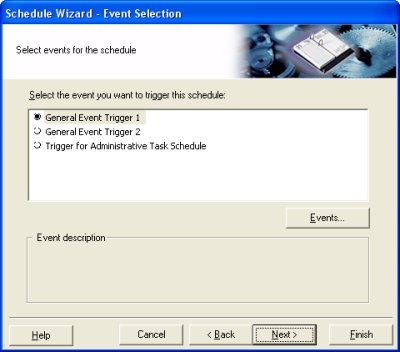
  • In the next screen, users can select the event with which the schedule will be triggered. If the event does not already exist, users may click on the "Events" button to bring up the Event Viewer dialog box in which new Events may be created.
ka04W000000OhPUQA0_0EM440000002BEO.jpeg
  • Users can click "Next" and then "Finish" to complete the process of creating the schedule. The newly created schedule can be viewed in the Schedule Monitor folder, and users can now schedule reports, documents or other administrative actions for this schedule trigger.
  • The schedule itself can be triggered by triggering the event it has been tied to, either from the Event Viewer dialog, or through command manager or through the Fire Event capability of the Strategy SDK.

Note:
Event based schedules execute only on the Intelligence Server node on which they were triggered. If the scheduled action must be carried out on a different node in a cluster, users should trigger the event on those nodes individually using command manager or by other means.


Comment

0 comments

Details

Knowledge Article

Published:

May 22, 2017

Last Updated:

May 22, 2017