EducationSoftwareStrategy.com
StrategyCommunity

Knowledge Base

Product

Community

Knowledge Base

TopicsBrowse ArticlesDeveloper Zone

Product

Download SoftwareProduct DocumentationSecurity Hub

Education

Tutorial VideosSolution GalleryEducation courses

Community

GuidelinesGrandmastersEvents
x_social-icon_white.svglinkedin_social-icon_white.svg
Strategy logoCommunity

© Strategy Inc. All Rights Reserved.

LegalTerms of UsePrivacy Policy
  1. Home
  2. Topics

KB19828: How to display hidden and invisible folders/objects in MicroStrategy Developer?


Stefan Zepeda

Salesforce Solutions Architect • Strategy


This technical note outlines how to display hidden and invisible folders/objects in MicroStrategy Developer

A set of folders created by Strategy Developer is not visible by default. Below is the list of hidden and invisible folders:
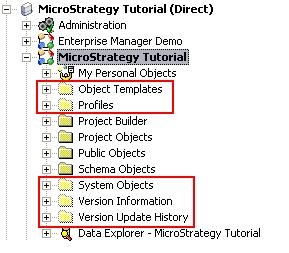
  • Profiles
  • Object Templates
  • Version Update History
  • Version Information
  • System Objects
ka0PW0000000duDYAQ_0EM440000002EhL.jpeg

Note: Modifying or deleting any hidden folders or objects will cause serious metadata inconsistencies.
The viewing of hidden folders or objects via Strategy Developer for troubleshooting purposes can be achieved by performing the steps outlined below:
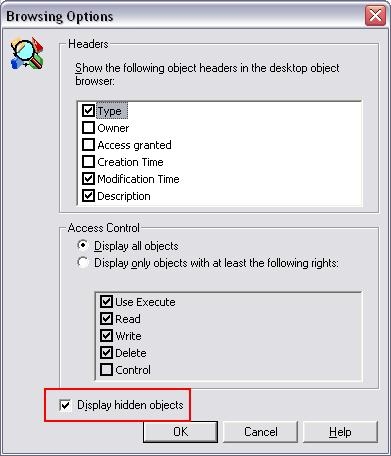
  • Start Strategy Desktop and navigate to Tools >Desktop Preferences.
  • Under the Browsing section click on "Browsing Options".
  • Once inside the Browsing Options page, check the option "Display Hidden Objects" as seen below:
ka0PW0000000duDYAQ_0EM440000002EhJ.jpeg

The above steps only display 'Profiles', 'Object Templates', 'Version Update History' and 'Version Information' folders. To display 'System Objects' folder, please perform the following additional steps:

  1. Close Strategy Developer.
  2. Go to the registry editor and locate the following key: HKEY_CURRENT_USER > Software > Strategy > DSS Agent > DSS Agent > ShowInvisibleObjects. Set this to 'yes.'
  3. The 'System Objects' folder displays after starting Strategy Developer again.

Note: Choosing to display the hidden objects will apply to all the project sources that are configured in Strategy Developer.
Registry Modification:
WARNING:
Modifying registry values incorrectly may cause serious, system-wide problems that may require the re-installation of Microsoft Windows NT/2000. Any edit of the registry is done at the user's own risk. Since these are user-initiated changes, they are not covered by any Strategy warranty. If using Microsoft Windows NT/2000, the user should backup the registry and/or update an Emergency Repair Disk (ERD) prior to alterations.


Comment

0 comments

Details

Knowledge Article

Published:

March 31, 2017

Last Updated:

February 26, 2024