EducationSoftwareStrategy.com
StrategyCommunity

Knowledge Base

Product

Community

Knowledge Base

TopicsBrowse ArticlesDeveloper Zone

Product

Download SoftwareProduct DocumentationSecurity Hub

Education

Tutorial VideosSolution GalleryEducation courses

Community

GuidelinesGrandmastersEvents
x_social-icon_white.svglinkedin_social-icon_white.svg
Strategy logoCommunity

© Strategy Inc. All Rights Reserved.

LegalTerms of UsePrivacy Policy
  1. Home
  2. Topics

KB19846: When printing a graph that uses patterns in MicroStrategy Developer, the results in Print Preview and the print job itself do not reflect the selected formatting.


Stefan Zepeda

Salesforce Solutions Architect • Strategy


SYMPTOM:
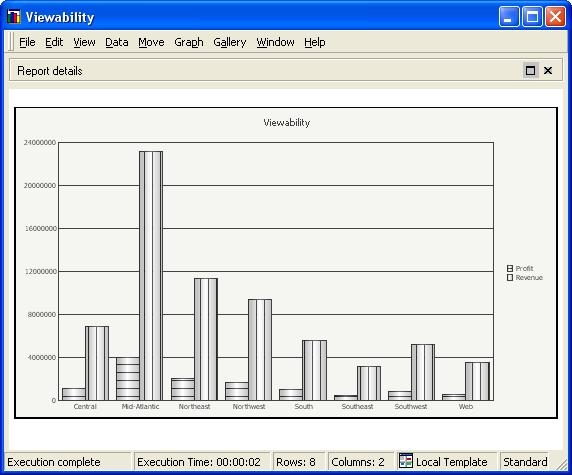
When printing a graph that uses patterns in Strategy Developer, the results in Print Preview and the print job itself do not reflect the selected formatting. For example, the following graph may not print as expected.
 

ka02R000000kbbVQAQ_0EM440000002Efq.jpeg

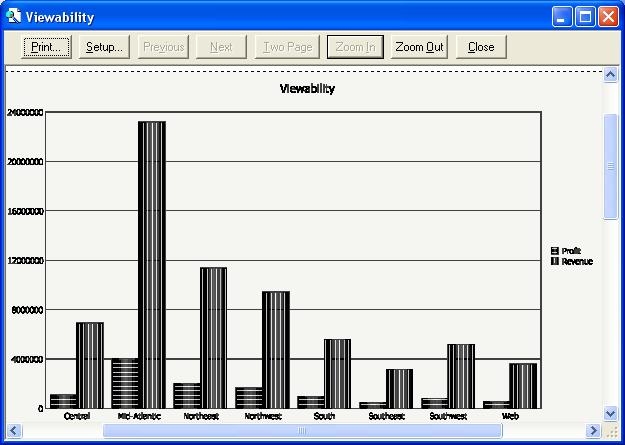
In Print Preview, the above graph looks like the following:
ka02R000000kbbVQAQ_0EM440000002Efs.jpeg

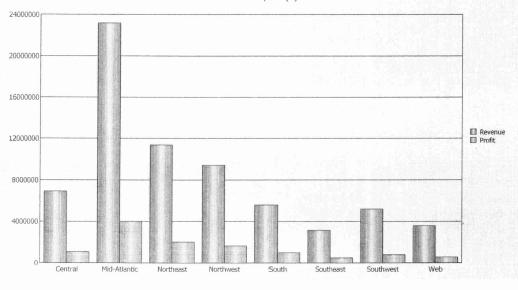
The following is an image of the hard copy:
ka02R000000kbbVQAQ_0EM440000002Eft.jpeg


ACTION:
There are two potential solutions for this issue:

  1. Choosing a darker pattern and a lighter pattern results in the two series being distinguishable from one another.
  2. It it is possible to get the desired appearance in Report Services. Follow these steps:
    1. Add the graph (with formatting) to the Detail Header section of a document.
    2. For the Format menu, select Document Properties.
    3. On the 'Export' tab, under the PDF section, fill in the check-box 'Use bitmaps for graphs' and click 'OK'. After generating the PDF, the graph should print as expected.
  3. NOTE: This will increase the size of the PDF that is generated.


Comment

0 comments

Details

Knowledge Article

Published:

June 13, 2017

Last Updated:

June 13, 2017