EducationSoftwareStrategy.com
StrategyCommunity

Knowledge Base

Product

Community

Knowledge Base

TopicsBrowse ArticlesDeveloper Zone

Product

Download SoftwareProduct DocumentationSecurity Hub

Education

Tutorial VideosSolution GalleryEducation courses

Community

GuidelinesGrandmastersEvents
x_social-icon_white.svglinkedin_social-icon_white.svg
Strategy logoCommunity

© Strategy Inc. All Rights Reserved.

LegalTerms of UsePrivacy Policy
  1. Home
  2. Topics

KB199162: How to check the version of the MicroStrategy Enterprise Manager project?


Community Admin

• Strategy


An upgrade from MicroStrategy Configuration wizard will only upgrade the metadata objects as required for that MicroStrategy version and is no different from upgrading any other project through the wizard.

Question

How to check the version of the Strategy Enterprise Manager project?

Answer

The version of the Strategy Enterprise Manager project is not necessarily the same as the version of Strategy Developer 9.4.x-10.x. Upgrading the Strategy Enterprise Manager project metadata using Strategy Configuration Wizard will not provide the latest Strategy Enterprise Manager project released with that version (with the new application and schema objects). An upgrade from Strategy Configuration wizard will only upgrade the metadata objects as required for that Strategy version and is no different from upgrading any other project through the wizard.
 
Refer to the following Strategy Knowledge Base document for information on how to upgrade the Strategy Enterprise Manager project.
KB30304: How to upgrade the Strategy Enterprise Manager 9.x project to the latest version of Strategy Enterprise Manager?  
 
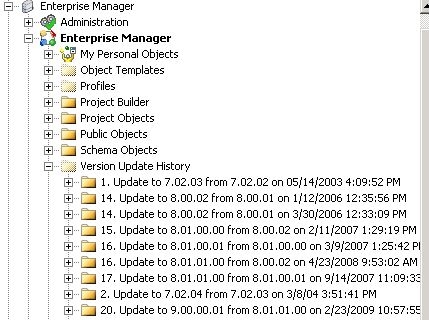
To check the version of the Strategy Enterprise Manager project, i.e., to get the release corresponding to a particular Strategy Enterprise Manager project, users can check the version history of the project. Follow the steps below to check the version history:
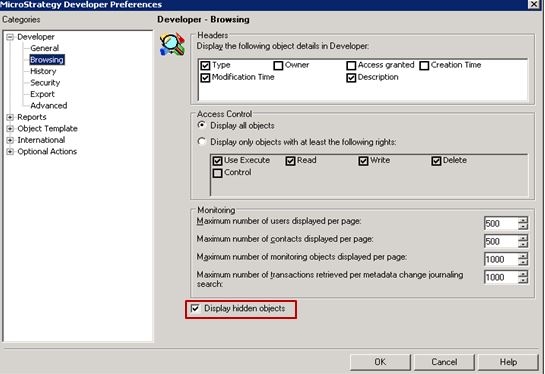
 

  • On Strategy Developer 9.4.x-10.x, login to the Strategy Enterprise Manager project.
  • From the Tools menu in  Strategy Developer 9.4.x-10.x, select 'Preferences'.
  • Under Desktop/Developer browsing options, choose 'Display hidden objects'. Click on OK to save the preferences.

ka04W000000OhDOQA0_0EM4400000029Lq.jpeg
  • Find the folder 'Version Update History' and collect a screenshot of showing all the entries within that folder. Contact Strategy Technical Support with this screenshot. The following screenshot shows a snippet of the entries available in the Strategy Enterprise Manager 9.4.1 project.

ka04W000000OhDOQA0_0EM4400000029Lp.jpeg

Comment

0 comments

Details

Knowledge Article

Published:

May 30, 2017

Last Updated:

May 30, 2017