SUMMARY:
This issue has been classified as a defect by Strategy. It impacts all Visual Insight dashboards that are reopened after making changes in an underlying report. The workarounds are available for the issue. The issue is scoped for the next upcoming Strategy release. Contact Strategy Technical Support for more details.
SYMPTOM:
A user may want to create a report and apply certain conditions using a view filter on the fly. When a user creates a Visual Insight (VI) dashboard using the report with the view filter to further explorer business data, he notices that view filters are not applied in a Visual Insight dashboard in Strategy Web 9.4.1.
STEPS TO REPRODUCE:
2. Run the report and perform right mouse click on the Category attribute. In the drop-down menu select "Filter On..."
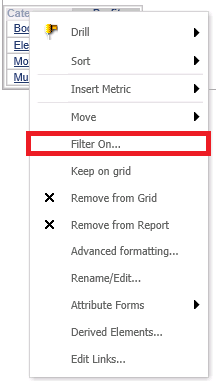
3. Select Qualify on DESC where description "Does not equal" Books and click Apply as shown below:

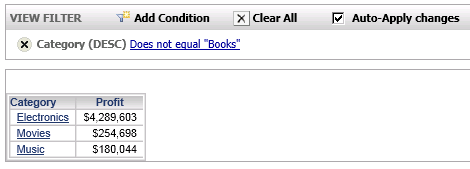
4. As expected, Books attribute element is no longer displayed on the grid:
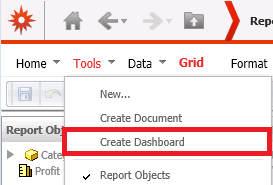
5. Select Tools in the menu and click on "Create dashboard"
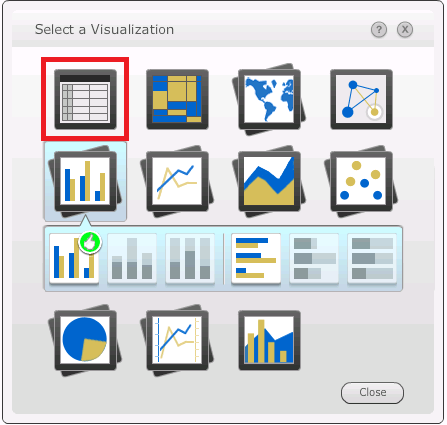
6. User will be prompted to select visualization. Select Grid visualization:
7. Notice that Books attribute element appears on the grid:
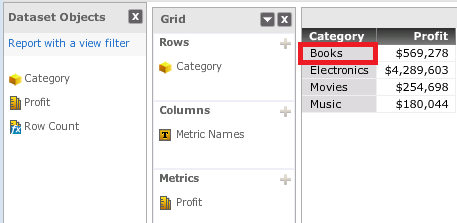
NOTE: The issue does not occur in a Report Services Document that uses the same report with view filter:
CAUSE:
The issue has been clasified as a defect in Strategy Web 9.4.1 and affects all Visual Insight dashboards that use reports with view filters.
ACTION:
This issue has been addressed with Strategy 10. Upgrade to take advantage of the fix.
WORKAROUND:
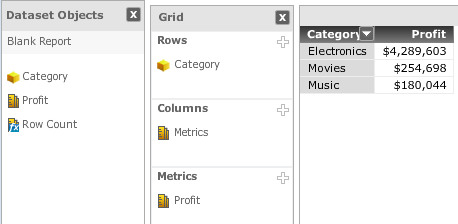
- Use a report filter instead of a view filter. As shown below, the filter is applied (Books attribute element is not displayed) in a Visual Insight dashboard:
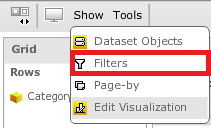
- Use a filter that is built in Visual Insight dashboard:
ADDITIONAL TROUBLESHOOTING:
If the steps above do not resolve the issue, please consider calling Strategy tech support with the following information of troubleshooting already done:
This will allow Technical Support to test and verify if the issue is the same.
TO LEARN MORE:
Please refer to Chapter 1: Getting Started with MicroStartegy Reporting and Chapter 7: Building Query Objects and Queries for Designers, section Designing reports that use OLAP Services in the Basic Reporting Guide product manual for more information on view filters.
