EducationSoftwareStrategy.com
StrategyCommunity

Knowledge Base

Product

Community

Knowledge Base

TopicsBrowse ArticlesDeveloper Zone

Product

Download SoftwareProduct DocumentationSecurity Hub

Education

Tutorial VideosSolution GalleryEducation courses

Community

GuidelinesGrandmastersEvents
x_social-icon_white.svglinkedin_social-icon_white.svg
Strategy logoCommunity

© Strategy Inc. All Rights Reserved.

LegalTerms of UsePrivacy Policy
  1. Home
  2. Topics

KB199722: Name space of tables in primary database instance for a project cannot be updated even though "Ignore current table name space..." option is enabled in Warehouse Catalog in MicroStrategy Developer 9.x


Stefan Zepeda

Salesforce Solutions Architect • Strategy


Warehouse table under certain name space was imported into project via primary database instance in Warehouse Catalog in MicroStrategy Desktop 9.x. If the name space on the warehouse side is changed, name space of the table in MicroStrategy project cannot be updated even though "Ignore current table name space when reading from the database catalog and update using new table name space" option is checked in Warehouse Catalog

Symptoms

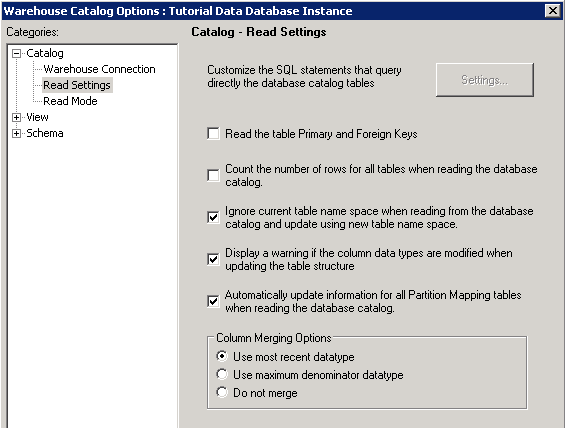
Suppose a warehouse table under certain name space was imported into project via primary database instance in Warehouse Catalog in Strategy Developer 9.x. If the name space on the warehouse side is changed, name space of the table in Strategy project cannot be updated even though "Ignore current table name space when reading from the database catalog and update using new table name space" option is checked in Warehouse Catalog options as shown below:
ka02R000000kXzJQAU_0EM440000002CFq.jpeg


Diagnosis

This is a known issue in Strategy Developer 9.3.1

Solution

This issue was fixed in MicroStategy Developer 9.5
 
Workaround

  • Check option "Ignore current table name space when reading from the database catalog and update using new table name space" in Warehouse Catalog>Options>Read Settings.
  • In Warehouse Catalog, select all the problem tables and right click on them. Choose "Table Database Instances" as shown below:
     
     
ka02R000000kXzJQAU_0EM440000002CFs.jpeg
  • Change Primary Database Instance to the one without suffix "project primary database instance" as shown below:
     
ka02R000000kXzJQAU_0EM440000002CFx.jpeg
ka02R000000kXzJQAU_0EM440000002CFv.jpeg
  • Click on Read to read table information. Save and close Warehouse Catalog.
  • Open Warehouse Catalog again. Change the DB instance of the table back to the original one. 


Comment

0 comments

Details

Knowledge Article

Published:

June 12, 2017

Last Updated:

June 12, 2017