EducationSoftwareStrategy.com
StrategyCommunity

Knowledge Base

Product

Community

Knowledge Base

TopicsBrowse ArticlesDeveloper Zone

Product

Download SoftwareProduct DocumentationSecurity Hub

Education

Tutorial VideosSolution GalleryEducation courses

Community

GuidelinesGrandmastersEvents
x_social-icon_white.svglinkedin_social-icon_white.svg
Strategy logoCommunity

© Strategy Inc. All Rights Reserved.

LegalTerms of UsePrivacy Policy
  1. Home
  2. Topics

KB19990: How to create an object prompt in MicroStrategy Developer


Stefan Zepeda

Salesforce Solutions Architect • Strategy


How to create an object prompt in MicroStrategy Developer

What is an object prompt?
Object prompts allow users to access either a pre-defined list or the results of a search to limit the number of objects available at runtime.
 
How is the Prompt Generation Wizard accessed?
To access the Prompt Generation Wizard, execute the following:
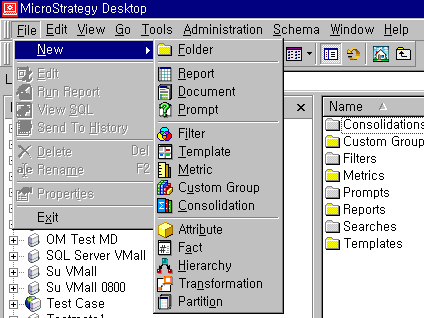
  • Go to 'New' from the File menu, and choose 'Prompt.'
     
ka044000000kInnAAE_0EM440000002GJC.gif
  •  
    NOTE: Users must be granted 'Create Application Objects' and 'Use Prompt Editor' privileges.

 
How is an object prompt created?
To create an object prompt, execute the following steps:
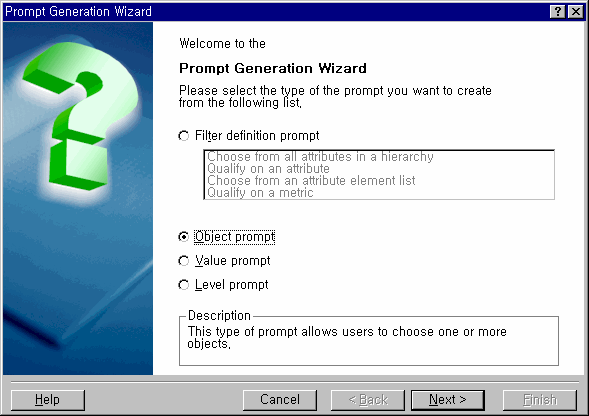
  • From the Prompt Generation Wizard, select 'Object prompt.'
     
ka044000000kInnAAE_0EM440000002GJ3.gif
  • Perform one of the following actions to specify an object prompt:
     
    • Select 'Use a pre-defined list of objects' and click on 'Add.' The 'Select Objects' dialog box, where objects can be chosen to be available to the user at runtime, opens.
       
      OR
       
    • Select 'Use the results of a search object.' Click on the ellipsis '...' to select a search object from a list of available searches. Select the search object and click on 'OK.'
       
      OR
       
    • Select 'Use the results of a search object.' Click on 'New' to create a new search object. In the 'Search for Objects' dialog box, define the search and click on 'OK.' Save the search.
ka044000000kInnAAE_0EM440000002GJ5.gif
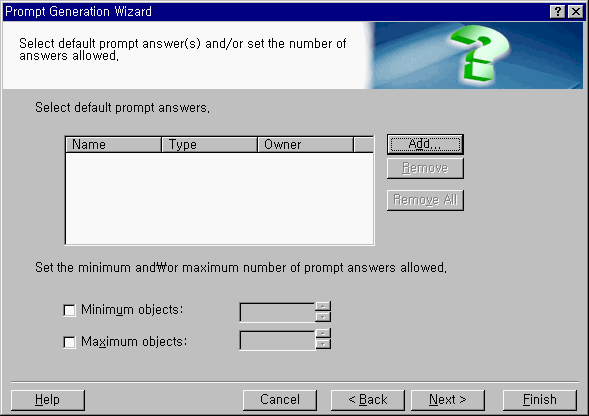
  • To specify default answers for the prompt, check the 'Choose default prompt answers' checkbox and click on 'Next.' Execute one of the following options:
    • To specify default prompt answers, click on 'Add.' The 'Select Objects' dialog box opens. From the list of available objects, select the objects to be used as default values for the prompt and click on '>' to add them to the list of selected objects. Click on 'OK.'
       
      OR
       
    • To limit the minimum and the maximum number of attribute elements a user is allowed to choose, check the appropriate check box and set the limit. Click on 'Next.'
ka044000000kInnAAE_0EM440000002GJE.gif
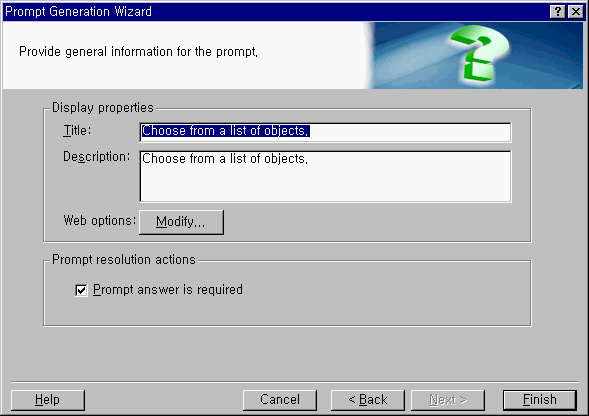
  • Enter a title and a description for the prompt. Click on 'Modify' to determine how the prompt will appear in Strategy Web. The 'Choose a Prompt Style' dialog box opens. Select a prompt style and click on 'OK.' To ensure the prompt requires an answer, select the 'Prompt answer is required' checkbox.
     
ka044000000kInnAAE_0EM440000002GJI.gif
  • Click on 'Finish' and save the prompt. The prompt may now be used to build a report.


KB19990


Comment

0 comments

Details

Knowledge Article

Published:

June 8, 2017

Last Updated:

December 5, 2018