Dynamic dates are dates that change constantly and are calculated with respect to the current date. As a result, these dates are re-calculated each time the current date changes.
Dynamic dates are created in Strategy Developer by using the Filter Editor. To access the Date Editor to create dynamic dates, execute the following steps:
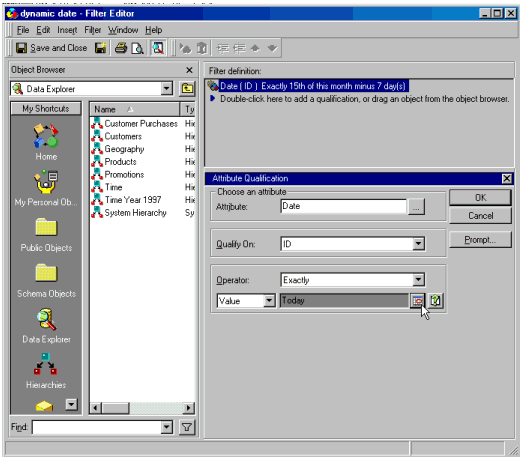
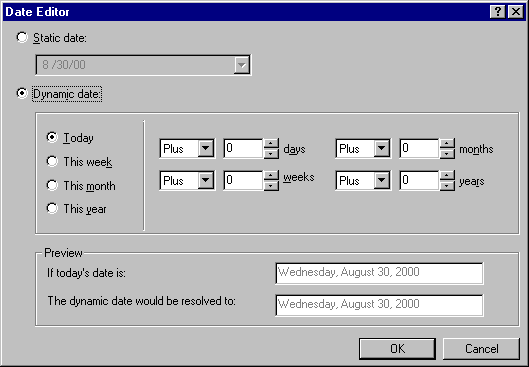
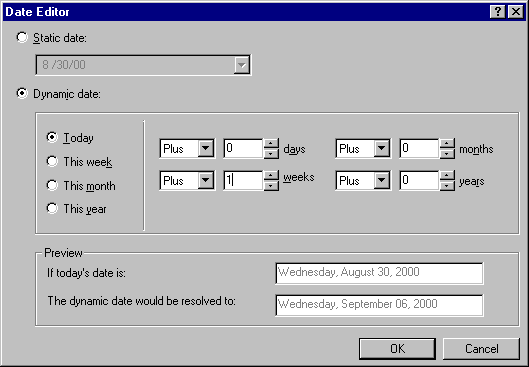
Example for the 'Today' option:
In this example, one week is added to the current date via the list boxes to the right of the different date choices. As a result, the dynamic date will resolve to September 6, 2000, or one week from August 30, 2000.
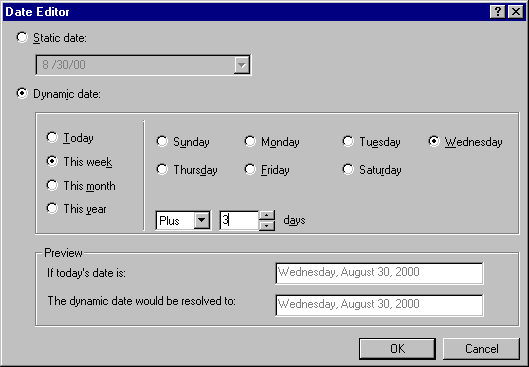
Example for the 'This week' option:
In this example, three days are added to the system date (August 30, 2000) and the date will resolve to that Wednesday. Since adding three days keeps the date in the same week, the date resolves as if no days were added. However, if four days are added, the starting date moves to the next week and the date then resolves to September 6, 2000.
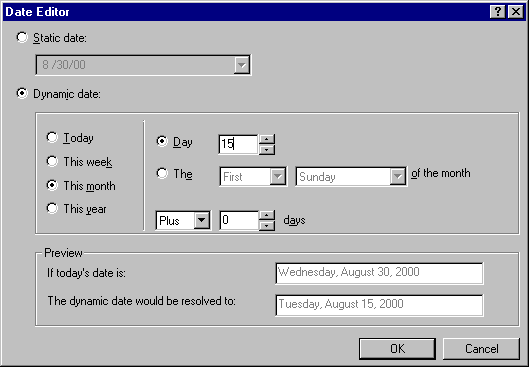
Example for the 'This month' option:
In this example, the date always resolves to the fifteenth day of the current month, even if the current date is beyond the fifteenth day. Other options are illustrated below:
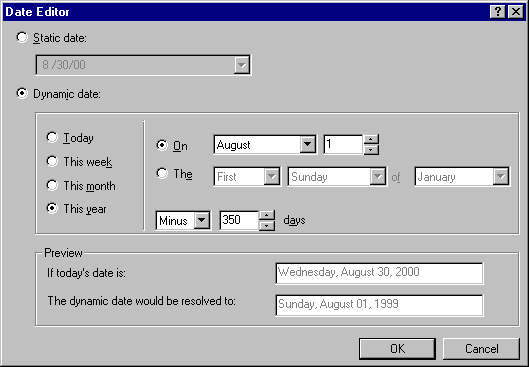
Example for the 'This year' option:
In this example, 350 days are first subtracted from the beginning date of August 30, 2000. Based on this adjusted starting date, the date resolves to August 1 of that year. Since 350 days are subtracted from the beginning date, the year becomes 1999 and the date resolves to August 1, 1999.
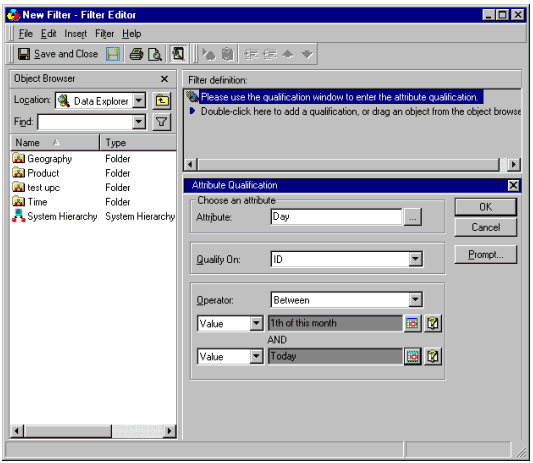
'Month-to-Date' Dynamic Dates:
Month-to-Date dynamic dates can be created by choosing the 'Between' operator in the filter editor and by using the Date Editor to create two dates. The first date will be the first day of the month and the second will be the current date ('Today') as shown in the example below:
Article Reference Number:
KB20000
