EducationSoftwareStrategy.com
StrategyCommunity

Knowledge Base

Product

Community

Knowledge Base

TopicsBrowse ArticlesDeveloper Zone

Product

Download SoftwareProduct DocumentationSecurity Hub

Education

Tutorial VideosSolution GalleryEducation courses

Community

GuidelinesGrandmastersEvents
x_social-icon_white.svglinkedin_social-icon_white.svg
Strategy logoCommunity

© Strategy Inc. All Rights Reserved.

LegalTerms of UsePrivacy Policy
  1. Home
  2. Topics

KB20022: How to use the ApplyComparison function to bypass the SQL engine in MicroStrategy


Community Admin

• Strategy


This article explains how the applycomparison function works in MicroStrategy

Pass-through expressions are intended to provide access to the special functions or syntactic constructs that are not standard in Strategy, but are provided by various Relational Database Management System (RDBMS) platforms. There are five predefined Apply functions that can be used to replace regular, predefined functions of the same type.

  • ApplySimple: where simple operators (e.g. arithmetic operators) can be used.
  • ApplyAgg: where aggregate functions (e.g. Sum, Max, etc) can be used.
  • ApplyRelative: where Online Analytical Processing (OLAP) functions (e.g., Rank, etc.) can be used.
  • ApplyComparison: where comparison operators (e.g., >, =, Like, In, etc) can be used.
  • ApplyLogic: where logical operators (e.g., And, Or, etc) can be used.

 
With these Apply functions, project designers can customize expressions in the Attribute, Filter and Metric Editors to utilize RDBMS functions that are not provided by Strategy.
Below is an example of the ApplyComparison expression.
 
SYNTAX
The ApplyComparison function is used with comparison operators such as >, Like, and In, which accepts facts, attributes, and metrics as input. For example:


ApplyComparison ("#0>#1", Store@ID, Month@ID)

To use a special fixed comparison operator (for example, MYCOMPARISON) in a condition (WHERE clause) comparing the IDs of attribute1 and attribute2, the following statement is run:

ApplyComparison ("MYCOMPARISON (#0, #1)", attribute1@ID, attribute2@ID)

Another special fixed comparison operator (for example, '>o<') in a hypothetical situation comparing attribute1 and attribute2 that could be used is demonstrated in the statement below:

ApplyComparison ("#0 >o< #1", attribute1@ID, attribute2@ID)
Note: '#' is a reserved character for Strategy 'n' is the number of the parameter outside the quotes, starting with '0' and increasing in increments of '1.'
 
EXAMPLE
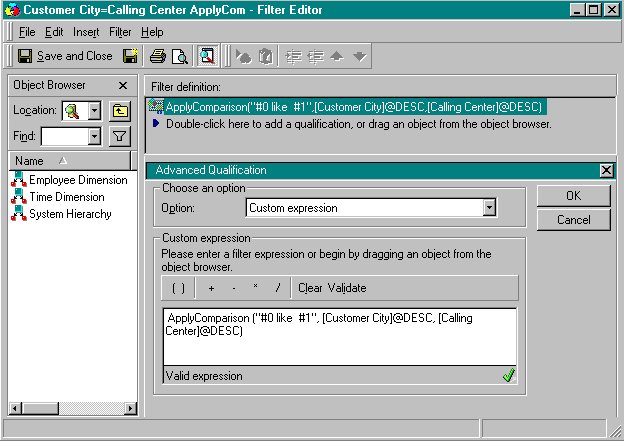
This example illustrates how to create a filter where one attribute is exactly the same as the second attribute (for example, 'Customer City = Calling Center').
Make the Advanced Qualification Editor available by right-clicking on a project name > Preferences > Editor tab > Filter button > select 'Show Advanced Qualification.'

ka04W000000OahtQAC_0EM440000002GKL.gif


ApplyComparison ("#0 like #1", [Customer City]@DESC, [Calling Center]@DESC)

select a23.CUSTOMER_ID  CUSTOMER_ID,
 max(a24.CUST_LAST_NAME)  CUST_LAST_NAME,
 max(a24.CUST_FIRST_NAME)  CUST_FIRST_NAME,
 a24.CUST_CITY_ID  CUST_CITY_ID,
 max(a26.CUST_CITY_NAME)  CUST_CITY_NAME,
 sum(a21.ORDER_AMT) DOLLARSALES
from ORDER_FACT a21
 join LU_EMPLOYEE a22
   on  (a21.EMP_ID = a22.EMP_ID)
 join LU_ORDER a23
   on  (a21.ORDER_ID = a23.ORDER_ID)
 join LU_CUSTOMER a24
   on  (a23.CUSTOMER_ID = a24.CUSTOMER_ID)
 join LU_CALL_CTR a25
   on  (a22.CALL_CTR_ID = a25.CALL_CTR_ID)
 join LU_CUST_CITY a26
   on  (a24.CUST_CITY_ID = a26.CUST_CITY_ID)
where a26.CUST_CITY_NAME like  a25.CENTER_NAME
group by a23.CUSTOMER_ID,
 a24.CUST_CITY_ID

 
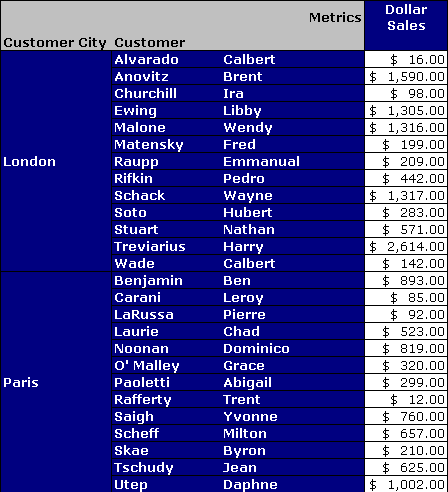
The results are displayed below:

Filter: Customer City = Calling Center

ka04W000000OahtQAC_0EM440000002GKX.gif

Note:
'ApplyComparison ("#0 = #1", [Customer City]@DESC, [Calling Center]@DESC)' also produces the same results.
 
Article Reference Number: 
KB20022


Comment

0 comments

Details

Knowledge Article

Published:

May 9, 2017

Last Updated:

December 30, 2018