EducationSoftwareStrategy.com
StrategyCommunity

Knowledge Base

Product

Community

Knowledge Base

TopicsBrowse ArticlesDeveloper Zone

Product

Download SoftwareProduct DocumentationSecurity Hub

Education

Tutorial VideosSolution GalleryEducation courses

Community

GuidelinesGrandmastersEvents
x_social-icon_white.svglinkedin_social-icon_white.svg
Strategy logoCommunity

© Strategy Inc. All Rights Reserved.

LegalTerms of UsePrivacy Policy
  1. Home
  2. Topics

KB20124: Best practices to migrate cubes (SAP BW, MSAS or Essbase) and cube objects (attributes) using MicroStrategy Object Manager


Community Admin

• Strategy


This document gives a list of best practices when it comes to migrate MDX cubes with MicroStrategy Object Manager.

Strategy Object Manager can be used to move objects between related projects. For more information about Object Manager, refer to the following knowledge base document:
KB4609: MicroStrategy Object Manager Frequently Asked Questions (FAQ)
Object Manager can be used to move cubes and cube based reports and attributes between related projects across different environments. Consider the following scenario:
  1. A cube is imported into Strategy (Development) and reports are built based on this cube.
  2. Using Object Manager, the above cube based reports are migrated into Production. Since this is the first time the cube and cube based objects are being migrated into Production, there is no conflict resolution and all the new objects are copied into Production.
  3. The structure of the cube is updated in the cube source.
  4. In the Development environment, the cube structure in Strategy is also updated through the OLAP Cube Catalog. Also, consider attribute mappings are modified or attribute forms are manipulated.
  5. Existing OLAP Cube reports in Development are modified.
  6. Using Object Manager, the modified reports in Development are moved over to Production.
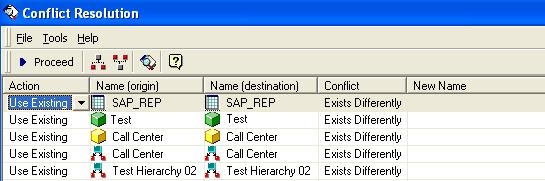
  7. Since the cube, attribute and report already exists in Production (the old version), a conflict resolution window now appears for users, to allow them to choose the actions on the existing cubes and cube objects. The conflict resolution window can be as shown below:
ka04W00000148QDQAY_0EM440000002EeW.jpeg

 
When attributes and cubes appear in the conflict resolution window, users have the option of choosing the required action such as use existing, replace etc. When the right practices are not followed during migration of cube objects, inconsistencies can arise in the Target Metadata. The following are the best practices to follow to prevent inconsistencies:
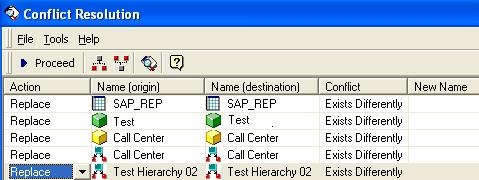
 

  • If the cube appears in the conflict migration window, indicating that there is a discrepancy between the source and destination in the cube definition, the conflict resolution on the cube should be set to "Replace" and also all the attributes from this cube should also be set with "Replace" and NOT "Use Existing", as shown below. The conflict resolution on the other objects such as reports needs to be 'Replace' if the reports need to be modified in the destination.
ka04W00000148QDQAY_0EM440000002Eek.jpeg
  • If the cube does not appear in the conflict resolution, all the attributes used in a MDX cube (that appear in the conflict resolution) should be migrated with "Replace" option.

Important Notes:

  • User SHOULD NOT import/update cubes in both the source and destination metadata.
  • Cube import/update should be done ONLY in the source metadata.
  • Performing cube update/import in both the source and destination metadata and subsequent cube migration operations will cause irreversible metadata inconsistencies.


KB20124


Comment

0 comments

Details

Knowledge Article

Published:

May 4, 2017

Last Updated:

September 10, 2018